
9. Integrations
LivingRoom can exchange data with other systems: it pulls orders, settlements and inventory figures from the Walmart Marketplace API, writes files for QuickBooks, syncs with a third-party logistics provider (3PL), feeds Power BI and sends e-mail through your mail server. This chapter explains what each connection does, how to set it up and where the data ends up.
Important: The Walmart API, QuickBooks, 3PL and Power BI / Reporting API connections have not all been verified against the live services yet. Check the results of every sync carefully before you rely on them. The file imports and exports described in Chapter 7 and Chapter 8 do the same jobs in a way you can check line by line.
In this chapter:
- Before you start
- How to check your connections
- How to set up marketplaces and fees
- How to connect the Walmart API
- How to pull orders, settlements and inventory health from Walmart
- How to export to QuickBooks
- How to connect a 3PL
- How to sync with your 3PL
- How to use Power BI and the Reporting API
- How to set up e-mail (SMTP)
- How to choose e-mail notifications
- How to send overdue PO follow-ups to suppliers
- Coming later
- Related chapters
Before you start
The connections live in Settings (sidebar, Settings & Admin › Settings):
- the Integrations tab with five sub-tabs: Connections (all of them at a glance), Marketplaces, QuickBooks, 3PL and Reporting API;
- the Operational tab for e-mail: Email Notifications, Supplier Communication and SMTP Server (email delivery).
Things to know:
- Each company has its own connections. Select the company in the header first. In the All Companies view these tabs show "Select a company from the top menu to open this tab."
- Who can do what. Admins and Managers can open both tabs, connect the Walmart API and set up e-mail. Setting up QuickBooks and a 3PL needs an Admin (a Manager sees a note instead). The Reporting API is described in its own section.
- Secrets are stored encrypted. A saved password, secret or token is never shown again: the field shows
************or "Saved - enter to replace". Leave it empty to keep the saved value. - Nothing runs in the background while LivingRoom is closed. Syncs are started by you; scheduled e-mails go out only while the app is running on this PC. With background mode on, the app keeps running in the system tray after the last window is closed, so the daily e-mails still go out (see Chapter 10).
How to check your connections
Settings › Integrations opens on Connections: every connection of the selected company on one page, grouped into Marketplaces, Accounting, 3PL warehouses, Reporting and Email. For each one you see:
- its status: Connected, Turned off (saved, but switched off or the last test did not pass - the line under it says why), Not set up, or Needs attention (the last sync or test failed, or a sign-in needs renewing);
- when it last synced (for the QuickBooks Desktop export: the last export; for the Reporting API: when Power BI last read it);
- the last error: what failed, when, and the message the other service gave. Once a later sync or test works, the error stays visible in grey with "(it worked again since)";
- a "sign in again" reminder: a connection you signed in to (for example a Walmart sign-in, once it is available) stops working after a while. From 30 days before that date the row asks you to sign in again; it turns red in the last week and when the other service no longer accepts the sign-in.
Click Open settings on a row to go to that connection's own sub-tab, and Refresh to read the page again after a sync. Connections marked Coming soon are listed at the end of their group; they are switched on in a future update, and nothing on this page (or anywhere else in the app) can switch them on earlier. A 3PL connection you saved before it became Coming soon keeps its settings; only its syncing is paused.
The QuickBooks and Reporting API rows show their details to Admins only, like their own sub-tabs.
Trying a connection before its release (test unlock)
Your software provider can switch on a connection that is still Coming soon for your install only, for up to 90 days, so you can try it early (for example the Walmart sign-in). An Admin does this on the Test unlock card of Settings › License (the License Status view of the License tab in Settings, not the License page in the sidebar):
- Click Copy next to Install code and send the code to your software provider.
- They send back a file named like
connection-unlock-<code>-until-<date>.json. Click Install a test unlock file... and choose it. - The card lists the connections that are now on and the date the unlock ends.
Everywhere such a connection appears it carries the label Test unlock — expires <date>. What it reads is always shown for review before anything is saved; a few actions that would save without a review (for example refreshing a 3PL's inbound shipments) stay off until the connection is released. The file works on this install only. When it ends, or when you click Remove test unlock, the connections show Coming soon again; their settings and everything they imported are kept.
If the file is refused, the card says why under it in red, for example "This unlock was made for another install" (send your provider the code shown on this install's card), "This unlock ended on …" or "The unlock's signature is not valid" (the file was not made by your software provider or was changed afterwards). Nothing is switched on then.
How to set up marketplaces and fees
Do this when the company sells on more than one marketplace or when you want to record marketplace fees for margin estimates.
- Open Settings › Integrations › Marketplaces.
- In Marketplace Connections, find the marketplace. The primary one carries a PRIMARY badge.
- An Admin clicks Enable (or Disable) next to it. To change the primary marketplace, click Make primary and confirm.
Making a marketplace primary switches the terms used across the app to that marketplace; existing orders without a marketplace stay with the old primary. The primary marketplace is always enabled. With two or more marketplaces enabled, the Dashboard shows Sales by Marketplace and the reports get a Marketplace filter (see Chapter 8).
To add a fee under Fee Structures (Admins and Managers):
- Choose the marketplace (Marketplace...).
- Type the Fee name, for example "Referral fee".
- Choose the type: % of sale price, Flat per order or Per unit.
- Type the value and click Add fee.
Click the bin icon next to a fee to delete it. These fees are used for margin estimates; actual fees come from your settlement files. Until a sale's real commission is imported, its commission is estimated with your percentage. With no percentage for a marketplace, the item's own last real commission rate is used, else a standard rate (Walmart and Amazon 15 %, eBay 13.25 %, Etsy 9.5 %, Shopify 2.9 %). A percentage of 0 means the marketplace charges you no commission. See Chapter 8.
Below, Marketplace API Settings shows Amazon, eBay, Etsy and Shopify as Coming soon: their API connections arrive in a future update, so their credential forms are hidden and nothing can be connected yet. Each tab shows a card instead, which also tells you when file imports for that marketplace arrive. Each card links to that marketplace's import page - Amazon Import, eBay Import, Etsy Import, Shopify Import: their reports can be imported from files today (Beta; see Chapter 7). Enabling the marketplace in Marketplace Connections still works (reports and the marketplace filter). The Amazon, eBay, Etsy and Shopify API connections are built and read only; once each has been tested with a real account and switched on, the Amazon Import, eBay Import, Etsy Import and Shopify Import pages offer a pull straight from the marketplace next to the file (see Chapter 7).
How to connect the Walmart API
The Walmart connection pulls your orders, settlement reports, inventory health and WFS inbound shipments straight from Walmart, so you do not have to download files from Seller Center. It is read-only: LivingRoom never sends data to Walmart. The section is not shown for a company whose marketplace type is Custom.
You need the Client ID, Client Secret and Seller ID of your Walmart seller account's API access.
Above the API key fields you may see Walmart sign-in marked Coming soon: signing in with your Walmart account instead of copying API keys arrives in a future update. Until then, connect with your API keys as described here.
- Open Settings › Integrations › Marketplaces and scroll to Walmart Marketplace API.
- Enter the Client ID and the Seller ID.
- Paste the Client Secret.
- Switch API Enabled on.
- Click Save Integrations. "✓ Walmart integration settings saved" appears and the secret is replaced by
************with a Change button. - Click Test Connection. A green ✓ with the message from Walmart means the keys work; a red ✗ gives the reason.
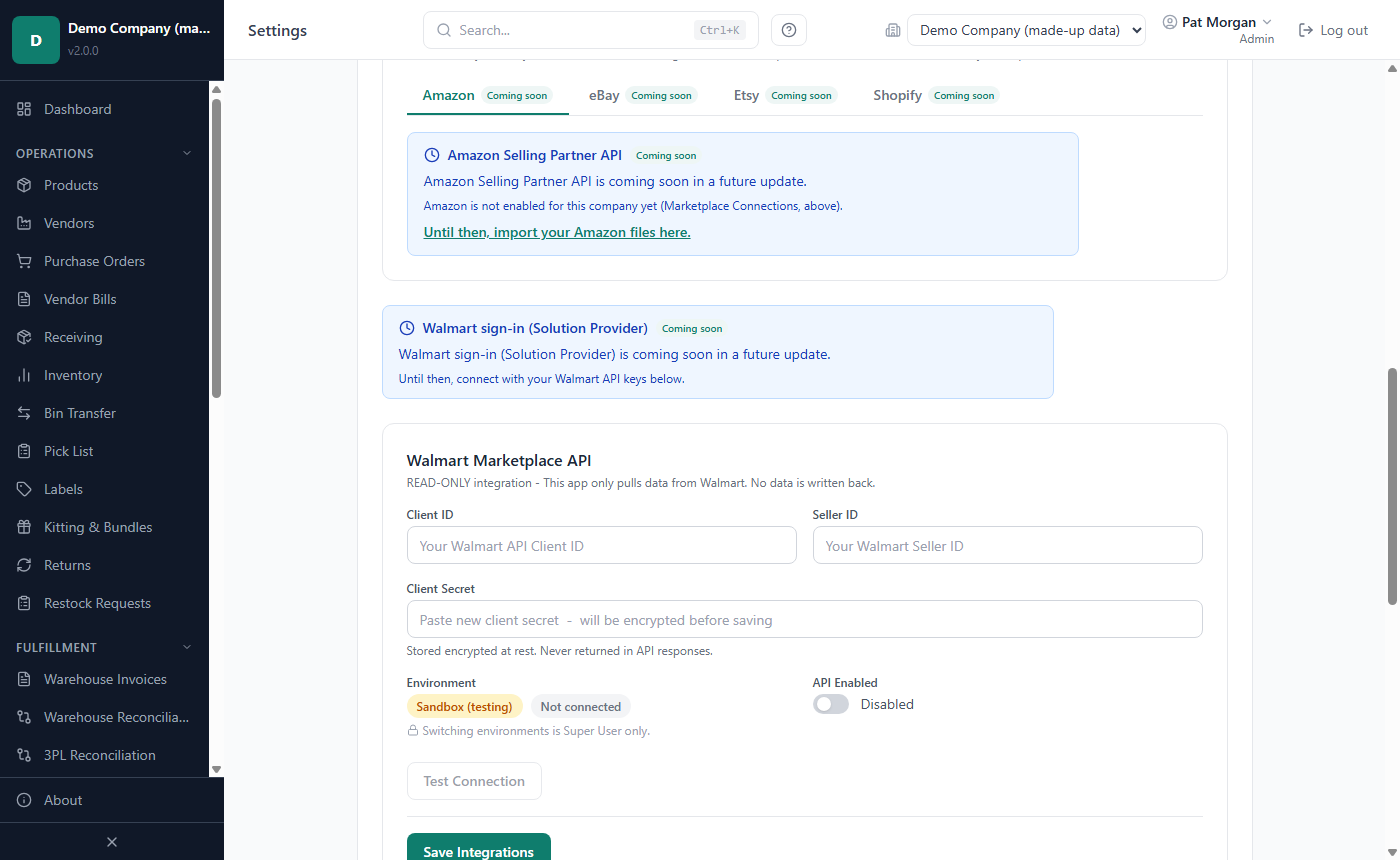
Next to Environment you see two badges:
- Sandbox (testing) or LIVE · Production: which Walmart system the connection talks to.
- Connected, Configured · API disabled or Not connected.
A new connection starts on Sandbox (testing), Walmart's test system: what you fetch there is Walmart's test data, not your real orders, and Test Connection checks your keys against that system. The note "Switching environments is Super User only." means the switch to your live account is made by vendor support during a support session (see Chapter 11). Before that session, save your production Client ID, Client Secret and Seller ID. Going live first checks them with Walmart production; if Walmart refuses them, nothing changes.
Important: Look at the Environment badge before you import anything fetched from Walmart. Only data fetched while it shows LIVE · Production is your real business data.
The Last Sync Timestamps box shows when orders, inventory and settlements were last fetched.
How to pull orders, settlements and inventory health from Walmart
Fetching never changes your data by itself: every result is shown for review first, and nothing is imported until you confirm. The buttons are under Pull data from Walmart and work once the connection shows Connected. Admins and Managers can use them.
Orders
- Set Orders from and to (the last 7 days are filled in).
- Click Fetch orders. The orders of every kind of fulfillment are pulled: the ones you ship yourself, WFS orders and orders shipped by a 3PL. A summary shows how many orders were pulled, how many are new and already imported, and any unknown SKUs or inventory shortages. Walmart gives at most 10,000 orders per pull: if a range has more, the message says "Walmart had more orders than one pull takes: pull a shorter date range to get the rest."
- Click Review & import orders. The Sales Import page opens with these orders as its preview.
- Finish the import there exactly as for a sales file (see Chapter 7): check the counts and the shortage choices, then import.
Settlement
- Click Fetch settlement. The latest settlement report is pulled: "N settlement row(s) found. Review and confirm the import (nothing has been saved yet)." The summary names the report's date and period.
- For an earlier report, choose it under Another report and click Fetch this report.
- Click Review & import settlement and finish on the Settlement Import page (see Chapter 7).
If that period is already imported, you see "Settlement data already imported for this period." and no import button.
Inventory health
- Click Fetch inventory health. Walmart's available, inbound and reserved quantities are matched to your products.
- Check the list of changes (for example "ATS: 40 → 36"). Every change is ticked; untick the ones you do not want.
- Click Apply selected changes.
This updates the WFS quantities stored on each product, which the WFS Health report uses (Chapter 8). It does not change your batches or stock quantities.
WFS inbound shipments. On the Inbound Shipments page (sidebar, Fulfillment), Sync from Walmart pulls the shipments you sent to Walmart fulfillment centers, with their items and the units Walmart has received so far. In Review shipments from Walmart, tick the shipments and click Save N shipments.
How to pull from Walmart on a schedule
The Scheduled pull card (Settings › Integrations, on the Walmart card) pulls new orders and the newest settlement report by itself while the app runs - also in the tray (see Background mode). Nothing is saved: each pull waits on the card until you review and import it.
- Under How often, choose Every 6 hours, Every 12 hours or Daily (each company has its own choice; it is Off until you change it) and click Save. Only an Admin can change it.
- Each pull is listed with its time and result: the orders and the settlement it found.
- Click Review & import next to a part: the Sales Import or Settlement Import page opens with it as the preview, exactly like Review & import orders above. A pull not reviewed is kept 24 hours, then shows "(expired - kept 24 hours)" - the next pull fetches the same orders again.
The orders of a pull start two days before your last import (at most 30 days back), so nothing in between is missed; orders already imported are recognised as duplicates. A pull still running when the app is closed shows Stopped (the app was closed) and is not repeated by itself.
When Walmart changed an order after you imported it
When orders come from Walmart (a pull or Fetch orders), the Sales Import preview also lists the imported orders that Walmart has changed since, in an amber box Changed on Walmart since they were imported:
- Cancelled on Walmart after it was imported and Partly cancelled on Walmart after it was imported: the box says how many units go back to their batches and how much revenue is removed. An Admin ticks the changes to apply and clicks Apply N selected changes, then confirms; each change is recorded in the audit log. Nothing changes until then, and the rest of the import is not affected.
- Refunded on Walmart is shown only: the refund reaches your profit with its settlement, and units come back only when you record the return.
- A change cannot be applied when the order's settlement is already imported (the cancellation is in the settlement's figures) or a return is recorded for it (correct it on the Returns page); the box gives the reason.
How to send a WFS inbound shipment from a purchase order (coming soon)
LivingRoom can create the inbound order at Walmart from a purchase order, so you do not type the shipment into Seller Center. This writes to Walmart, so it shows Coming soon until it has been tested with Walmart, and then only when an Admin switches on Create WFS inbound shipments from a purchase order (Settings › Integrations, on the Walmart card) and enters the Return address Walmart sends refused items to (US only).
When it is on, an Admin sees a WFS inbound shipment panel on the PO page: Preview inbound order shows what would be sent; Create at Walmart sends it (Walmart may split it into several shipments, which then appear on the Inbound Shipments page). An order Walmart did not confirm shows Not confirmed: Send again uses the same order number, so Walmart cannot create it twice. If it is not in Seller Center, It is not in Seller Center releases its units for a new order. An order Walmart refused shows Refused by Walmart.
When a fetch fails, the reason appears in red. If Sync error alerts are on, an e-mail is also sent (see How to choose e-mail notifications).
How to export to QuickBooks
LivingRoom sends your sales, cost of goods sold, bills, fees and inventory adjustments to QuickBooks one way. In this version this works through files:
- QuickBooks Desktop: IIF or CSV files written to a folder, which you import into QuickBooks yourself.
- Reports › Financial: a balanced journal CSV for any period (see the end of this section).
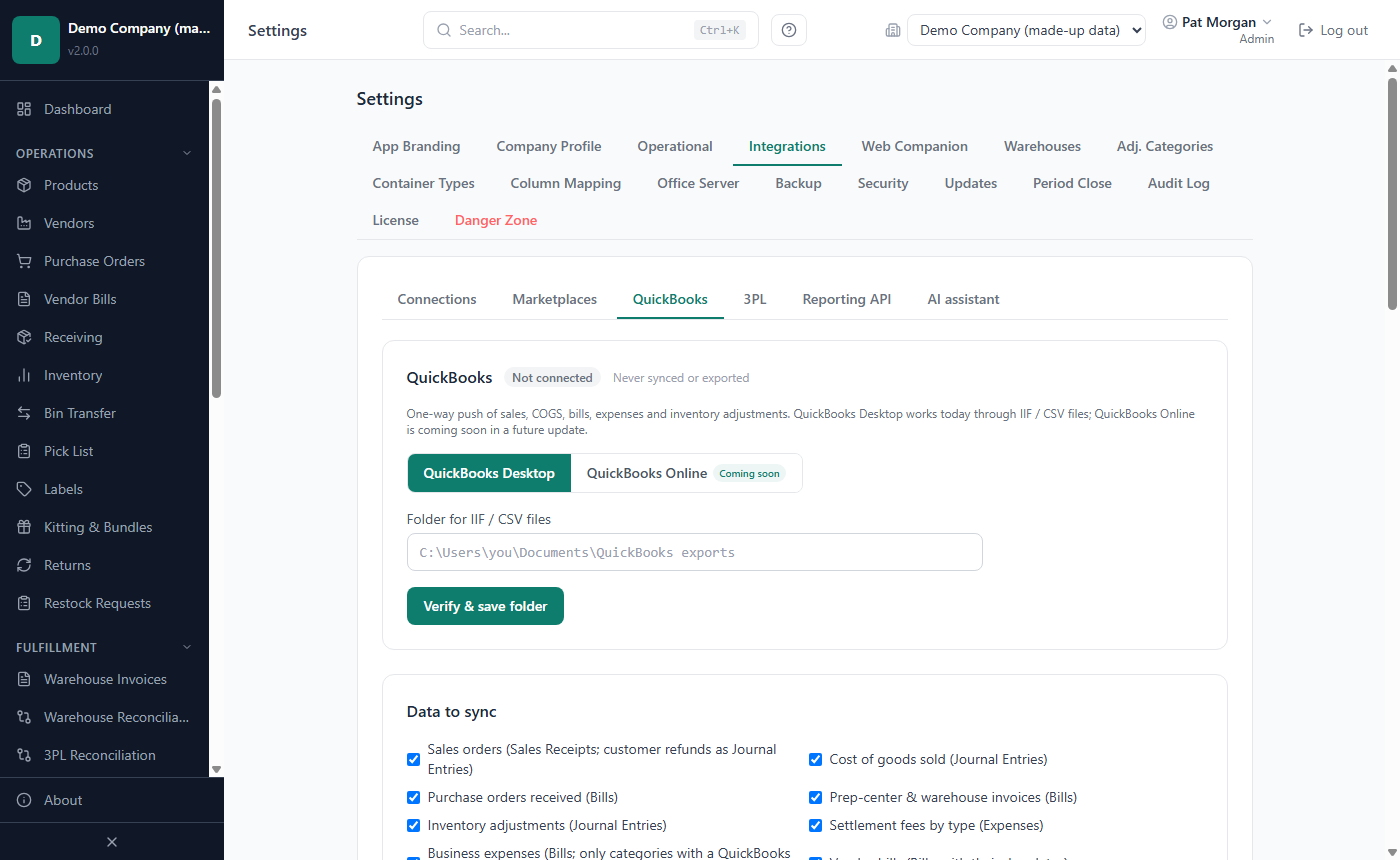
The QuickBooks Online option shows a Coming soon card: the online connection arrives in a future update, and nothing can be connected or sent until then. Use the file route instead.
The QuickBooks Online connection is built and is switched on once it has been tested with Intuit. Then an Admin signs in with Sign in with QuickBooks (Intuit's sign-in opens in your browser; there are no Intuit keys to copy). Before each sync, Sync shows what goes to QuickBooks Online - how many records are new, changed or already up to date - and lists every name the records need that your QuickBooks does not have (a customer, vendor, account or product / service). Nothing is created in your QuickBooks to make a name fit: create the name there, or change the account mapping, and the other records still go. The sync sends exactly what you reviewed; if the data changed meanwhile, it asks you to review again.
Only Admins can set up QuickBooks; a Manager sees "QuickBooks settings require Admin access."
How to set up the QuickBooks Desktop export
- Open Settings › Integrations › QuickBooks.
- Click QuickBooks Desktop.
- In Folder for IIF / CSV files, type the folder path, for example
C:\Users\you\Documents\QuickBooks exports. - Click Verify & save folder. The badge changes to Connected (Desktop export).
How to choose the data and map the accounts
Under Data to sync, tick what to send:
| Option | Becomes in QuickBooks |
|---|---|
| Sales orders (Sales Receipts; customer refunds as Journal Entries) | one sales receipt per order, and a journal entry of its own for each customer refund (debit Customer refunds (sales returns), credit the deposit account), dated at the refund |
| Cost of goods sold (Journal Entries) | the landed cost of the units sold, per sale day |
| Purchase orders received (Bills) | a bill to the vendor for the received quantity |
| Prep-center & warehouse invoices (Bills) | a bill to the warehouse |
| Inventory adjustments (Journal Entries) | adjustments that have a cost |
| Settlement fees by type (Expenses) | marketplace fees per fee type and month |
| Business expenses (Bills; only categories with a QuickBooks account) | a bill for each entry on the Expenses page, to the account set for its category under Expenses › Categories. A category without an account is not mapped: its expenses are left out, and the preview names them |
Under Account mapping, type the QuickBooks account each LivingRoom account posts to, for example Sales revenue (income), Deposit to (sales receipts), Customer refunds (sales returns), Cost of goods sold, Inventory asset, Accounts payable (bills), Prep & warehouse fee expense, Inventory adjustment / shrinkage expense and Marketplace clearing (fees are paid from here). The names must match your QuickBooks chart of accounts exactly. A changed row saves when you press Enter, click Save or leave the field.
Marketplace fee accounts (by settlement fee type) maps each fee type of your settlement files (for example
StorageFee) to an account; All other fee types catches the rest. Refund rows that belong to no order are
Walmart's reimbursements to you; they are sent as a credit to the Refund account (Walmart Reimbursements unless
you change it). To add a fee type, type it exactly as it
appears in the settlement file (letters, digits and underscores, no spaces) and the account, then click Add.
How to send the data
- Optionally set From and To, and choose the File format (IIF or CSV).
- Click Preview sync to see what would be created, updated or left unchanged, with amounts.
- Click Sync Now and confirm Sync now.
LivingRoom writes the file into your folder and marks those records as sent; the next sync contains only what is new or changed. The Sync history lists every run with the numbers new, updated, unchanged and failed; click Details for the records.
Download IIF and Download CSV save a file for the chosen dates through the Save dialog without marking anything as sent. Use them to look at the data or to send a period again.
In QuickBooks Desktop, import the IIF file with QuickBooks' own import command for IIF files.
Important: Back up your QuickBooks company file before each import, and check the first imports carefully against your books. The account names in the file must exist in QuickBooks.
The journal CSV (Reports › Financial)
- Open Reports and click the Financial tab.
- Set From and To.
- Click Generate Journal to see the entries, or Download for QuickBooks to save the CSV.
The journal is balanced (total debits equal total credits) and covers revenue, the landed cost of goods sold, marketplace fees (fees of the whole period, such as storage, included), refunds, Walmart's reimbursements and other credits to you, and import costs (duty, customs, freight forwarding) of the period. The screen suggests importing it into QuickBooks Online through its journal-entry import. Check the account numbers and names against your chart of accounts first.
How to connect a 3PL
Connect a third-party logistics provider (a prep center or fulfillment warehouse that runs its own system) to compare stock, book its receipts, shipments and returns, and send it your purchase orders. One 3PL per company; it is linked to one of your warehouses. Admins set it up.
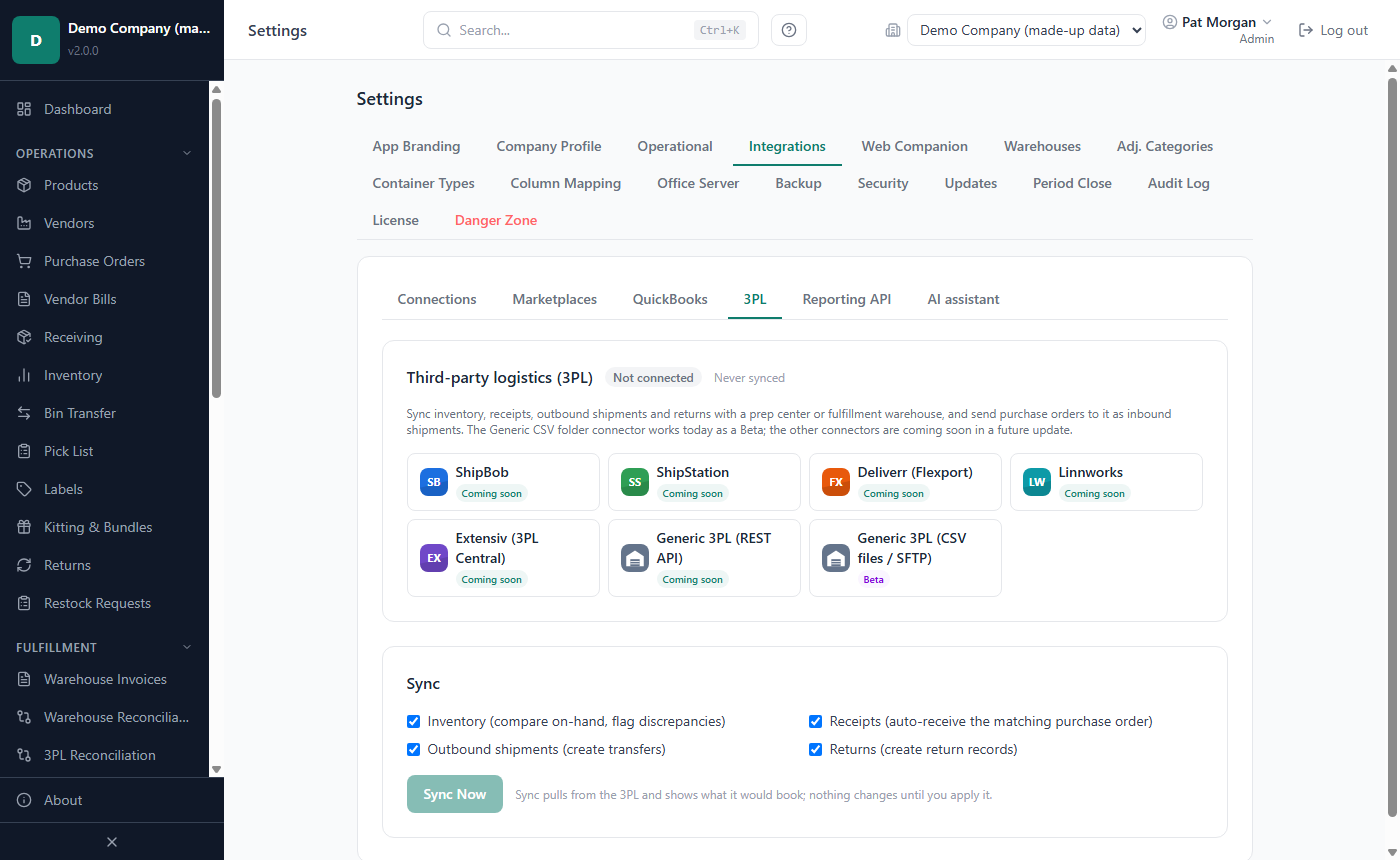
One connector works in this release, labelled Beta:
- Generic 3PL (CSV files / SFTP) in folder mode: for a 3PL that exchanges CSV files through a folder on this PC (for example a synced drive). It checks each file's columns and stops with a message naming any that are missing. Its SFTP mode is Coming soon: mount the SFTP location as a folder and use the folder mode.
The other provider cards show Coming soon: ShipBob, ShipStation, Extensiv, Linnworks, Flexport (Deliverr) and Generic 3PL (REST API) (for a 3PL whose system follows the LivingRoom 3PL interface; it arrives once a 3PL that follows the interface has been tested). Clicking one shows a card instead of its fields. If you set up one of them in an earlier version, its settings are kept, but the 3PL badge reads Coming soon - ...: syncing paused, and Sync Now and Test again stay off until an update switches it on.
When ShipBob, ShipStation, Extensiv and Linnworks become available, they only read from the 3PL: its stock, the goods it received (ShipStation: none) and the orders it shipped, each with your own keys (Extensiv's come from your warehouse; for Linnworks you create a free System Integration app). They never change anything at the 3PL, so Send to 3PL and returns stay with the Generic connectors.
- Create the warehouse for the 3PL first if you have not (Settings › Warehouses, see Chapter 5).
- Open Settings › Integrations › 3PL and click the provider card.
- In LivingRoom warehouse for this 3PL, choose that warehouse.
- Fill in the fields (below).
- Click Save & test connection. A green message means the connection works; an amber one gives the reason.
Generic 3PL (REST API) fields (once it is switched on): API base URL (an https:// address), Authentication (bearer | api_key |
none), Token / API key, API key header name (for api_key), and optionally Endpoint paths and Field
mapping, which your 3PL or support gives you when its system uses other names.
Generic 3PL (CSV files / SFTP) fields: Mode = folder and Folder with the CSV files, for example
C:\3PL\exchange. The folder holds these files, each with a header row:
| File | Columns |
|---|---|
inventory.csv | sku, quantity (name, gtin optional) |
receipts.csv | receipt_id, reference (the PO number), received_at, sku, quantity — one row per line |
shipments.csv | shipment_id, shipped_at, destination, tracking, sku, quantity — one row per line |
returns.csv | return_id, returned_at, order_number, sku, quantity (disposition restock or dispose, reason optional) |
inbound_status.csv | shipment_id, status (created, in_transit, received, cancelled), tracking and received_quantity optional |
Dates are written as YYYY-MM-DD and quantities in sellable units. A SKU is matched to the product's vendor SKU, else
its barcode, Walmart item ID or GTIN. LivingRoom only reads these files; it writes its own files into an
outbox subfolder.
Changing a working connection. Saving new settings over a connected 3PL asks first: Test Connection (the new settings are saved only if they connect), Save Anyway or Cancel. Test again re-tests the saved connection. Disconnect removes the credentials and the warehouse link but keeps the sync history.
If the badge shows Needs a warehouse, the linked warehouse no longer exists: choose a warehouse and save again.
How to sync with your 3PL
A sync asks the 3PL what happened and shows it to you; nothing is booked until you apply it.
- Under Sync, tick what to include (Admins):
- Inventory (compare on-hand, flag discrepancies)
- Receipts (auto-receive the matching purchase order)
- Outbound shipments (create transfers)
- Returns (create return records)
- Click Sync Now.
- In Review what the 3PL reported, each receipt, shipment and return is marked Ready or Needs review with the reason. Ready items are ticked. A receipt marked Needs details is for a product that needs a lot number or an expiry date, which the 3PL's report does not have: type them in the fields under the item, then tick it.
- Click Apply selected, or Discard to throw the staged items away.
What applying does:
- Receipt: received on the purchase order named in the reference, into the 3PL's warehouse, as if you had received it yourself. A receipt for more than is still due, or for an unknown PO or SKU, is never booked automatically.
- Outbound shipment: a transfer from the 3PL's warehouse to the warehouse whose name equals the destination, oldest stock first.
- Return: a return record;
restockadds the units back to stock,disposewrites them off. - Inventory: never applied. Differences go to the 3PL Reconciliation page.
Each event is booked only once, however often you sync. If you close the review without deciding, click Review in the history to open it again. See Chapter 5 and Chapter 6 for receipts, transfers and returns.
How to send a purchase order to the 3PL
On an Unreceived or Partially Received PO, users who can create POs see Send to 3PL. Confirm, and an inbound
shipment for the open quantity is created at the 3PL (with the CSV connector: a file in the outbox folder). The PO
then shows the 3PL's reference and status. It cannot be unsent from LivingRoom.
How to resolve 3PL stock differences
- Open 3PL Reconciliation (sidebar, Fulfillment).
- In Inventory: 3PL vs LivingRoom, check each SKU's 3PL, Ours and Difference.
- Click Resolve, choose The 3PL is right (I will adjust our stock myself), We are right (3PL to recount) or Dismiss, add a note and click Close discrepancy.
Closing a discrepancy only records your decision; it does not change stock. If the 3PL is right, record an inventory adjustment yourself (see Chapter 6). The lower table, Inbound shipments sent to the 3PL, shows the 3PL's status for each PO you sent; Refresh status asks the 3PL again.
How to use Power BI and the Reporting API
There are two ways to get your data into Power BI or another analysis tool.
CSV files from the Reports page
Any user with report access can do this.
- Open Reports and click the Data Export (Power BI) tab.
- Under Download Flat CSV Exports, click Export CSV next to Flat Sales Export, Flat Inventory Export or Flat POs Export, and save each file.
- In Power BI Desktop, load the files as text/CSV data.
Repeat the export when you want fresh figures. For a live connection that Power BI can refresh, the tab points to the Reporting API (below).
The Reporting API (OData feed)
The Reporting API offers your data as a read-only OData feed that Power BI, Excel Power Query and similar tools can refresh. It uses one API key for the whole install, with a choice of which companies the key may read. An Admin sets it up in Settings › Integrations › Reporting API; other roles see a note instead. The tables are products, inventory, purchase orders, purchase order lines, sales orders, settlements, profitability, vendors, warehouses and companies.
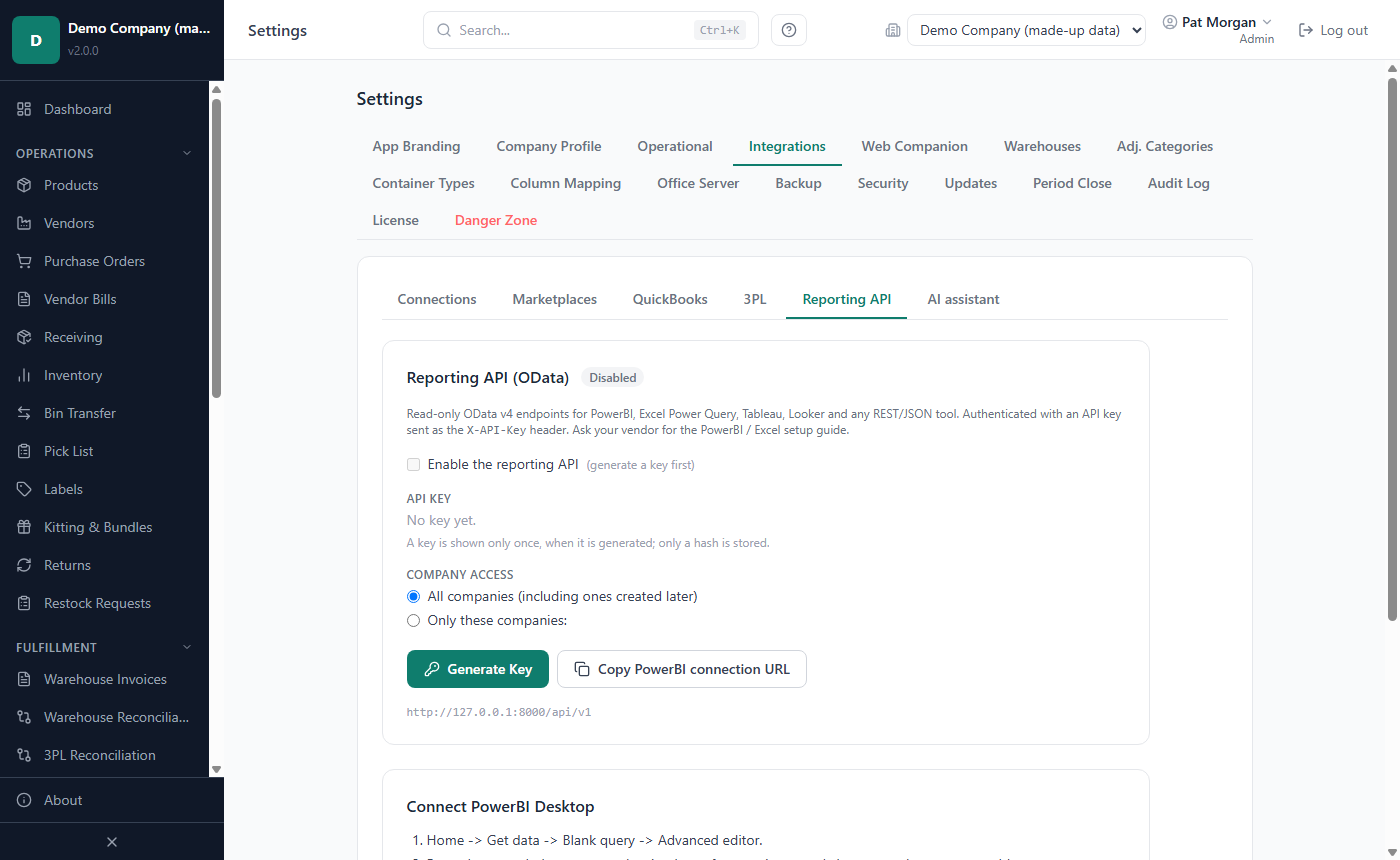
The screen offers:
- Generate Key (later Generate New Key): the key is shown once, with "Copy your new API key now - you will not be able to see it again." A new key stops the old one at once.
- Company access: All companies (including ones created later) or Only these companies: with tick boxes, then Save company access.
- Enable the reporting API, Revoke Key and Copy PowerBI connection URL.
- Connect PowerBI Desktop: in Power BI, Home › Get data › Blank query › Advanced editor; paste the query shown
(Copy query), put your key in place of
<your key>, changeproductsto the table you want, and choose Anonymous when Power BI asks for credentials. A scheduled refresh in the Power BI Service needs an on-premises data gateway.
Power BI on another PC of the office. The connection URL works on the PC that keeps the data. With an office server (see Chapter 10), Power BI on another PC of the office can read the feed too, over the office network:
- On the office server PC, open Settings › Office Server and click Certificate for Power BI (.cer). Copy the
file
office-server.certo the other PC. - On the other PC, double-click the file, click Install Certificate…, choose Current User, then Place all certificates in the following store › Trusted Root Certification Authorities, and finish. Windows asks you to confirm.
- In the query, replace the start of the URL (up to
/api/v1) withhttps://and the office server's address and port, for examplehttps://192.168.1.20:8443/api/v1/products.
If the office server ever makes a new certificate, repeat steps 1 and 2.
Important: Treat a key like a password: anyone who has it can read the companies it covers. A vendor support session cannot create a key; an Admin of your own company does.
How to set up e-mail (SMTP)
LivingRoom sends e-mail through your own mail server: POs to vendors, notifications, supplier follow-ups and alerts. Each company has its own SMTP settings. Admins and Managers set them up.
- Open Settings › Operational and scroll to SMTP Server (email delivery).
- Enter the SMTP Host, for example
smtp.gmail.com(Gmail),smtp.office365.com(Outlook) orsmtp.mail.yahoo.com(Yahoo). - Enter the Port: 587 (recommended) or 465.
- Enter the Username and Password of the mailbox.
- Enter the From Address the e-mails come from and the Admin Email (recipient).
- Click Save SMTP Settings. "SMTP settings saved for …" appears.
- Click Send Test Email. The test goes to the Admin Email.
Unencrypted mail servers are not supported: port 465 uses SSL/TLS, and any other port must offer STARTTLS. Before anything is sent (the password included), the app checks the mail server's certificate: it must be valid, not expired, issued by an authority Windows trusts, and made out to the SMTP Host you entered. Enter the host name your e-mail provider gives, not an IP address. A server with a self-signed or expired certificate is refused ("SMTP test failed: the mail server's certificate could not be verified …"), and there is no setting to skip the check (see Chapter 11). Send Test Email stays greyed out until the host and the Admin Email are filled in. To change the host, port or username later, type the password again in the same save; otherwise the save is refused. To remove the SMTP configuration, clear SMTP Host and save; the stored password is removed too.
Tip: Many providers do not accept your normal password from other programs when two-step sign-in is on. Create an app password in your mail account and use that. See your e-mail provider's help.
High-value unmatched settlement fee email. Switch this on in the SMTP card and save. After each settlement import, if the unmatched settlement fees add up to $50 or more, the Admin Email gets a message pointing to the Settlement Import page (see Chapter 7).
How to choose e-mail notifications
The Email Notifications card sends a daily digest of what needs attention. It is off by default.
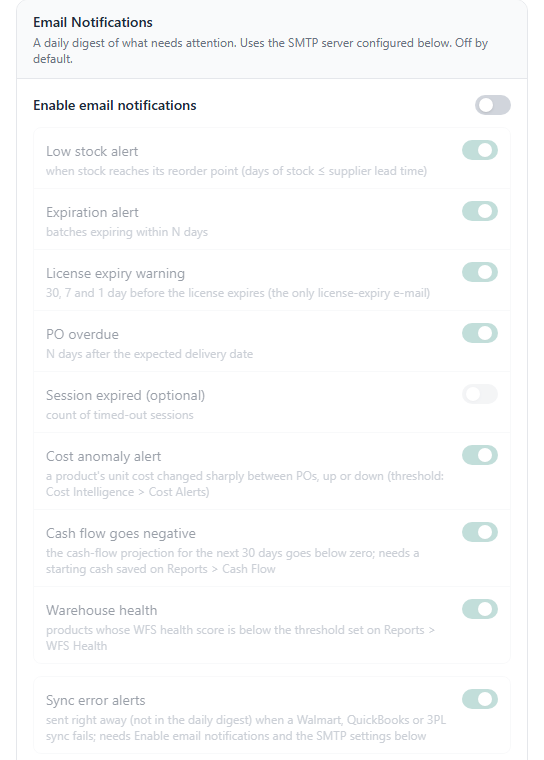
- Switch on Enable email notifications.
- Switch the types you want on or off:
- Low stock alert: products whose days of stock are at or below the supplier lead time.
- Expiration alert: batches expiring within the days set below (expired ones included).
- License expiry warning: 30, 7 and 1 day before the license expires.
- PO overdue: open POs the set number of days after their expected delivery date.
- Session expired (optional): how many sessions timed out.
- Cost anomaly alert: products whose unit cost changed sharply between POs (the threshold is on Cost Intelligence › Cost Alerts, see Chapter 8).
- Warehouse health: products whose WFS health score is below the threshold set on Reports › WFS Health.
- Cash flow goes negative: the cash-flow projection for the next 30 days goes below zero. It needs a starting cash saved on Reports › Cash Flow (see Chapter 8); without one it is never sent. While the projection stays negative it is repeated at most once a week.
- Sync error alerts: sent at once when a Walmart, QuickBooks or 3PL sync fails.
- Set Expiration alert: days before expiry (30 by default) and PO overdue: days after expected date (3 by default).
- Optionally enter a Recipient email; left blank, the digest goes to the SMTP From Address.
- Click Save Notification Settings.
- Click Preview what would be sent to see which alerts would go out now, without sending anything.
How the digest works: about a minute after LivingRoom starts, and then every 24 hours while it runs, it checks every company and sends one e-mail per alert type that has something to report. An item already reported is not repeated for 7 days; each license warning is sent once. The Cash flow goes negative e-mail is checked about two minutes after the start, then every 24 hours.
How to e-mail reports on a schedule
The Scheduled Report Emails card (Settings › Operational, for Admins and Managers) e-mails reports every week or month, without anyone opening the app. It uses the SMTP server set up above.
- Click Add a schedule and give it a name.
- Choose what to send:
- Reports as a PDF: tick the reports (Executive Summary, Profitability by Product, Inventory Value, Products to Reorder, Cash-Flow Projection). Choose Weekly (the e-mail covers the 7 days before the chosen weekday) or Monthly (it covers the previous month; choose a day from 1 to 28).
- Weekly digest: the week's sales against the week before, the top products, stock to reorder, purchase orders due, and the cash-flow outlook if a starting cash is saved, in the e-mail itself.
- Tick the recipients. Only users who may see this company's reports are listed: they need an e-mail address, the View reports permission and access to this company. Each gets an e-mail of their own.
- Click Save schedule.
Preview downloads the latest e-mail's PDF (or the digest as a file you can open in a browser) without sending anything. Send now e-mails the latest period at once; the schedule does not send that period again.
The app checks the schedules every hour while it runs, and sends each one once on its day. If the app was closed that day, the e-mail goes out the next time it runs. When it sends, it checks every recipient again: someone who lost the View reports permission or access to the company gets nothing, and the card says so under the schedule.
How to send overdue PO follow-ups to suppliers
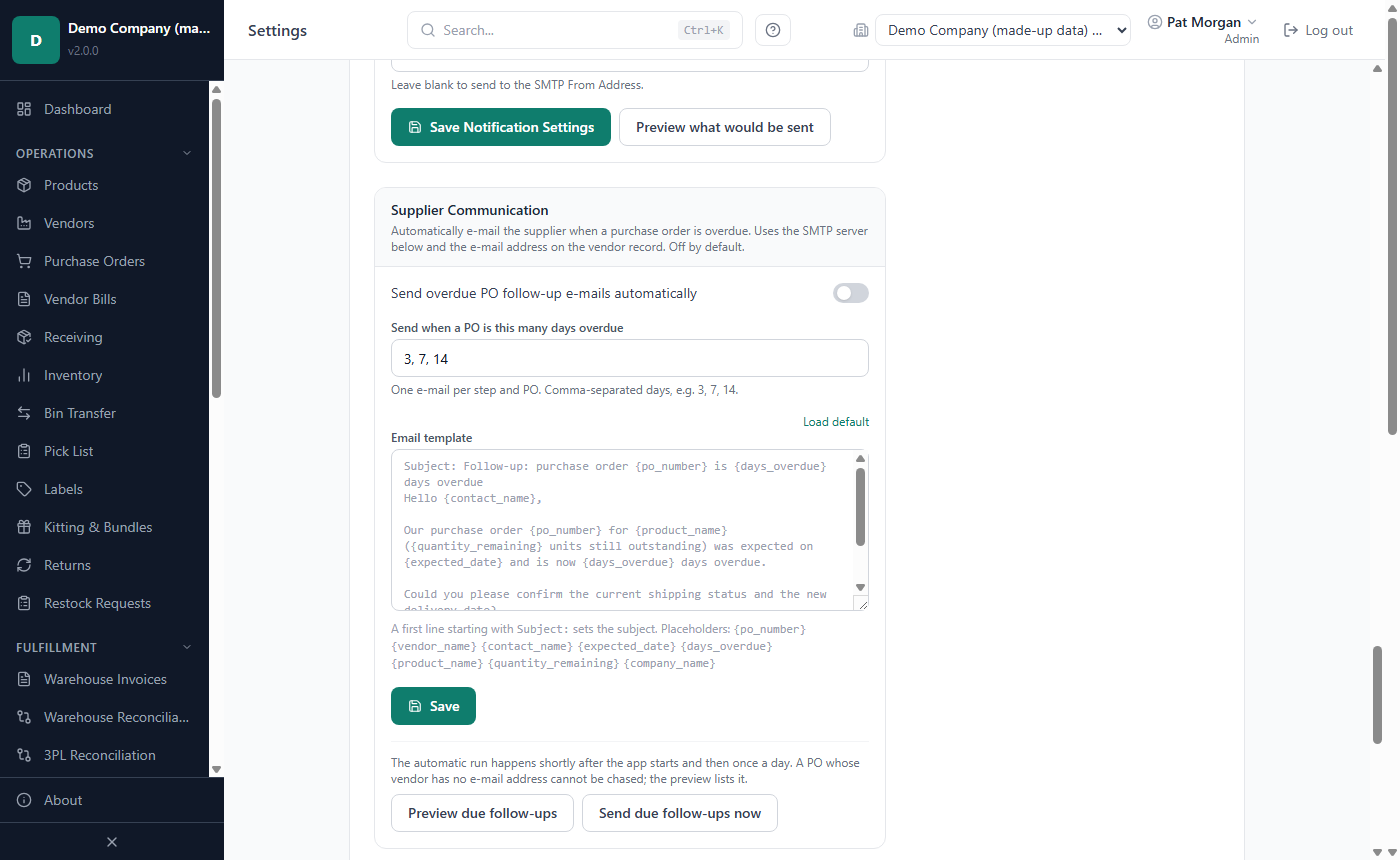
The Supplier Communication card e-mails a vendor when a purchase order is overdue. It uses the e-mail address on the vendor record and the SMTP settings. It is off by default.
- Switch on Send overdue PO follow-up e-mails automatically.
- In Send when a PO is this many days overdue, type the steps, for example
3, 7, 14: one e-mail per step and PO. - Optionally edit the Email template. Load default fills in the standard text. A first line starting with
Subject:sets the subject, and placeholders such as{po_number},{days_overdue}and{expected_date}are filled in for each PO. - Click Save.
The automatic run happens shortly after the app starts and then once a day. Admins can click Preview due follow-ups to see which POs would be chased (and which cannot, because the vendor has no e-mail address), or Send due follow-ups now to send them at once.
Coming later
Shown as Coming soon in this release and switched on in a later update, once each has been approved and tested: Walmart sign-in (instead of API keys), the Amazon, eBay and Etsy API connections (their file imports come first; all three are built), the QuickBooks Online connection (built), the named 3PL providers (built, read only), the Generic 3PL (REST API) connector and SFTP for the CSV connector. Only an update can switch one on; no setting does.
Related chapters
- Chapter 5 — Vendors, purchasing, receiving and prep centers: warehouses, POs, receiving, e-mailing a PO.
- Chapter 6 — Inventory: transfers, returns, adjustments.
- Chapter 7 — Sales and settlements: the Sales Import and Settlement Import that Walmart data goes through.
- Chapter 8 — Reports and dashboards: WFS Health, the Financial journal, CSV exports.
- Chapter 10 — Settings, backups and updates: other Settings tabs.
- Chapter 11 — Troubleshooting and FAQ: support sessions and contacting support.