
8. Reports and dashboards
LivingRoom turns your purchase orders, receipts, sales and settlement files into figures you can act on. The Dashboard gives you the headline numbers and a list of things that need attention; the Reports page and the Cost Intelligence page answer the detailed questions, and every report can be exported to a CSV file or printed. This chapter also covers PO and GRN PDFs and the global search.
In this chapter:
- The Dashboard
- How to read the Dashboard alerts
- How to open the Reports page and choose the dates
- The report tabs
- How to read the Executive Summary
- How to use Cost Intelligence
- How to export and print a report
- How to print or e-mail PO and GRN PDFs
- How to find anything with global search
- Related chapters
Tip: Who sees what: everyone sees the Dashboard, but the profit figures, the period selector, the charts, the Reports page and the Cost Intelligence page are only for users with report access. With the standard roles these are Admins, Managers and Reports Only users.
The Dashboard
The Dashboard normally opens after you sign in and always shows the company that is active in the header (see Chapter 3 for switching companies). To come back to it, click Dashboard at the top of the sidebar.
From top to bottom the Dashboard shows:
- Period and Fulfillment selectors (top right). The Fulfillment list appears only when the company has more than one fulfillment warehouse; choose All Locations or one warehouse to limit the profit figures and charts to it.
- The figure cards:
- Inventory on Hand: the value of the stock you have received and not yet sold. If some units are on hold, the card says how many, and an extra On Hold card shows units that are on hand but blocked by a recall or quality hold.
- On Order: units on open purchase orders that are not received yet, and the money committed to them.
- Net Profit and Net Margin for the selected period (report access only). The line under Net Profit says what it includes that is estimated or imported, for example "incl. $12.40 estimated fees and $45.00 ad spend".
- Sales by Marketplace: orders, units and revenue of the last 30 days per marketplace. It appears only when the company sells on two or more marketplaces (see Chapter 9).
- Alerts: see the next section.
- Net Profit by Period (a bar chart; a period with a loss is drawn red) and Top 5 Products by Profit, with a View All Reports → link to the Reports page.
Inventory on Hand and On Order are always today's figures. Only Net Profit, Net Margin and the two charts follow the period. A brand-new company with no purchase orders, sales or stock shows Nothing here yet with a button for the first step instead of empty figures.
How to customize the Dashboard
Every user can arrange their own Dashboard for each company: which cards and charts it shows, in what order and how wide.
- Click Customize at the top right of the Dashboard.
- In Customize your Dashboard:
- choose a size for a widget (Small, Half width or Full width);
- move it with the up and down arrows, or remove it with the bin;
- pick one in Add a widget… and click Add: besides the usual cards there are Open Purchase Orders, Stock-out Risk, Expiring Batches, Restock Requests, Warehouse Health and Walmart Seller Performance (Beta). The Dashboard below changes as you go.
- Click Save. Cancel leaves it as it was; Reset to default removes your own arrangement.
You are offered only the widgets your role may see: someone without report access never gets the profit cards or charts. An Admin can click Save as company default: everyone who has not arranged their own Dashboard then sees that one, each without the widgets their role does not allow. Remove company default brings back the standard Dashboard for them.
How to change the Dashboard period
Change the period when you want the profit figures for another time span.
- Open the Period list at the top right.
- Choose Current Month, Prior Month, Last 30 Days, Last 90 Days, Last 3 Months, Year to Date, Last 12 Months or All Time.
The exact dates appear under the list (for example "Sep 1 – Sep 30, 2026"). Last 30 Days and Last 90 Days end today; Last 3 Months starts on the 1st of the month three months back. Your choice is remembered on this PC. The period a user sees the first time is the company's Default Dashboard Period (Settings › Operational, set by an Admin or Manager; see Chapter 10). The Reports page starts with the same dates.
How to read the Dashboard alerts
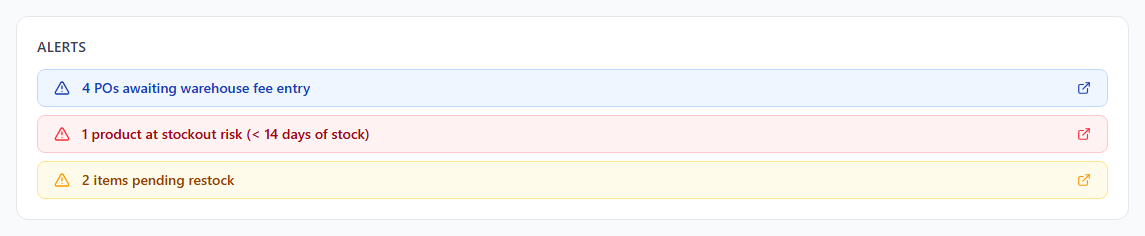
The Alerts card lists what needs your attention. Click an alert to open the page where you deal with it. When nothing is waiting you see All clear — no pending issues. Colours: red is urgent, amber needs attention, blue is for information. If your role cannot open the page behind an alert, the alert is shown without a link.
| Alert (as it appears) | What it means | Clicking it opens | Shown to |
|---|---|---|---|
| … is eligible for closeout / N POs eligible for closeout | A partly or fully received PO ordered 90 or more days ago whose received units are all sold or used up, and whose closeout has not been deferred. | The PO itself (with Lock & Close and Defer 30 Days), each PO when there are a few, or the Purchase Orders list filtered to them (Show them in Purchase Orders). | Users who can close POs (Admins, Managers) |
| N POs overdue — past expected delivery date | Open POs (Unreceived or Partially Received) whose expected delivery date has passed. | Purchase Orders | Everyone |
| N products at stockout risk (< 14 days of stock) | At the average weekly sales of the last 4 weeks, the stock at your warehouses and at WFS lasts less than 14 days. This is the low-stock alert. | Inventory, Stockout Risk tab | Report users |
| N batches expiring within 30 days · N FEFO batches missing expiry date | Batches with stock that expire within 30 days, and batches of FEFO products that have no expiry date. | Inventory, Expiring tab | Everyone |
| N unmatched settlement fees ($…) | Fee rows from imported settlement files that carry an order number but match no sales order in LivingRoom (sale proceeds and refunds are not counted). | Settlement Import | Report users |
| Settlement not imported in N days — profit data may be stale | The newest settlement period you imported ended more than 14 days ago. | Settlement Import | Report users |
| N items pending restock | Restock requests still waiting. | Restock Requests, pending only | Everyone |
| N POs awaiting warehouse fee entry | Received POs whose prep or warehouse fees are not entered as complete yet. | Warehouse Invoices | Report users |
| N products in stock over D days at WFS (or at a receiving warehouse, or both with the two counts) | Products whose oldest stock has been at WFS, or at a receiving warehouse, longer than the Inventory Age Flag (days) setting (D; 45 days unless an Admin changed it). | Inventory | Everyone |
| N inventory variances need reconciliation | Open differences from the latest warehouse reconciliation, with the value at risk. | Warehouse Reconciliation | Everyone |
| N products have landed cost spikes, N products below margin threshold, N products have a cost anomaly between POs | Cost alerts, see How to act on cost alerts. | Cost Intelligence › Cost Alerts | Report users |
| N products below the warehouse health threshold (score …) | Products whose WFS health score is below your threshold. | Reports, WFS Health | Report users |
| Walmart marks … as Urgent: your seller account may be at risk (Beta) / … as Monitor (below its standard) (Beta) | Walmart's own level for a seller-performance metric (Beta). | Reports, Seller Performance | Report users |
| A license message | Your license expires soon or needs attention. | License (Admins) | Everyone |
Tip: If the card shows Alerts could not be loaded, click Try again. If it keeps failing, make sure LivingRoom is still running.
Inventory, restock and reconciliation alerts are explained in Chapter 6; settlement alerts in Chapter 7; closeout, overdue POs and warehouse fees in Chapter 5.
How to open the Reports page and choose the dates
Use the Reports page when you need detail behind the Dashboard figures. Admins, Managers and Reports Only users can open it.
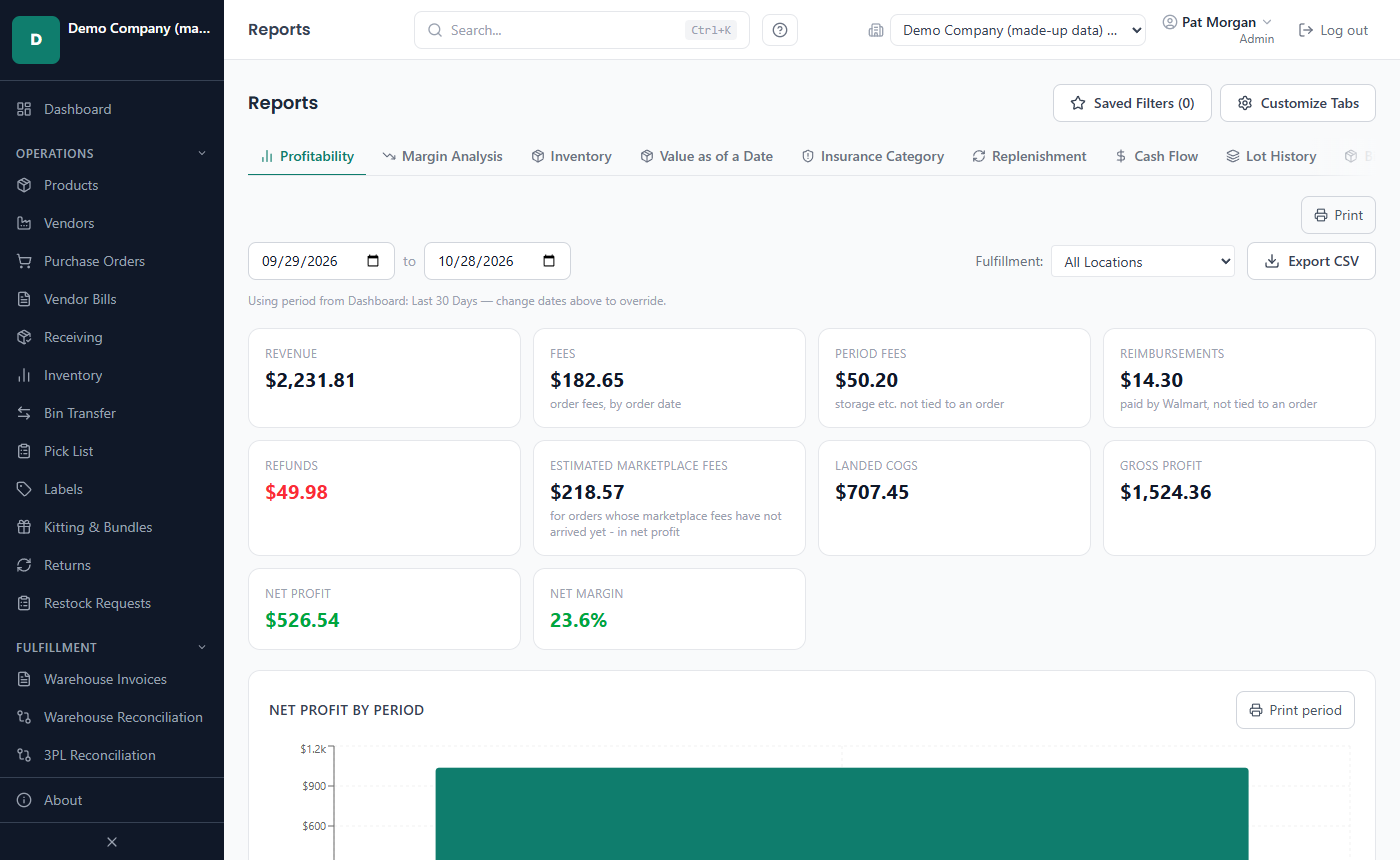
- In the sidebar, under Analytics, click Reports (or press Ctrl+Shift+R, or click View All Reports → on the Dashboard).
- Click a tab in the tab bar. The bar scrolls sideways when not all tabs fit.
The date range
Most tabs have a From and To date above the figures.
- The dates start as the Dashboard period. On the Profitability tab a note says, for example, "Using period from Dashboard: Prior Month — change dates above to override."
- Change either date to use your own range. The range stays the same when you switch tabs.
- Clear Filters sets the dates back to the Dashboard period (and clears the tab's other filters).
- If From is later than To, the fields turn red with the message "From must be on or before To. The report still shows the last valid range."
Tip: The Reports page has no preset list of its own. To use a preset such as Year to Date, choose it on the Dashboard first; the Reports page then starts with those dates.
These tabs follow the date range: Profitability, Margin Analysis, Lot History, Returns, Revenue, Losses, Sales & Volume, Costs, Executive Summary, Vendor Scorecard, Seller Performance, Financial and Operational. The other tabs show today's position or use their own window (described below).
Marketplace and fulfillment filters
- Marketplace: appears on Profitability and Revenue when the company has two or more marketplaces enabled. Choose All Marketplaces or one marketplace.
- Fulfillment: appears on Profitability when the company has more than one fulfillment warehouse. A blue line "Filtered to: …" with Clear filter reminds you it is on.
How to save a filter
Save a filter when you look at the same tab and dates often.
- Open the tab and set the dates.
- Click Saved Filters (N) at the top right.
- Type a name in Filter name... and click Save (or press Enter).
To use it later, click Saved Filters and click its name: the tab and the dates are applied. To remove it, click the X next to its name and confirm. Saved filters belong to your user account.
How to choose which tabs you see
- Click Customize Tabs.
- Tick the tabs you want and untick the others. Profitability is always shown.
- Click Save Preferences. Reset to Default ticks every tab again.
Your choice is saved to your user account, not to the PC.
Reports in the All Companies view
When All Companies is selected in the header, a Showing data for: list appears at the top of the Reports page. Tick the companies to combine; tables then get a Company column. Insurance Category, Cash Flow and Financial cover one company at a time: pick exactly one company for them. So do Replenishment's What if… and Stock-out and overstock costs, which are not shown in the All Companies view. If a company's data could not be read, an amber line says "Totals exclude: …".
The report tabs
Long tables. A table that can have many rows (products, batches, POs, orders, log entries) shows 25 rows a page, with Previous, Next and the page numbers under it. Click a column heading to sort: the sort covers every row, not only the page (a first click sorts from the largest, a second from the smallest). A Total row and the cards above a table always count every row of the report, not only the page shown. Lot Movements shows its whole list in a table that scrolls. Export CSV and Print always cover every row.
Revenue and shipping. Revenue is product sales plus the shipping your buyers paid: Amazon, eBay, Etsy and Shopify from their orders files, Walmart from its payment report on orders you ship yourself (Shipping income, see Chapter 7). The profit and revenue tables show it in its own Shipping income column (a dash when there is none, as on WFS orders), and the Revenue card names it when there is some. Average sale prices stay the item's price.
Profitability. What did I earn? Cards for Revenue, Fees (order fees, by order date), Period Fees (storage and other charges not tied to an order), Reimbursements (money Walmart paid you that is not tied to an order, such as inbound shipment disputes or fee incentives; added to net profit), Refunds, Landed COGS, Gross Profit, Net Profit and Net Margin, the Net Profit by Period chart, and the By Product and By Vendor tables. Filters: dates, marketplace, fulfillment warehouse.
Marketplace commission. By Product and By Vendor show the marketplace's commission in its own column, next to
Fees: Walmart's and Amazon's referral fees, Amazon's closing fees, eBay's final value fee, Etsy's transaction and
processing fees and Shopify's processing fee. It is the part of Fees that the marketplace charged as commission,
so the other figures do not change. In Export CSV it is the total_commission column, and total_other_fees no
longer includes it.
Ad spend. When you imported ad reports for the period (see Chapter 13), an Ad spend card shows what they cost, with ACoS and TACoS under it. The cards then add up: Gross Profit − Fees − Refunds − Estimated marketplace fees − Period Fees + Reimbursements − Ad spend = Net Profit. By Product gets the columns Ad spend, ACoS and TACoS. ACoS is ad spend ÷ the sales your ads brought in (attributed ad sales); TACoS is ad spend ÷ all your sales. A dash means there is nothing to divide by: no attributed ad sales, or no sales. The figures are the same as in Export CSV. With a fulfillment warehouse chosen, ad spend is not shown (it belongs to no warehouse).
By Channel and By Event. When you sell on more than one channel (marketplaces, or Offline for manual orders from pop-ups and markets), the Profitability tab adds a By Channel table; orders that name an event (Add Manual Order › Event) appear in By Event, one row per event with its dates, orders, units, revenue, net profit and margin.
Estimated marketplace fees. A marketplace's commission (Walmart's and Amazon's referral fee, eBay's final value fee, Etsy's transaction and processing fees, Shopify's processing fee) usually arrives after the sale, with the marketplace's payment or settlement report. Until it arrives for a unit sold, that unit gets an estimate. As soon as the real commission of the unit is imported, it replaces the estimate: a unit never has both, and never neither. Other fees, such as a WFS fulfillment fee, storage or a shipping label, do not replace the commission estimate.
The estimate is a percentage of the sale price (and of the shipping the buyer paid):
- the percentage in your Fee Structures for that marketplace (Settings › Integrations › Marketplaces), plus the per-unit and per-order fees you entered there;
- if you entered no percentage: the item's own real commission rate on that marketplace, from its last order with a commission imported;
- otherwise a standard rate: Walmart 15 %, Amazon 15 %, eBay 13.25 %, Etsy 9.5 %, Shopify 2.9 %. The Profitability tab and the Executive Summary then say "Some marketplace fees are estimated at a standard rate". Set your fee structure for accurate estimates.
Offline and direct sales have no marketplace fees. The estimate comes off net profit and margin, and it shows separately as Estimated marketplace fees (a card) and Est. fees (estimated) (a column), so you always see how much of a figure is estimated.
Margin Analysis. Which products earn the most and the least per dollar of sales? One row per product with units, revenue, landed COGS, fees, refunds, net profit and Margin %; click a column heading to sort. The cards show the Best Margin, the Overall Margin (net profit ÷ revenue of the products shown) and the Worst Margin. Margins are green from 20 %, amber from 10 % and red below. Tick All Time to ignore the dates.
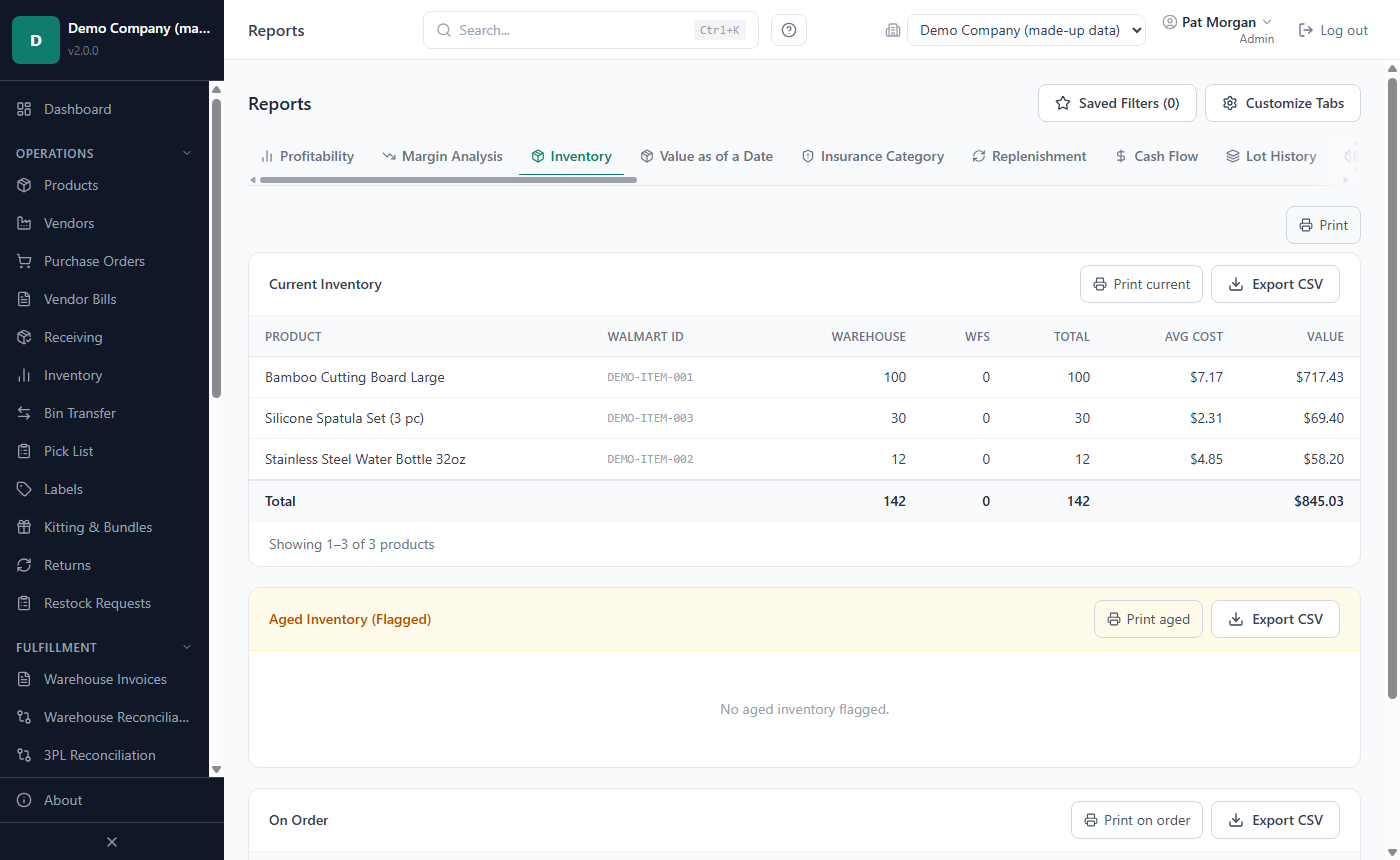
Inventory. What do I have and what is coming? Current Inventory (units at your warehouses and at WFS, average cost and value, with a Total row), Aged Inventory (Flagged) (batches older than the age flag) and On Order (open PO quantities and expected dates). Always today's position.
Insurance Category. What is my stock worth per insurance category? On-hand units and value grouped into Standard and High Risk (products without a category are listed as "Uncategorised"), for your insurer.
Replenishment. What should I reorder, how much, and by when? Per product: on hand, on order, average daily sales, Days Stock, reorder point, safety stock, Suggested Qty, stock-out date, Order By date and lead time. Choose the Sales window (30, 60 or 90 days) and the Safety stock multiplier (1 to 5; reorder point = lead-time demand × multiplier); both are remembered on this PC. Badges count Critical (<14 days) and Low Stock (14-29 days) products. Switch between table and calendar (order dates grouped by week). Users who can create purchase orders see Order Now on products that need ordering; it opens a new PO filled with the product and the suggested quantity.
- The lead time is the one you really get. Once a product has 3 or more received purchase orders, the forecast uses the time from each order date to its first receipt, averaged over the last 6, and adds safety stock when those times vary. Under Lead the column says actual, promised (a vendor's lead time, while there are fewer than 3 received POs - the vendor you last ordered from first) or default (14 days); point at it to see which POs or which vendor.
- Seasons count. With 13 months of sales or more, the forecast compares the coming weeks with your own sales in the same months of the past (never less than half or more than twice the plain average). A product whose season changes the forecast shows Seasonal × and the factor under its average daily sales. The Cash Flow projection keeps using the plain average.
What if… (under the table; one company at a time) works the suggestions out again with other numbers: a Demand change (%), one Lead time (days) for every product (empty: each product's own) and a Safety multiplier (empty: the tab's). Work it out shows each product's suggestion now beside the what-if one, with the change and the new stock-out and order-by dates; nothing is saved or ordered. Name a set of numbers and click Save scenario to keep it for this company (up to 50); click a saved one to use it again, × to delete it.
Stock-out and overstock costs (estimates) (one company at a time) puts a price on running out and on holding too much. Choose the Overstock horizon (30, 60 or 90 days) and, if you like, a Cost of money (% a year) (0 to start with), then Estimate. A stock-out cost is the margin you would lose: the days without stock before an order placed today (or an open PO) could arrive × the units you would sell × your net profit per unit over the last 90 days. An overstock cost is what the units beyond the horizon's sales and the safety stock cost to keep: the WFS storage fee forecast (stock outside WFS pays none) plus the cost of money on their value. The figures are estimates and the panel lists every assumption under them.
Cash Flow. Will I run short of cash? A projection for the next 30 days, 60 days or 90 days: Committed Spend (open POs), Expected Revenue (selling the stock you have now), Net Cash and Ending Position, a weekly chart and table, and the two source lists. A red warning names the week the position goes negative. The assumptions are listed under the tables.
The projection starts from your saved starting cash: the cash you had on a given day. An Admin saves it with Save a starting cash (later Change or Remove): enter the amount and the day you had it (today or earlier). Every user then sees it on this screen. Update it now and then; after 30 days the screen reminds you. To try another amount without saving it, type it in What-if starting cash; empty the field to go back to the saved amount. The saved starting cash also switches on the Cash flow goes negative e-mail (see Chapter 9): without one, no such e-mail is sent.
Lot History. Where did each lot go? Lot-tracked batches with warehouse, PO, received and remaining quantities, expiry and status. Filter by status (Active, Depleted, Expired), search a lot or product, and the date range (received date). A lot split over warehouses shows one row per warehouse. Switch to Per lot: sold, returned, removed to see, for each lot, how many units were received, sold, returned (and put back in stock), removed, written off, used in kits and found, how many are on hand, and how many should be on hand from those movements - a Difference means stock moved without a record. Removals made before version 1.2.0, and returns that cannot be traced to one lot, are shown on the product's Not recorded per lot line instead of being guessed.
Bin Occupancy. What is in each bin? Bins per warehouse with the number of products, batches and units; click a row (Contents) to see the batches. Filter by warehouse, search "Bin, product, SKU or lot...", or tick No bin only.
WFS Health. Which WFS listings need stock? A score from 0 to 100 per product from stock cover against lead time, the inbound pipeline and reserved units, with the level Healthy, Watch, Critical, No data or Inactive and a recommendation. It needs Walmart's inventory figures from Fetch inventory health (see Chapter 9). Health over time charts the average score and the number of products below your threshold, day by day (the app stores the health once a day and whenever Walmart's inventory health is applied; the trend appears after a few days, and a year is kept). An Admin sets Alert below a score of (50 by default, 1 to 99): products below it raise a Dashboard alert and, when switched on, the Warehouse health e-mail (see Chapter 9).
Above the table, Health over time draws the average score and the number of products below your threshold for the last 30, 90, 180 or 365 days (the app stores the day's health once a day and whenever Walmart's inventory health is applied). Alert below a score of sets the threshold (50 to start with, the Critical line; Admins change it): the Dashboard says how many products are below it, and the Warehouse health e-mail notification lists them (see Chapter 9).
Sell-Through. How fast does stock turn? Units sold in 30 and 90 days, on hand, Sell-Through 30d and the Turnover Ratio over 90 days.
Returns. Which products come back? Units sold, units returned, Return Rate, return fees and return cost per product, for the date range. Each product's rate stands beside the Company Rate (all products, the same period) and its Own Previous 12 Months; a rate at least 1.5 times the company's is shown in red with ▲.
Important: since version 2.4 every count of this tab follows the date range. Units sold are counted by order date, returns by their return date and return fees by the date of their settlement - all in the chosen period. Before, every return and return fee ever recorded was set against the period's sales, so the Return Rate and the return fees of a short period could look much higher than they were. With dates chosen, these figures are now lower or equal; without dates (all time) nothing changes.
Revenue. When and where did I sell? Revenue by Period (chart) and Revenue by State (orders and revenue). Filters: dates and marketplace.
Losses. What did damage and loss cost me? Total Units Lost, Total Cost Lost, Reimbursed and Net Loss, and the Damage / Loss Records (quantity × unit cost + fee = total cost).
Sales & Volume. How many units do I sell? Sales Velocity (units in the last 4, 8 and 12 weeks and the weekly averages) and Cancelled Orders.
Cohorts. How do new products do after their launch? A product's launch is its first sale. Each row is the products that launched in one month, and the columns M0, M1, … are the months since launch (M0 = the launch month). Show switches between Units, Revenue and Net profit; Months shows 6, 12, 24 or 36 columns. The date range chooses the cohorts by their launch date; their later sales still count. Net profit is the same per-unit profit as on the Profitability tab (fees not tied to a sale, such as storage, are not spread over cohorts). In the All Companies view each company's cohorts are listed apart.
Costs. What did fees cost? WFS Fees Breakdown (per period and fee type), Prep Fees by PO, and Open Prep Fee POs (needs allocation).
Storage Forecast. What will WFS storage cost me? WFS stock grouped by age (0-90 days, 91-270 days, 271-365 days, 366+ days) with a projected monthly fee per product. The projection uses the storage fees in your imported settlements, or $0.50 per unit per month when there are none yet. It needs a warehouse whose type is Walmart WFS (Settings › Warehouses).
Executive Summary. The one-page overview; see the next section.
Vendor Scorecard. Which vendors deliver on time and earn me money? Per vendor: POs, On-Time %, Avg Lead Days, Units Sold, Profit and Margin %.
Seller Performance. How do my orders score? Order Defect Rate (target ≤ 2 %), Cancellation Rate (≤ 1.5 %), Late Shipment Rate (≤ 1 %) and On-Time Delivery Rate (≥ 95 %), each marked On target, Watch, Action needed or No data, with monthly charts. The figures are computed from your imported orders and recorded returns with a handling time of 2 days; Walmart's own scorecard may differ. With the Walmart API connected, From Walmart (Beta) shows Walmart's own figures for the last 30 days - On-time delivery, Valid tracking rate, Seller response rate and Cancellation rate - with Walmart's level for each (Good, Monitor, Urgent). The app reads them once a day; an Admin or Manager can click Refresh from Walmart. Walmart's levels are shown as Walmart gives them; the app adds none of its own. Beta: not yet checked against Seller Center.
From Walmart (Beta). Above these figures, the same tab can show the seller performance Walmart itself reports: On-time delivery, Valid tracking rate, Seller response rate and Cancellation rate for the last 30 days, each with Walmart's standard and Walmart's verdict, Good, Monitor or Urgent. The banner sums it up: an Urgent metric means your seller account may be at risk, and the Dashboard says so too. The app reads them from Walmart once a day while it runs (with the Walmart API connected); an Admin or Manager can click Refresh from Walmart. This part is marked Beta until its figures have been compared with Seller Center: when in doubt, Seller Center is right.
Financial. A balanced journal for your accountant: Generate Journal shows the entries on screen and Download for QuickBooks saves them as a CSV file (see Chapter 9).
Operational. Day-to-day checks: PO Status, Receiving Discrepancies (reversed receipts left out), Unmatched Settlement (all dates), Adjustment Log and Import History (all dates).
Data Export (Power BI). Three flat CSV files (sales, inventory, purchase orders) for Power BI or a spreadsheet; see Chapter 9.
How to read the Executive Summary
Use the Executive Summary for a monthly review or to brief a partner or lender.
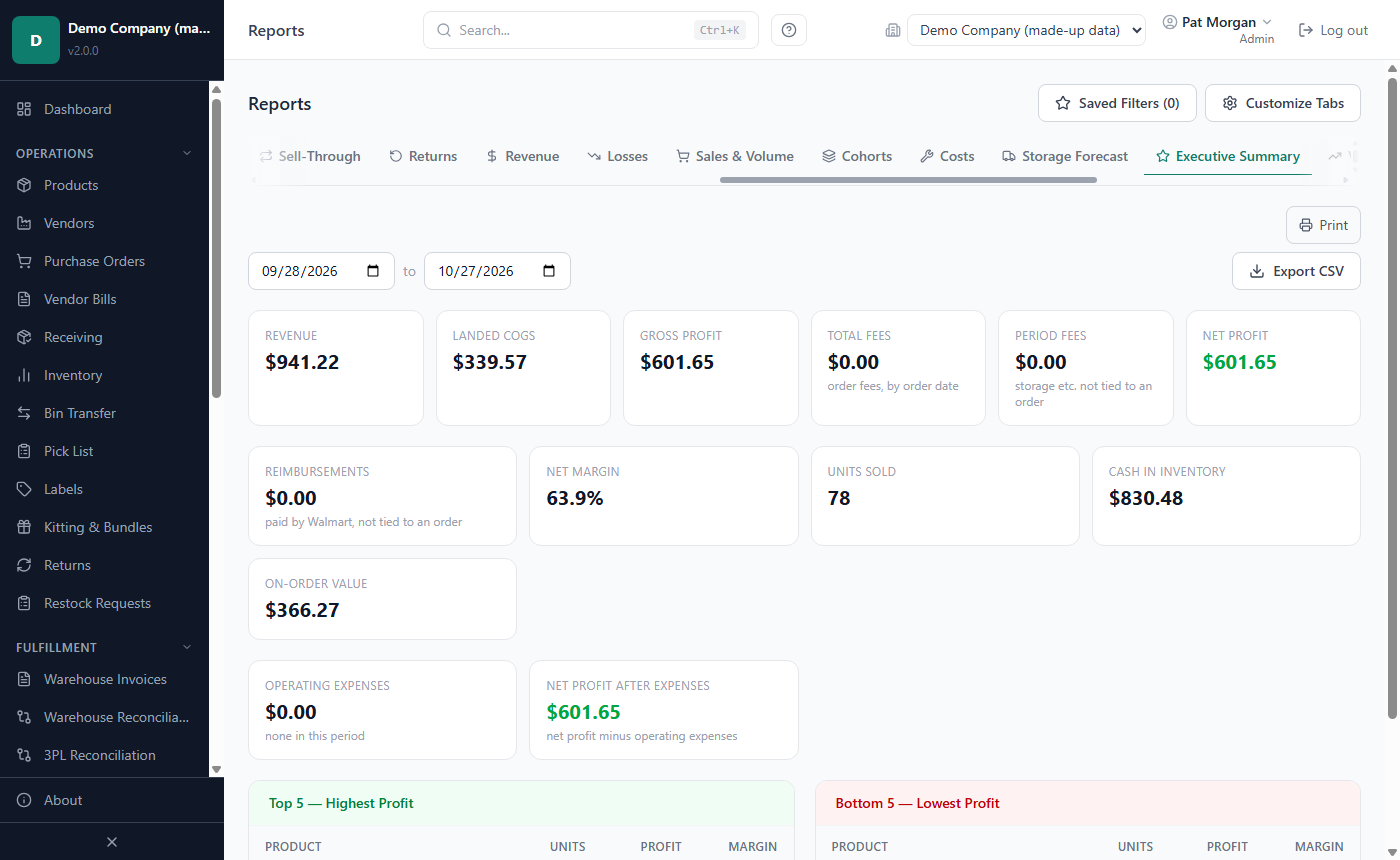
- Open Reports and click the Executive Summary tab.
- Set From and To (for example the past month).
- Read the cards, the Fee Waterfall chart and the two product lists.
What you see:
- Revenue, Landed COGS, Gross Profit, Total Fees (order fees), Period Fees and Net Profit. When the period has shipping income, the Revenue card shows its two parts: product sales and shipping income; the exported summary lists Product Sales, Shipping Income and Revenue.
- Ad spend, with ACoS and TACoS, when you imported ad reports for the period. It is part of net profit.
- Reimbursements (paid by Walmart, not tied to an order), Net Margin, Units Sold, Cash in Inventory (value of the stock on hand) and On-Order Value (money committed on open POs).
- Fee Waterfall: the fees by type as a bar chart (the labels you buy appear as Shipping labels).
- Top 5 — Highest Profit and Bottom 5 — Lowest Profit products.
- Operating Expenses (the period's business expenses, see How to record business expenses) and Net Profit after Expenses. The other cards do not include them.
How the figures add up, with an example month: Revenue $10,000 − Landed COGS $4,000 = Gross Profit $6,000. Then Fees $1,500, refunds $300 and Period Fees $200 are taken off: Net Profit $4,000, a Net Margin of 40 %. Reimbursements from Walmart in the month would be added to that net profit. (Refunds are not a separate card here; you see them on the Profitability tab.)
Export CSV saves the whole summary (the profit and loss lines, the fees and both product lists) as one file.
How to record business expenses
Record your operating costs (advertising, software, shipping supplies, contractors, photography, returns handling) on the Expenses page, so the Executive Summary shows the profit after them. Everyone who sees reports can open it; Admins and Managers add and change expenses.
- In the sidebar, under Analytics, click Expenses.
- Click Add expense. Choose the Category, type the Amount and a Description, and set the Date.
- For a cost that comes back, choose Repeats: Monthly, Every 3 months or Yearly, and optionally a Last date. The app enters it on each date (on the same day of the month; the last day in a shorter month), up to today and from then on every time a date comes round.
- Optionally choose the Vendor and add Notes. Click Add.
The page shows the entries of the chosen period with a total per category, and below them the Recurring expenses with their next date. Click the pencil to change an entry; for a recurring expense the change applies to the entries made from then on. Void takes an entry out of the totals (it stays in the list as voided); voiding a recurring expense stops it, and the entries made so far stay. Categories lets you add a category, set the QuickBooks account each one posts to, or stop using one; a category without an account is not mapped, and its expenses stay out of the QuickBooks export. Export CSV saves the period's entries.
Expenses change only the Executive Summary's Operating Expenses and Net Profit after Expenses. The Profitability tab, the Dashboard and the Reporting API do not include them.
How to use Cost Intelligence
Cost Intelligence shows where your costs move and helps you keep prices above your target margin. Admins, Managers and Reports Only users can open it; changing standard costs, thresholds and prices is for Admins and Managers.
- In the sidebar, under Analytics, click Cost Intelligence (or press Ctrl+Shift+F).
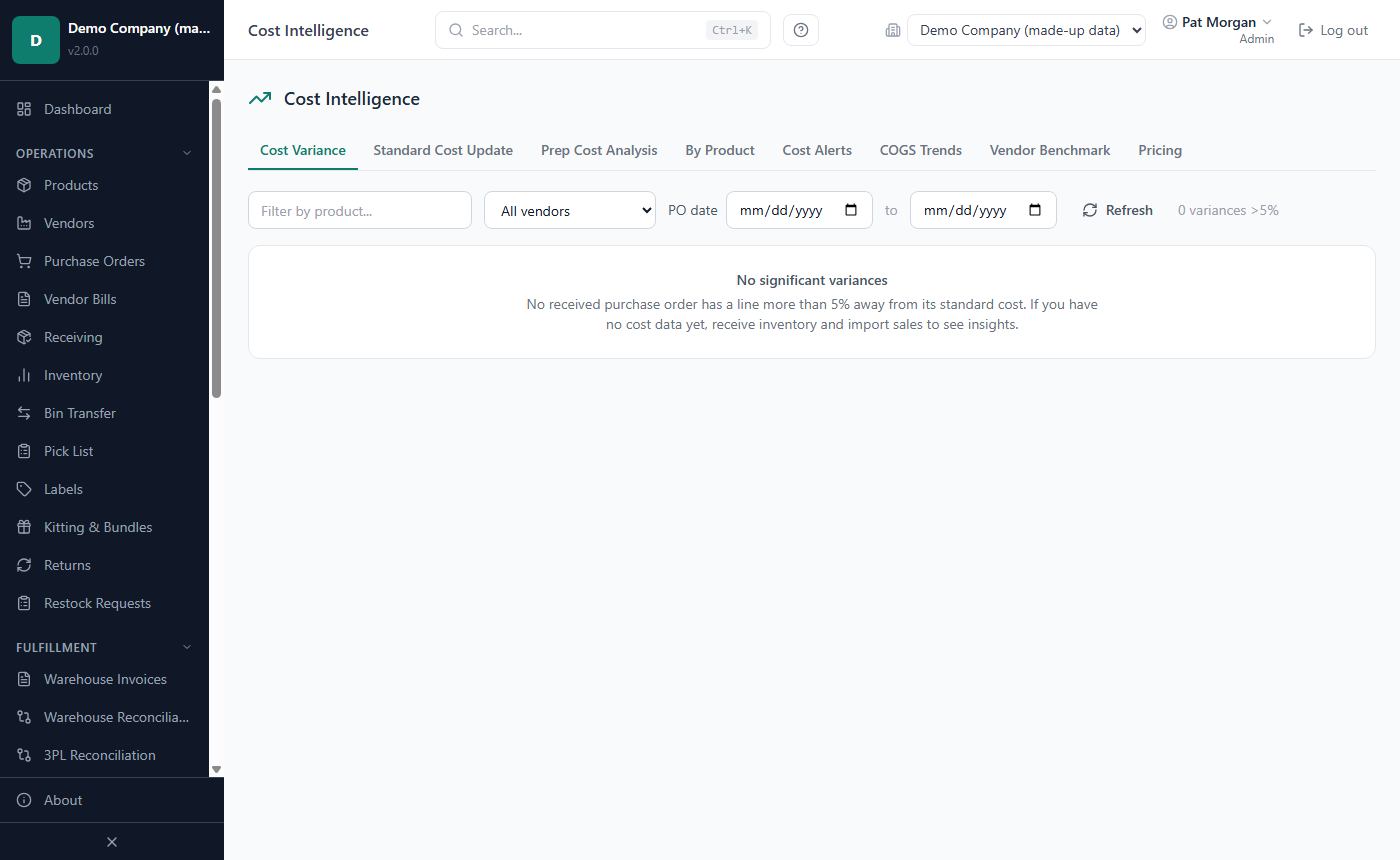
- Click a tab: Cost Variance, Standard Cost Update, Prep Cost Analysis, By Product, Cost Alerts, COGS Trends, Vendor Benchmark or Pricing.
How to set standard costs
A standard cost is the unit cost you expect to pay. LivingRoom compares every purchase with it.
- Click the Standard Cost Update tab. Every active product is listed with its Estimated Cost (the preferred vendor's purchase cost) for reference.
- Type a value in Standard Unit Cost, Standard Landed Cost or both. The saved value shows underneath as "Current: $…". The row turns amber and is marked Unsaved.
- Click the green check button at the end of the row, or press Enter.
The message "Costs saved for '…'" confirms it. Users other than Admins and Managers see the costs read-only.
How to review cost variances
The Cost Variance tab lists the lines of received and closed POs whose unit cost differs from the product's current standard cost (the standard unit cost, or the standard landed cost if there is none) by more than 5 %. Example: standard cost $10.00, PO cost $10.80, variance +8.0%.
- Narrow the list with Filter by product..., the vendor list and the PO date range. Refresh reloads it.
- Click a PO number to open the PO, or a product name to open the product.
- When you have checked a variance, click Acknowledge (Admins and Managers). The row then shows Acknowledged; other users see Needs Review until it is acknowledged.
Acknowledging only marks the line as reviewed. To change the standard cost from a PO, open the PO and use Variance (see Chapter 5).
How to analyse prep costs
- Click the Prep Cost Analysis tab.
- Choose the View: By Product, By Container Type or By Cost Type, and optionally a date range.
You see the number of prep events, Total Prep Fees (the allocated fees including the invoice tax), Not yet received (the part of a fee that belongs to units still to arrive), Avg Per Event, % of Landed and Landed COGS Impact (the share of prep fees in the cost of units already sold). An amber Pending Allocation box lists products with received stock but no prep fees allocated: their landed cost equals the unit cost until you allocate a warehouse invoice (see Chapter 5).
How to act on cost alerts
The Cost Alerts tab holds three lists, each with its own threshold:
- Landed cost spikes: products whose current landed cost is above the standard cost by more than Alert above (20 % by default).
- Margin alerts — net margin below threshold: products sold in the last 90 days whose net margin is below Alert below (15 % by default).
- Cost anomalies — unit cost changed sharply between POs: products whose unit cost moved by at least Alert at (15 % by default) between their last two POs, up or down.
To change a threshold (Admins and Managers), type the new percentage and press Enter or click Save. These lists feed the cost alerts on the Dashboard, and the cost anomaly list feeds the Cost anomaly alert e-mail (see Chapter 9).
The other Cost Intelligence tabs
- By Product: revenue, COGS, total fees, Total Fees % of Revenue and net margin per product; click a heading to sort.
- COGS Trends: the last 12 months as a line chart, as Cost per unit or Total COGS, for all products, one product or one category (the product's container type).
- Vendor Benchmark: the preferred vendor's price next to your other vendors' prices; a row is flagged when the preferred vendor is more than 10 % above the lowest. Only products with 2+ vendors is ticked by default.
- Pricing: products priced below their target margin (30 % unless set on the product), with a Recommended price. Users who can manage products can click Fix All, check or edit each new price, and click Apply prices.
Important: Fix All changes the selling price stored in LivingRoom (used for margin estimates). It does not change your price on Walmart.
How to export and print a report
Export a report when you want to work with it in a spreadsheet or send it to someone; print it for a paper copy or a PDF.
How to export to CSV
- Open the report tab and set the dates and filters.
- Click Export CSV. Tabs with several tables have one Export CSV button per table.
- In the Save dialog, choose the folder and click Save.
The file contains the same rows as the table on screen, with the same dates and filters, and is named after the report
and today's date, for example Profitability_By_Product_Export_2026-10-14.csv. On Cash Flow and Executive
Summary the file is built from what the tab shows. If an export fails, a red message under the button says why.
The Cost Intelligence tabs have their own Export CSV buttons.
How to print a report
- Open the report tab with the dates you want.
- Click Print at the top right of the tab. Some tables have their own button (for example Print product or Print aged) that prints only that table.
- Choose a printer in the print dialog and print.
The printout shows only that tab, with the report name, the date range (on tabs that use it), the print date and, in the All Companies view, the companies included. A table that shows 25 rows a page prints every row, in the order on screen, not only the page shown (Replenishment too); the app loads the rows when you click Print, so a long report can take a moment before the print dialog opens.
Tip: Reports have no separate PDF button. To get a PDF, choose Microsoft Print to PDF as the printer in the print dialog.
How to print or e-mail PO and GRN PDFs
Purchase orders and goods receipt notes are PDF documents. They carry the company name, address and document logo from Company Profile (Chapter 10). The full purchasing steps are in Chapter 5.
PO PDF. On a purchase order's page, click PDF and save the file (named after the PO number). Open it in your PDF viewer to print it. The PDF is meant for the vendor: it shows the lines, quantities and prices, the ship-to warehouse and the payment terms, but not your landed costs. Admins, Managers and Purchasers can do this.
E-mail a PO to the vendor.
- On the purchase order's page, click Email.
- In Email PO to Vendor, check To Email (filled with the vendor's e-mail address if it is on file), the Subject and an optional Message.
- Click Send Email.
The PO is attached as a PDF and the e-mail is listed under Communications on the PO. Sending needs the company's SMTP settings; without them you see "SMTP not configured. Set up SMTP in Settings › Operational." (see Chapter 9).
GRN PDF. A goods receipt note lists what was received, with lot numbers, expiry dates and bin locations; reversed receipts are left out. Users who can receive inventory can get it in two places:
- on the purchase order's page, Download GRN (all receipts of the PO);
- on the Receiving page, in Receiving History, the GRN PDF link of one receipt.
How to find anything with global search
Use the search to jump straight to a product, purchase order, vendor, receipt or warehouse invoice.
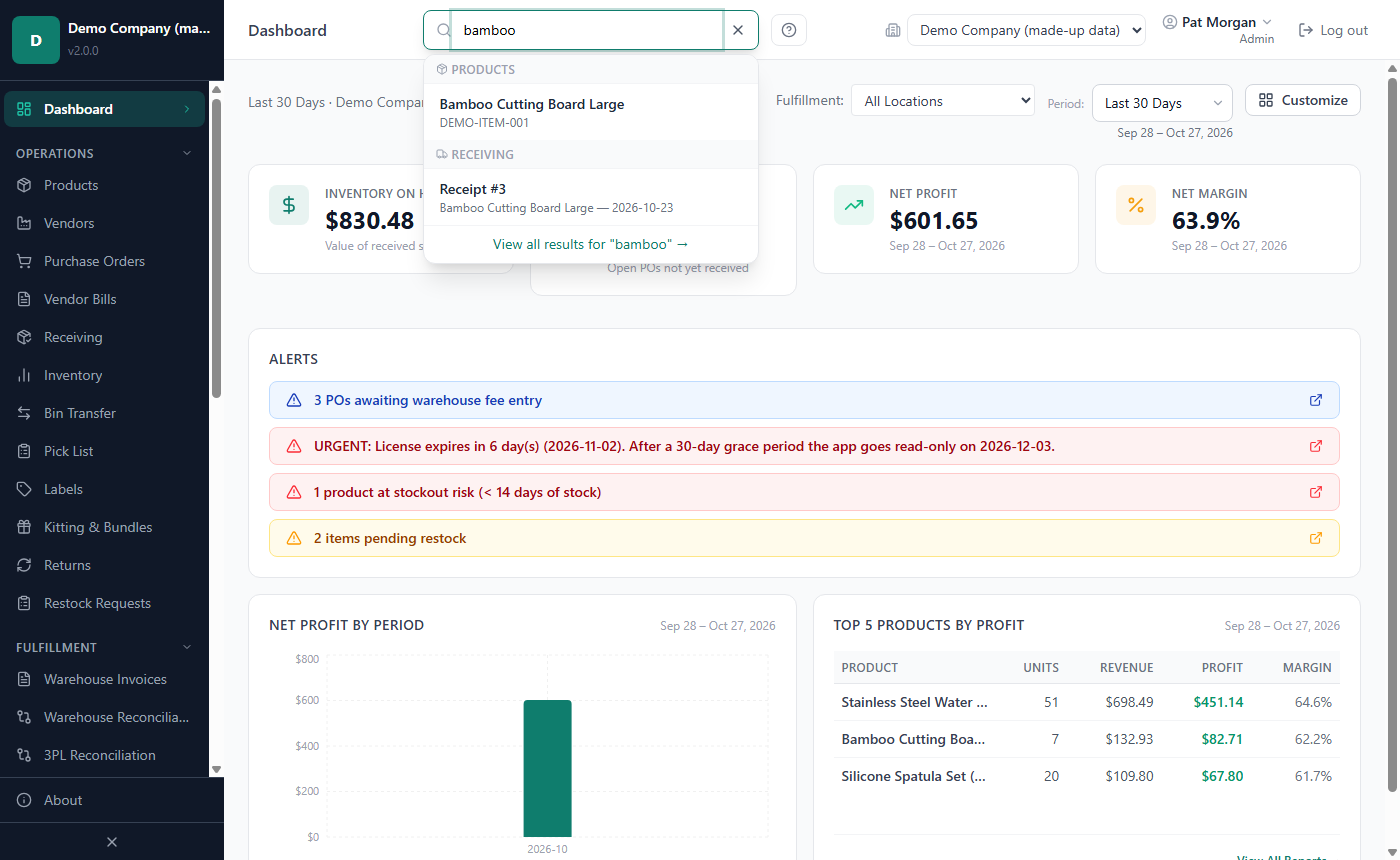
- Click Search... at the top of the window, or press Ctrl+K anywhere.
- Type at least 2 characters. Results appear in groups while you type.
- Click a result, or use the arrow keys and press Enter, to open it.
- To see more, click View all results for "…" → or press Enter without choosing a result.
What is searched:
- Products: name, brand, Walmart item ID, vendor SKU and GTIN.
- Purchase Orders: PO number and notes.
- Vendors: name, contact name and e-mail.
- Receiving: receipts, by product name and PO number.
- Invoices: warehouse invoices, by invoice number and warehouse name.
You only see the groups for pages your role can open. A Reports Only user cannot open products, vendors or purchase orders, so the search finds nothing for that role.
Words of three or more letters match the beginning of a word: "bamb" finds "Bamboo Cutting Board", but "boo" does not. Several words must all match.
The Search Results page has a search box with a Search button and tabs All, Products, POs, Vendors, Receiving and Invoices. All shows up to 25 matches per group and a single tab up to 50; when there are more, a note asks you to refine your search.
The search looks through the active company only. In the All Companies view it says "Select a company to search". Press Escape to close the search box.
Tip: More keyboard shortcuts: Ctrl+Shift+R opens Reports, Ctrl+Shift+F opens Cost Intelligence, and G then R also opens Reports. Press ? for the full list (see Chapter 3).
How to ask the AI assistant about your figures (Beta)
When an Admin has set it up (see Chapter 10), an Ask button appears in the header, next to the search box. Users who may view reports can use it.
- Choose a company (the assistant answers about one company at a time, not in the Global view).
- Click Ask. A panel opens beside the page and stays open while you move between pages.
- Type a question, for example "What was my net profit last month?" or "Which products should I reorder this week?", and press Enter.
- The panel shows what the assistant is doing: starting (the first question after a pause can take up to a minute), choosing and reading reports, then checking every figure. Click Cancel to stop.
- Read the answer. Each figure has a small numbered chip: click it to open the report it comes from. A figure marked not from your data was not found in the reports the assistant read - check it in the report.
Good to know:
- The assistant runs on this PC (or on the office server). Your questions and your figures stay here; nothing is sent over the internet.
- It only reads reports. It cannot change anything in the app.
- Nothing of a conversation is kept: closing the panel or switching company clears it.
- One question is answered at a time on the PC (the office server, if you use one). If someone else is asking, your question waits its turn: the panel shows Waiting for the assistant… and then answers it.
- On a slower PC an answer can take a minute or two.
- Answers can be wrong. Check the linked report before you act on a figure. The assistant gives no financial or tax advice.
Related chapters
- Chapter 3 — Companies, users and sessions: roles, the All Companies view, keyboard shortcuts.
- Chapter 5 — Vendors, purchasing, receiving and prep centers: POs, closeout, variances, GRNs, warehouse invoices.
- Chapter 6 — Inventory: stock-out and expiry views, restock requests, reconciliation.
- Chapter 7 — Sales and settlements: the imports behind the profit figures.
- Chapter 9 — Integrations: Walmart API, QuickBooks, Power BI and e-mail.
- Chapter 10 — Settings, backups and updates: Company Profile, Default Dashboard Period, Inventory Age Flag.