
2. Installing, first start and your license
This chapter takes you from the setup file to your first sign-in. It walks you through the setup wizard that runs the first time you start LivingRoom, shows how to activate, check and renew your license key, and explains what each license state allows. It ends with signing in and out, changing your password and what to do if you forget it.
In this chapter
- Before you install
- How to install the app
- What happens when you start the app
- How to complete the setup wizard
- How to request a free trial
- How to activate a license key later
- The License page
- License states and what they allow
- How the online license check works
- How to renew your license
- How to sign in and sign out
- How to change your password
- If you forget your password
Before you install
Have these ready before you start:
- A Windows PC. LivingRoom is a 64-bit Windows desktop program for Windows 11, 64-bit (Windows 10 22H2 may work but is not tested).
- The setup file your software provider sent you. Its name ends in
Setupand the version number, for exampleSetup 1.2.1.exe. - Your license key. It arrives by e-mail and is a long line of text that starts with
WE-. Keep that e-mail: you need the key again to restore backups and to move to a new PC. No key yet? You can ask for a free 30-day trial key (see How to request a free trial), or install now and activate later. - An internet connection when you activate the key, and from time to time afterwards (see How the online license check works). The license check sends no business data.
Choose the Windows user account first. LivingRoom keeps all its data per Windows user, in that user's
%APPDATA%\LivingRoom\ folder: the databases, your companies, the backups and the logs. Install and use it
under the Windows account you work with every day. If several people share the PC, give each of them their own user
in LivingRoom (see Chapter 3) rather than separate Windows accounts: a
different Windows account starts with no data and needs its own setup.
How to install the app
You install LivingRoom once on each PC. Later versions are installed the same way, over the old one (see Updates below).
- Double-click the setup file.
- If Windows shows a blue window titled Windows protected your PC: this setup file is not digitally signed (code-signed) yet, so Windows does not recognise the publisher. Check that the file came from your software provider, then click More info and Run anyway. If you are not sure where the file came from, stop and contact support first.
- If a newer version of LivingRoom is already installed, the installer asks first: "You're installing an older version (…) over a newer one (…). Continue?" Click No to stop: nothing is changed. Click Yes only if your software provider told you to; an older version cannot open data that a newer one has already updated (see Updates later). Installing the same or a newer version asks nothing.
- The installer shows the License Agreement (the End-User License Agreement). Read it and click I Agree to continue. If you do not agree, click Cancel: nothing is installed. You can read the agreement again at any time on the About page.
- When the installer asks who the program should be installed for, choose one:
- Only for me: recommended. No administrator permission is needed.
- Anyone who uses this computer (all users): Windows asks for an administrator's permission. Every Windows user of the PC can then start the program, but each Windows user still has their own separate data, setup and license activation.
- Keep the suggested install folder (or choose another one) and click Install.
- When the installer has finished, click Finish. You can start the program right away or later.
The installer adds a shortcut to your desktop and to the Start menu. Both show the LivingRoom icon: the LivingRoom mark, the letters L and R joined in one rounded teal shape. The same icon marks the setup file, the app's windows on the taskbar and, with background mode on, the app in the system tray.
Important: Uninstalling the program never deletes your data. Everything in
%APPDATA%\LivingRoom\stays on the PC (see Chapter 11).
Updates later
When your provider sends a newer version, make a backup first (Settings › Backup › Create Backup Now, see
Chapter 10), then run the new setup file over the installed version. Your data is kept.
The new version updates its databases the first time it starts. Before it changes anything, it backs up all your
data: the backup is listed under Settings › Backup › Existing Backups with the label Before an update and a
name that starts with before_update_ and the new version number (without a license key installed, the copies are
saved as plain database files in a before_update_... folder in the backup folder). If that backup cannot be made, the
app changes nothing and does not start: a window titled LivingRoom - Backup before the update failed
says so. Click Try again (for example after freeing some disk space) or Quit; the next start tries the backup
again. If it keeps failing, contact support.
If the new version comes with a changed End-User License Agreement, an Admin who signs in sees The license agreement has changed with the new text. Read it, tick I have read and accept the End-User License Agreement and click Accept; once one Admin has accepted, nobody is asked again. Users in other roles are not asked and keep working (see Chapter 11).
An older version cannot open data that a newer version has already updated. If you install an older version over a newer one, the app changes nothing and does not start: a window titled LivingRoom - Data from a newer version says "Your data was saved by a newer version of this app. This version cannot open it, and nothing was changed. Install the newer version again to use your data." Click Quit and install the newer version again. A company whose data a newer version saved is shown as unavailable in the company list, and a backup made by a newer version cannot be restored by an older one.
What happens when you start the app
- Double-click the desktop shortcut (or open it from the Start menu).
- A small dark start window appears with the LivingRoom logo (the teal mark and the name in white), the version and a status line: first Starting…, then Loading application…. LivingRoom starts its own background server on your PC; the main window opens as soon as that server is ready.
- The very first time, the setup wizard opens (next section). Every time after that, the sign-in page opens.
What to expect:
- The first start takes longer. The app creates its databases, and antivirus software often scans the new program. Up to a minute or more is normal. Later starts are quicker.
- Only one copy runs at a time. Starting the app while it is already open just brings its window to the front.
- Automatic backup. About 5 seconds after the start, and then every hour while the app is open, the app makes an automatic backup if the last one is 24 hours old or more (this needs an activated license key; see Chapter 10).
- After an update, the first start backs up your data before the update changes it (see Updates later).
- If the start fails, or a window says Data from a newer version or Backup before the update failed, see Chapter 11.
How to complete the setup wizard
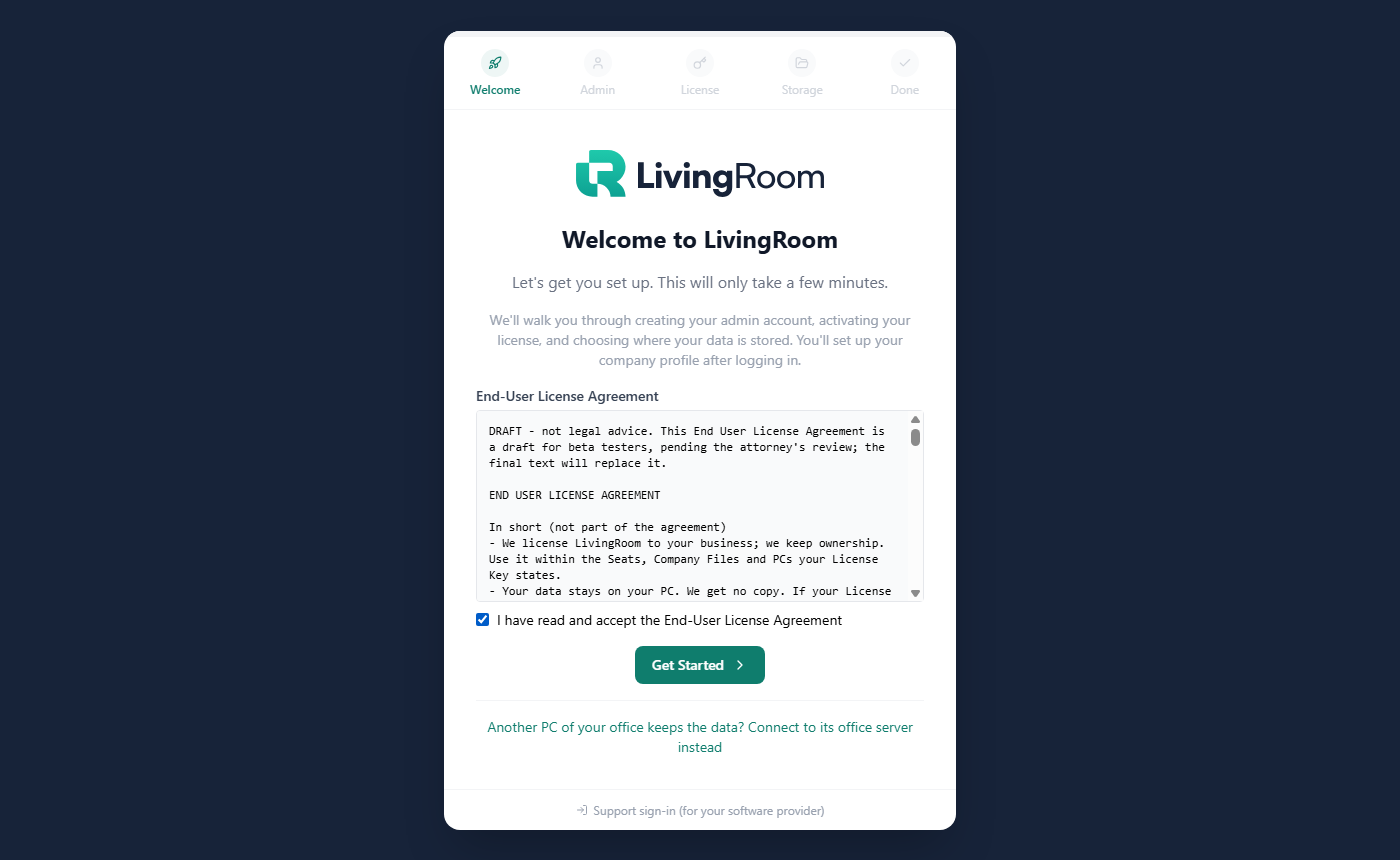
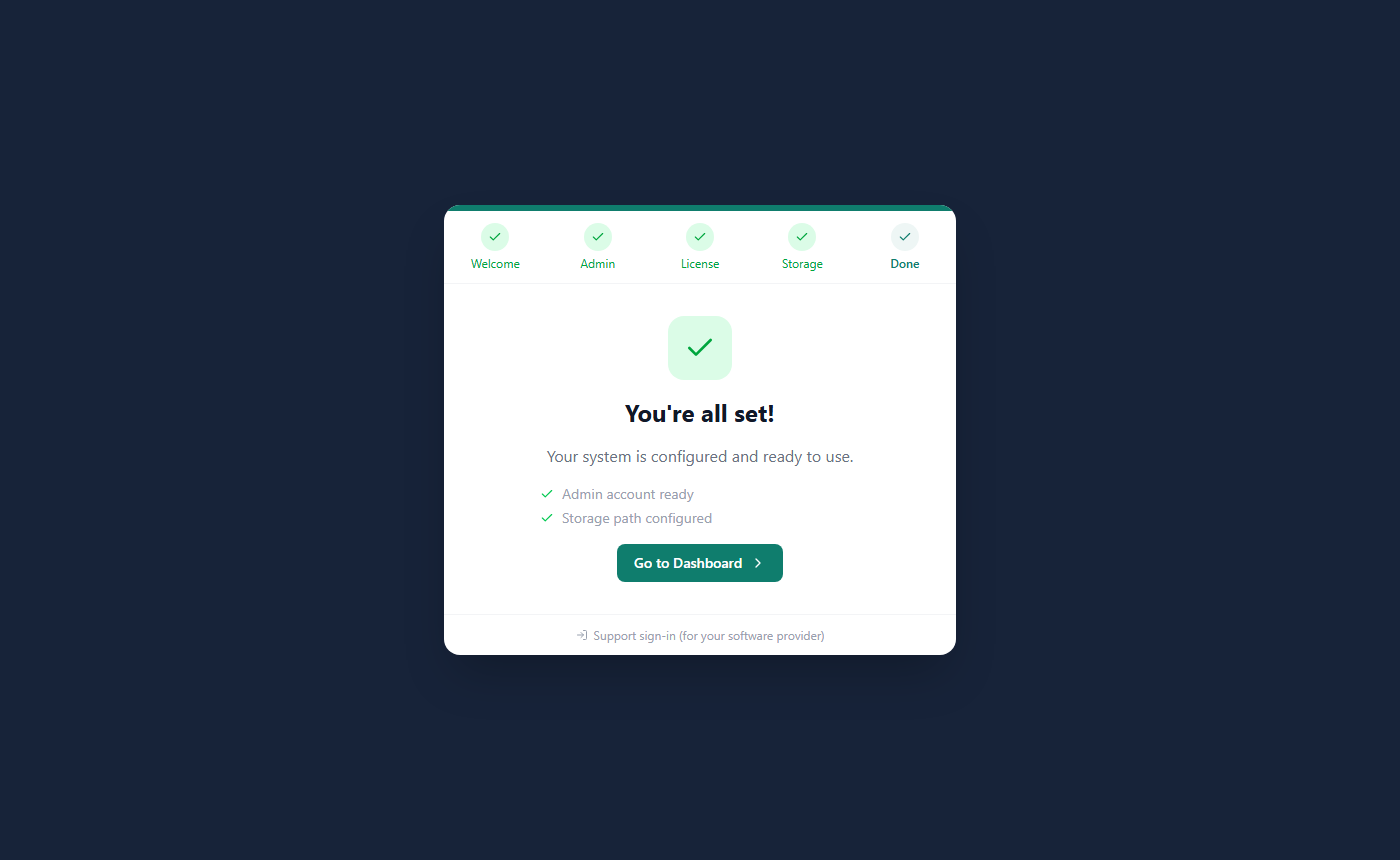
The setup wizard runs once, the first time you start LivingRoom (and again after a factory reset). It has five steps: Welcome, Admin, License, Storage and Done. On the Admin, License and Storage steps you can go back with Back. Nothing is final until you click Go to Dashboard on the last step: if you close the app before that, the wizard starts again at the next start (a license key you already activated is kept).
Step 1: Welcome
- Read the welcome page, Welcome to LivingRoom, and the End-User License Agreement shown on it (the same text as in the installer).
- Tick I have read and accept the End-User License Agreement. Get Started stays greyed out until you do.
- Click Get Started.
The app records which version of the agreement was accepted, when, and by the Admin account you create in the next step. If a vendor support session is signed in on this PC, the box is replaced by a note and Sign out: support cannot accept the agreement for you, so sign the support session out and tick the box yourself.
If another PC of your office already keeps the data (an office server), do not set this PC up on its own: click Another PC of your office keeps the data? Connect to its office server instead under Get Started and type the connection code from that PC. This PC then uses the office server's data, users and license, and the rest of the wizard is not needed. See Chapter 10.
Step 2: Create your Admin account
This is the first user: the business owner's account, with full Admin rights. You use it to create your companies and the other users.
- In Username, type the name you will sign in with. The wizard checks while you type whether the name is free.
- In Full Name, type your name.
- Email is optional.
- Type a password in Password and again in Confirm Password. It needs at least 8 characters (very long passwords, over 72 characters, are refused). The eye icon shows what you typed.
- Click Save & Continue.
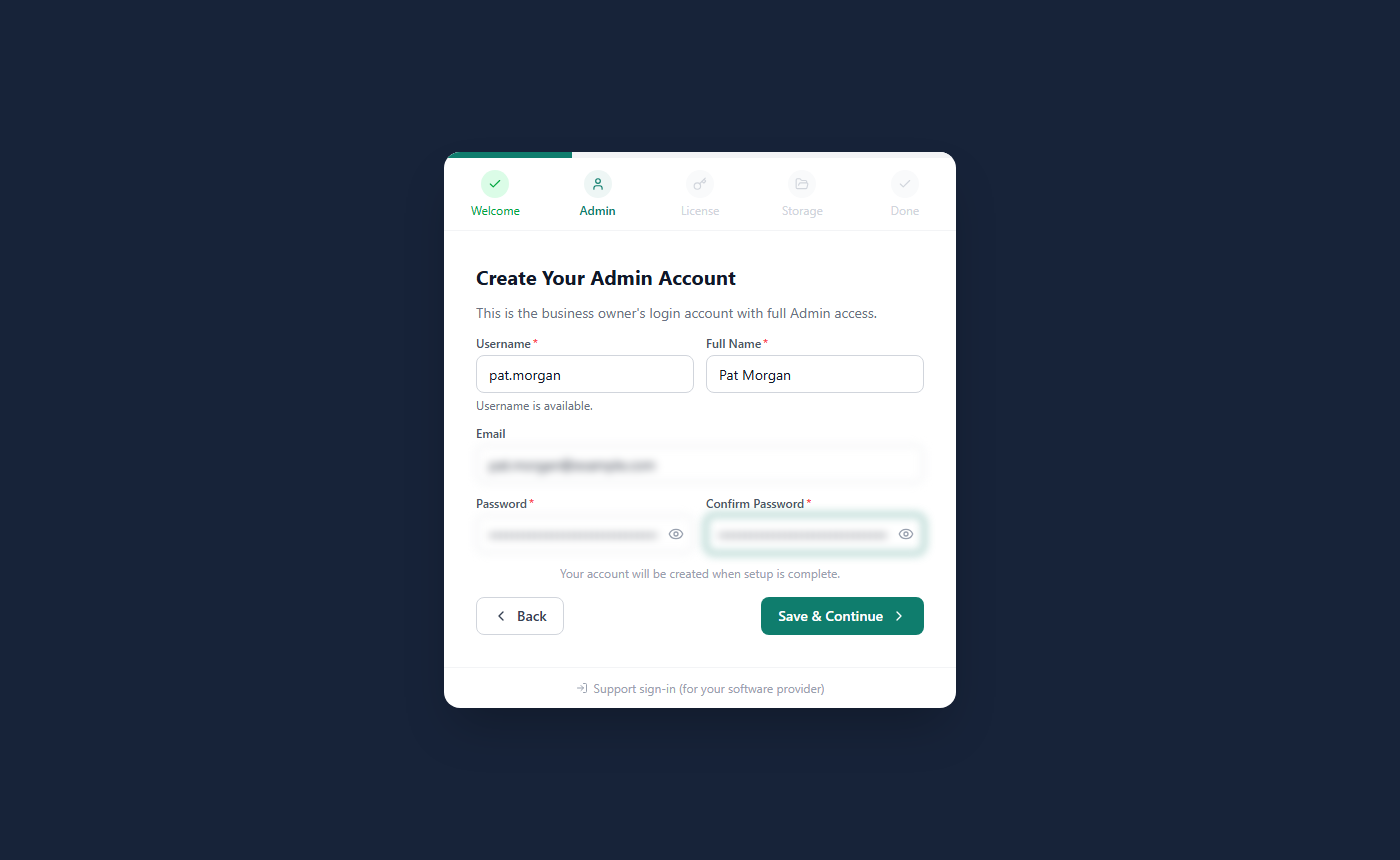
The account is created when you finish the wizard ("Your account will be created when setup is complete.").
Tip: Write the username and password down and keep them somewhere safe. The sign-in page has no "forgot password" e-mail (see If you forget your password).
Step 3: Activate your license
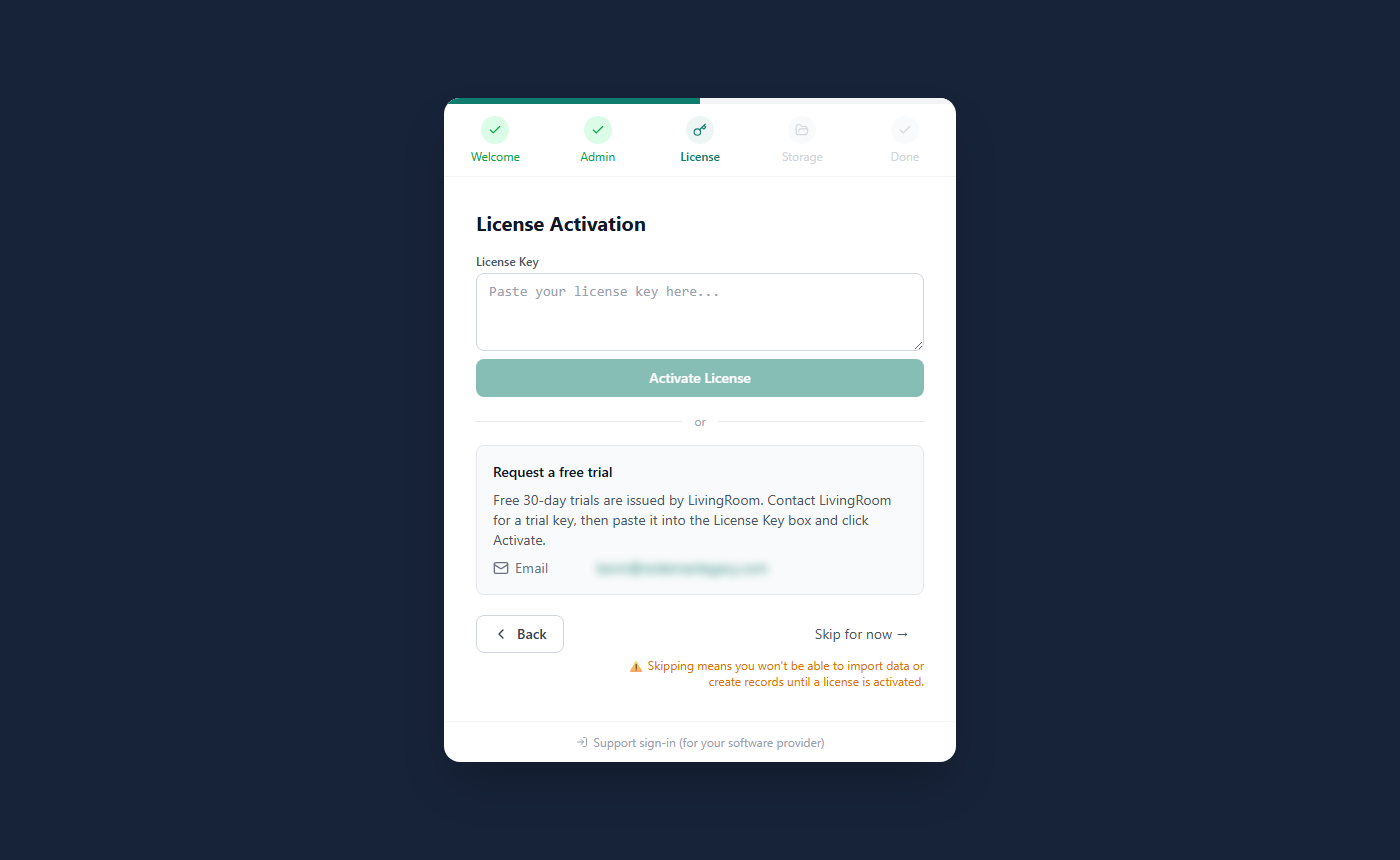
- Copy the whole license key from your e-mail (it starts with
WE-) and paste it into License Key. - Click Activate License.
- "License activated successfully." appears and the wizard moves on to the next step by itself.
Other choices on this step:
- No key yet? The Request a free trial box says whom to ask for a free 30-day trial key (see How to request a free trial).
- Skip for now → finishes the setup without a license. As the wizard warns, you cannot import data or create records until a license is activated. You can activate a key at any time later (see How to activate a license key later).
- License Active instead of the key box means a license is already active on this installation (for example after a factory reset that kept the license): click Continue. To use another key, click Replace with a different license key.
- License Expired means the installed license has run out: paste a renewed key, or continue and the app stays read-only until you activate one.
If the key is refused, the reason appears in red at the top of the wizard, for example "This license key expired on 2026-09-30. Ask your software provider for a renewed key." or the license server's message that the key is already activated on another computer. In both cases contact your provider.
Step 4: Choose where your data is stored
This step sets the data folder: where LivingRoom keeps the data of the companies you create and copies of the files you import.
- To use the default folder (
%APPDATA%\LivingRoom\Data), leave the box empty. This is the right choice for most businesses. - To use another folder, type its path or click the folder button to pick it, then click Validate Path. A green
message means the folder can be used; a red one says what is wrong. If a folder is refused when you click Next
(for example a network path or a path with
..in it), the wizard says why in red; choose another folder. - Click Next.
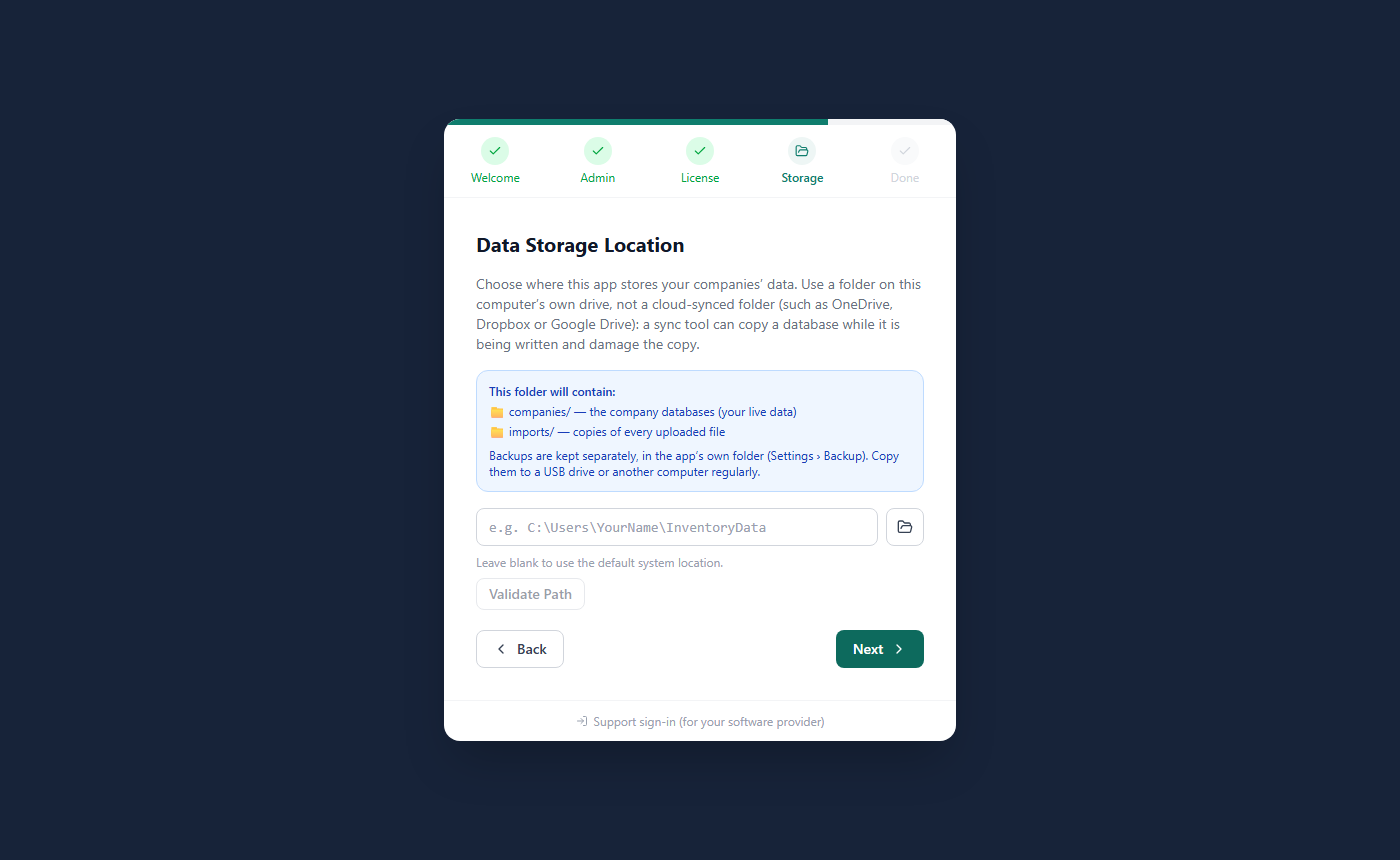
Important: Choose a folder on the PC's own drive, not a cloud-synced folder (such as OneDrive, Dropbox or Google Drive): a sync tool can copy a database while it is being written and damage the copy. Backups are always saved in
%APPDATA%\LivingRoom\backups, whatever folder you choose here, and reports and lists you export are saved wherever you choose in the Save dialog. To protect your data, copy your backups off the PC regularly (see Chapter 10).
An Admin can change the data folder later in Settings › Operational (Data Folder Path (all companies)). The new folder is used for new companies and new files; existing companies stay where they are.
Step 5: Done
- Check the list on the You're all set! page: Admin account ready, License activated (only if you activated a key) and Storage path configured.
- Click Go to Dashboard. The wizard creates your Admin account and signs you in ("Creating your account and logging you in...").
What you will see: the Global Dashboard with "Welcome to LivingRoom" and the button Add Your First Company. You have no company yet. Continue with Chapter 3 to create your first company; a company setup wizard then helps you with its profile, warehouses and users.
If the account cannot be created (for example because the username is taken), the wizard goes back to the Admin step and shows the reason. Correct it and type the password again.
Tip: The Support sign-in (for your software provider) link at the bottom of the wizard is for your software provider's support staff. You do not need it: it asks first, so click Cancel. If you continued by mistake, close LivingRoom and start it again: the wizard comes back.
How to request a free trial
LivingRoom has no "start trial" button. Free 30-day trial keys are issued by the vendor, and you activate a trial key like any other license key.
If you got the app from a reseller, the box names your reseller and their support e-mail (and website, if they have one) instead of the vendor: ask them for the trial key in step 2.
- Open the Request a free trial box. You find it on the setup wizard's License step, on the License page (while no license is installed) and behind the Request a Free Trial button of the red "No active license" bar.
- Click the e-mail address shown under Email ([email protected]). Your e-mail program opens a new message. Say that you would like a trial key and give your business name.
- When the trial key arrives, paste it into the License Key box and click Activate License (or Activate on the License page).

What a trial gives you:
- 30 days from the day the key was issued;
- up to 3 people signed in at the same time, and 1 company;
- no grace period: the day after the trial ends, the app becomes read-only until you activate a full key.
Between 3 and 7 days before the trial ends, the vendor e-mails you its end date (to the address the trial key was issued to). Nothing is charged and no paid plan starts: a trial never turns into a paid license by itself.
When you buy a license, the vendor sends you a full key. Activate it over the trial: your data stays as it is, and backups made during the trial can still be restored on this PC.
How to activate a license key later
Admins can activate a key at any time, for example after skipping the wizard's License step, after a trial, or when a renewal arrives. There are three places to do it.
On the License page
- In the sidebar, under Settings & Admin, click License (the same page is also the License tab in Settings).
- In the Activate License section, paste the key into the box ("Paste WE-... license key here").
- Click Activate.
The message "License key ending in '…' activated." appears with the last four characters of your key. The License page, the warning bars and the company limit update at once; no restart is needed.
From the red "No active license" bar (signed in as an Admin, no license active)

- Click Activate License → in the bar. The Activate License dialog opens.
- Paste the key into License key and click Activate.
From the sign-in page (no license active on this installation)
- Under "No license is active on this install.", click Activate License.
- Paste the key into License key and click Activate.
- "License activated! You can now sign in." appears. Sign in as usual.
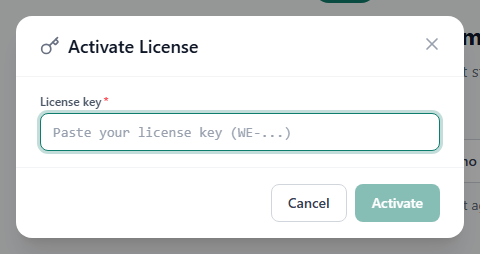
What happens when you activate:
- The new key replaces the previous one. Your data is not touched.
- Most paid keys are checked online with the license server while you activate. If the server cannot be reached at that moment, a paid key is activated anyway, and the regular online check takes over (see How the online license check works).
- If the key is refused, the reason is shown, for example "This license key expired on … Ask your software provider for a renewed key." or "License already activated on 1 machine(s). Maximum is 1. Contact support to reset or upgrade." Contact your provider in both cases.
Important: Keep your license key safe, like a password. Your backups are encrypted with it: without the key a backup cannot be restored, and anyone who has your key and a copy of a backup file can open that backup.
The License page
Admins open it from the sidebar (Settings & Admin › License) or as Settings › License. Other roles cannot open it; the warning bars tell them to ask an administrator. Every user can see a short license summary on the About page (link at the bottom of the sidebar).
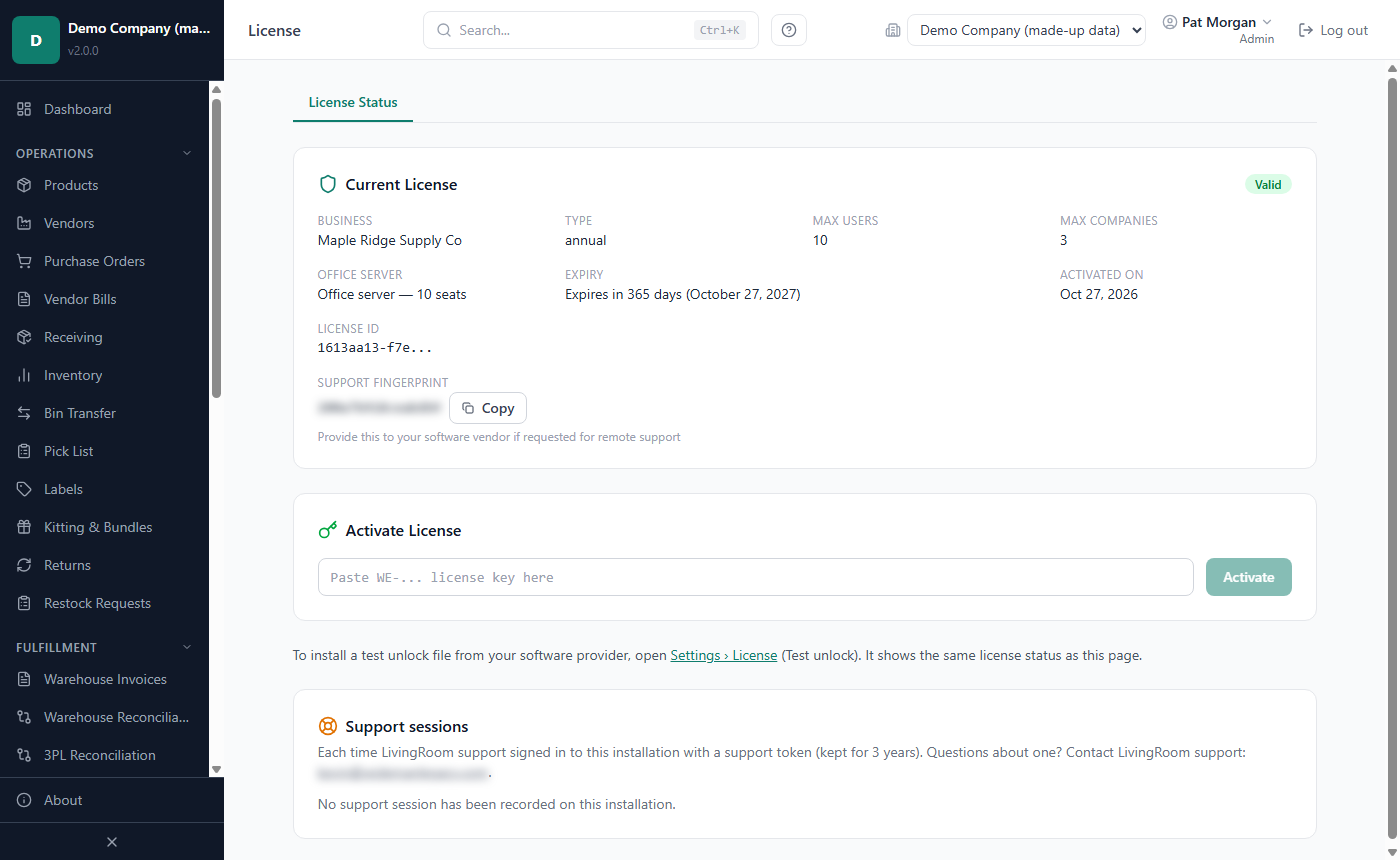
The Current License card shows:
- a status badge: Valid, Grace Period, Expired, Blocked, Not Verified or No License;
- Business: the business name in the key;
- Type: for example Trial or Annual. A key for beta testers shows a purple Beta label next to the type;
- Max Users: how many different people can be signed in at the same time (you can create as many user accounts as you like);
- Max Companies: how many companies you can have;
- Office server (only for a license that includes office server mode): for example Office server — 5 seats. One PC of the office can then keep the data for the others, and the seats are counted across all of them (see Chapter 10);
- Expiry: for example "Expires in 29 days (November 12, 2026)", or how long ago the license expired;
- Activated On and License ID;
- Support Fingerprint with a Copy button: "Provide this to your software vendor if requested for remote support". It identifies your installation. It is not your license key and not a password.
- a coloured note when something needs your attention (the expiry, the grace period, a read-only state).
If your key is checked online, the card also has a License server check section: "Last verified: …", a short explanation and the Check now button.
Below the card you find, depending on your license:
- Enter override code (keys that are checked online; see How to enter an override code);
- Activate License (see How to activate a license key later);
- Request a free trial, while no license is installed (never activated, or the stored key cannot be used);
- Renew your license, when your license has lapsed: it expired and its grace period is over, the license server refused it (voided or blocked), or it could not be verified for 30 days. The box shows your software provider's e-mail address: ask there for a renewed key, then paste it into the Activate License box;
- Support sessions: every time the vendor's support signed in with a support token, when it started and how long it lasted (see How do I see when support signed in?).
License states and what they allow
| Badge | When | What you see | What you can do |
|---|---|---|---|
| Valid | The key is active and not expired. | Nothing special. From 30 days before the expiry date a blue bar: "Your license expires in N day(s)." (a trial: "Trial license — 1 company \| Expires in N day(s). Activate a full license to continue."). You can close it with X for the rest of the session. | Everything, within Max Users and Max Companies. |
| Grace Period | After the expiry date of a paid license, for the grace period in your key (normally 30 days). A trial has no grace period. | An amber bar: "Your license expired N day(s) ago. N day(s) remaining in the grace period." with Renew License →. | Everything. Renew now: the app becomes read-only when the grace period ends. |
| Expired | The grace period is over (a trial: the day after its expiry date). | A red bar that cannot be closed: "License expired. App is in read-only mode." | Read-only (see below). Activate a renewed key. |
| Blocked | The license server refused your key, for example because the license was cancelled. | A red bar with the server's reason and "The app is read-only (view and export only)." with License → and Enter override code. | Read-only until the license server accepts the key again. Contact support. |
| Not Verified | Your key is checked online and no check has succeeded for 30 days. | A red bar: "This license has not been verified with the license server for N days. …" with Check now → and Enter override code. | Read-only until a check succeeds (see How to check now). |
| No License | No key was ever activated, or the stored key cannot be used. | A red bar: "No active license — most features are disabled." with Activate License → and Request a Free Trial. | Read-only. Activate a key. |
On the License page, the expiry note turns red and urgent from 7 days before the expiry date, for example "URGENT: License expires in 5 day(s) (2026-11-12). After a 30-day grace period the app goes read-only on 2026-12-13."
Users who are not Admins see "Ask an administrator to renew the license." in the bars instead of the links.
What read-only means
- You can sign in and out, open every page, search, and view, print and export reports and lists. Admins can activate a key, click Check now and enter an override code.
- You can also keep your data safe: an Admin can make a backup (Settings › Backup › Create Backup Now), and every user can change their own password (How to change your password).
- You cannot create, change or delete anything (products, purchase orders, receipts, adjustments, sales, settings, users), import files or restore a backup yourself (support can restore for you).
- When you try to save, the message "A valid license is required." appears with the link Activate your license → (for Blocked and Not Verified: the reason, with the link License →).
- Nothing is deleted. As soon as a valid key is activated or a license check succeeds, everything can be edited again, without a restart.
How the online license check works
Most paid keys are checked online; trial keys are not. If your License page shows a License server check section, your key is checked online.
- The app checks the key with the license server at every start and every 24 hours while it runs. The check sends your license key and an identifier of this installation. It sends no business data.
- If the server cannot be reached, you keep working normally. After 7 days without a successful check an amber reminder appears: "The license server has not been reached for N days. Connect this computer to the internet by <date>, or the app goes read-only (view and export only)." You can close it for the session. After 30 days without a successful check the app becomes read-only (Not Verified) until a check succeeds.
- If the server refuses the key, the app becomes read-only at once (Blocked), with the server's reason.
- The computer's clock matters. If a message says that this computer's clock was ahead of the license server's time, set the correct date and time in Windows. Setting the clock back never gains time.
How to check now
Admins can run the check at once, for example after reconnecting a PC that was offline.
- Make sure the PC is connected to the internet.
- Open the License page (or click Check now → in the bar).
- Under License server check, click Check now.
What you will see:
- "The license server accepted this license." The read-only state ends at once and the 30-day count starts again.
- "The license server refused this license: …" followed by the reason. Contact support.
- "The license server could not be reached. Check the internet connection and try again." See Chapter 11.
How to enter an override code
An override code is a one-time code from your software provider's support. Support may give you one, for example while they sort out a refused license. An accepted code counts as a successful license check: the app can be edited again and keeps working for 30 days even if the license server cannot be reached in that time.
You can enter it in three places: on the License page (Enter override code, Admins), in the red read-only bar (Enter override code, any user) and on the sign-in page while the app is read-only (Enter override code, no sign-in needed).
- Type or paste the code into Override code.
- Click Apply code.
- "Override code accepted. …" appears and the red bar goes away.
Important: The code is checked with the license server, so this computer must be connected to the internet when you enter it. A code works once and only for 30 minutes after support created it. It cannot extend an expired license (activate a renewed key instead) and does not apply to keys that are not checked online. A backup restore code is not an override code.
If this computer cannot go online: an offline override code
When the app is read-only because this computer cannot reach the license server for a long time (a site without internet, for example), support can send an offline override code instead. It needs no internet connection.
- Open Settings › License and find Install code under Test unlock. Click the copy button next to it.
- Send the install code to support and ask for an offline override code.
- Support e-mails you a long code that starts with
WEO-. Copy all of it and paste it into Override code in one of the three places above, then click Apply code. - "Override code accepted. …" appears and the app can be edited again.
An offline code works once, only on the computer whose install code it names, and only until the date support set (at most 30 days later). If it is refused, the message says why: for example "The code was issued for another install" (check the install code you sent) or "The code has expired" (ask for a new one).
Plans: monthly, yearly and lifetime
LivingRoom is sold in three plans. Every plan can run as an office server. The local AI assistant is Coming soon: it is not part of any plan until its model can be downloaded (see Chapter 10).
| Plan | People signed in at once | Companies |
|---|---|---|
| Standard | 7 | 3 |
| Professional | 20 | 10 |
| Enterprise | unlimited | unlimited |
"People signed in at once" are the seats: you can create as many user accounts as you like. Each plan is sold monthly, yearly (two months free compared with monthly) or lifetime. Monthly and yearly licenses include every update; a lifetime license includes the updates of its version, and later upgrade packs are sold separately. A license issued before 2.0 (for example under the old Solo or Agency plans) keeps its own limits.
With an office server: the office server PC works with up to 20 people on a 2-core PC (tested). For more than 10 people at once we recommend 4 or more cores. See Chapter 10.
The monthly plan
A monthly plan is a subscription. Each payment extends your license by a month: the app picks up the new expiry date by itself at its daily license check, with nothing to enter.
E-mails about your subscription
The vendor sends these e-mails to the address you bought with (Paddle, the payment provider, sends its own receipts):
- After the first payment: the e-mail with your license key also confirms the renewal terms: the plan, the price per month or year, that it renews automatically until you cancel, the first renewal date and every way to cancel. Keep it.
- Before a yearly renewal: two reminders, about 35 and about 20 days before. Each gives the renewal date, the time by which to cancel (00:00 UTC on the renewal date, also in US time zones), the amount plus any tax Paddle adds, any change from your last period, and every way to cancel.
- A monthly plan: one reminder a year, about 35 days before the renewal that starts each new 12-month period. It also names your next monthly charge, which comes first, and the time to cancel it.
Nothing needs doing if you want to keep your plan. You can reply to any of these e-mails with a question.
If a payment fails
If a renewal payment of a monthly or yearly subscription fails, Paddle (the payment provider) tries again over the period its payment-recovery settings allow and e-mails you about it. Admins see Payment failed - update your card on the License page, with Manage subscription to update the payment method there, and the app keeps working normally while Paddle retries. While Paddle is still retrying, updating your payment method in Manage subscription keeps your subscription.
If the payment is still not made when Paddle stops trying, the subscription ends and the app switches to read-only at its next license check - there is no grace period then. Your data is never removed (see License states). An ended subscription cannot be restarted: buy a new license; entering its key ends the read-only state at once.
How to manage your subscription
On the License page (Admin or Super User, for a license bought online):
- Manage subscription opens the payment provider's page in your browser, where you update your card, download invoices or cancel. A cancelled subscription runs to the end of the month (or year) already paid.
- Cancel subscription opens the payment provider's cancel page for your subscription in one step: confirm the cancellation there. It works whatever the license's state, also while the app is read-only. Your license keeps working until the end of the month (or year) already paid, and the app then becomes read-only at its next license check. Until that date you can restart the subscription in Manage subscription.
- Change plan moves to another plan. A move up takes effect at once: you pay the difference for the rest of the period and the app receives a new license with the new limits. A move down takes effect at the next renewal, and the app tells you beforehand if more people or companies are in use than the smaller plan allows. Either way the new plan renews automatically at its own price, so Confirm stays greyed out until you tick the box that agrees to it (the box says the plan, the price and how often it renews); the vendor keeps a record of what you agreed to. Keep my plan (undoing a move down) needs no box.
If a payment of your subscription is refunded in full (or disputed with your bank), the vendor cancels the subscription at once, so nothing more is charged, and the license ends: the app becomes read-only at its next license check, and your data stays on the PC. A refund of only the extra amount of a move up does not end your license: the vendor moves you back to your previous plan.
How to renew your license
- Before the expiry date, ask the vendor for a renewal. The address is on the About page under Support & Licensing (License Renewals: [email protected]). Once the license has lapsed, the Renew your license box on the License page shows the same address.
- The vendor sends you a new key by e-mail.
- An Admin activates it on the License page: paste it into Activate License and click Activate.
You can activate a renewed key during the grace period and even after the license has expired (while the app is read-only).
What happens:
- The License page shows the new expiry date, and a read-only state ends at once. Your data is not touched.
- Backups made with your previous key can still be restored on this PC. In Settings › Backup they are marked "Made under an earlier key of this license." Keep the e-mails with the old and the new key.
- If the vendor issues a completely new license instead of a renewal, backups made with the old key need support to restore.
How to sign in and sign out
Sign in
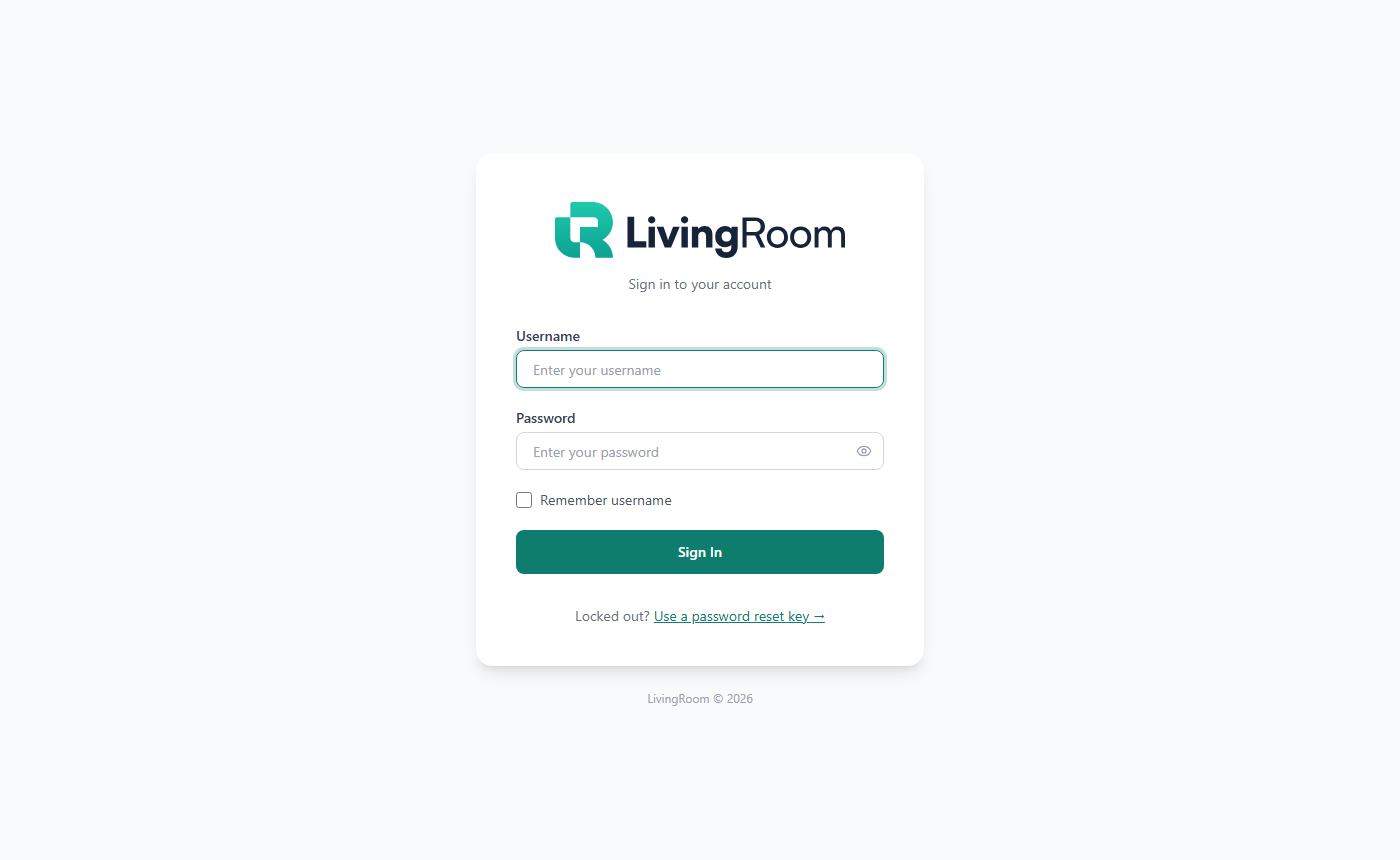
- Start LivingRoom. The sign-in page opens, with the LivingRoom logo at the top.
- Type your Username and Password.
- Tick Remember username if you want the username filled in next time.
- Click Sign In.
You land on the dashboard of the company you used last. An Admin who has no company yet lands on the Global Dashboard.
If you see "Incorrect username or password.", "Too many login attempts …" or "Your license allows N concurrent user(s) …", see Chapter 11.
After a first sign-in attempt, the bottom of the page shows "Need vendor support? Your support fingerprint:" with a copy button. You only need it when support asks for it.
Sign out
- Click Log out at the top right (in a narrow window only its icon is shown).
- Logging out in one window signs you out of every window of the app.
- Closing the app also signs you out: closing the last window, or File › Quit (close all windows). If several app windows are open and you close one, the app asks whether to Close all windows or Keep the other windows open.
Signed out after inactivity
After a period without activity you are signed out automatically: 480 minutes (8 hours) unless your Admin changed Session Timeout (minutes) in Settings › Operational (5 to 10,080 minutes, for the whole installation).
- 5 minutes before, a bar says "Your session expires in N minutes. Click here to stay logged in."
- In the last minute the Session about to expire dialog counts down, with Stay logged in and Log out now.
- After that, the sign-in page says "Session expired. Please sign in again." Anything you had typed but not saved is lost.
How to change your password
Every user can change their own password.
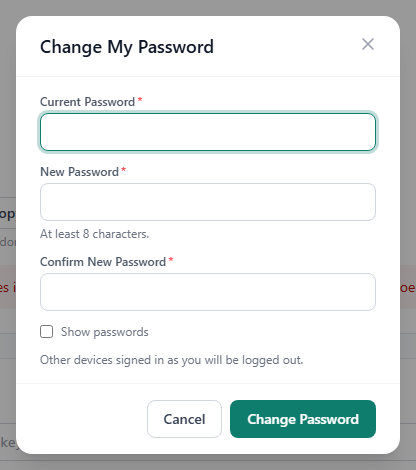
- At the top right, click your name.
- Click Change My Password.
- Type your Current Password, then the New Password (at least 8 characters) and again in Confirm New Password. Tick Show passwords to check what you typed.
- Click Change Password.
"Password changed" appears. Other devices signed in as you are logged out. This also works while the app is read-only.
If you forget your password
The sign-in page has no "forgot password" e-mail. There are two ways back in.
Ask your Admin to reset it. An Admin can set a new password for you on the Users page (see Chapter 3). Sign in with it, then change it to one only you know.
Use a password reset key. An Admin can create a one-time password reset key for you on the Users page (the key icon, Generate Password Reset Key). The key is shown only once, so keep it somewhere safe. It is not the recovery code that unlocks your data on a new PC.
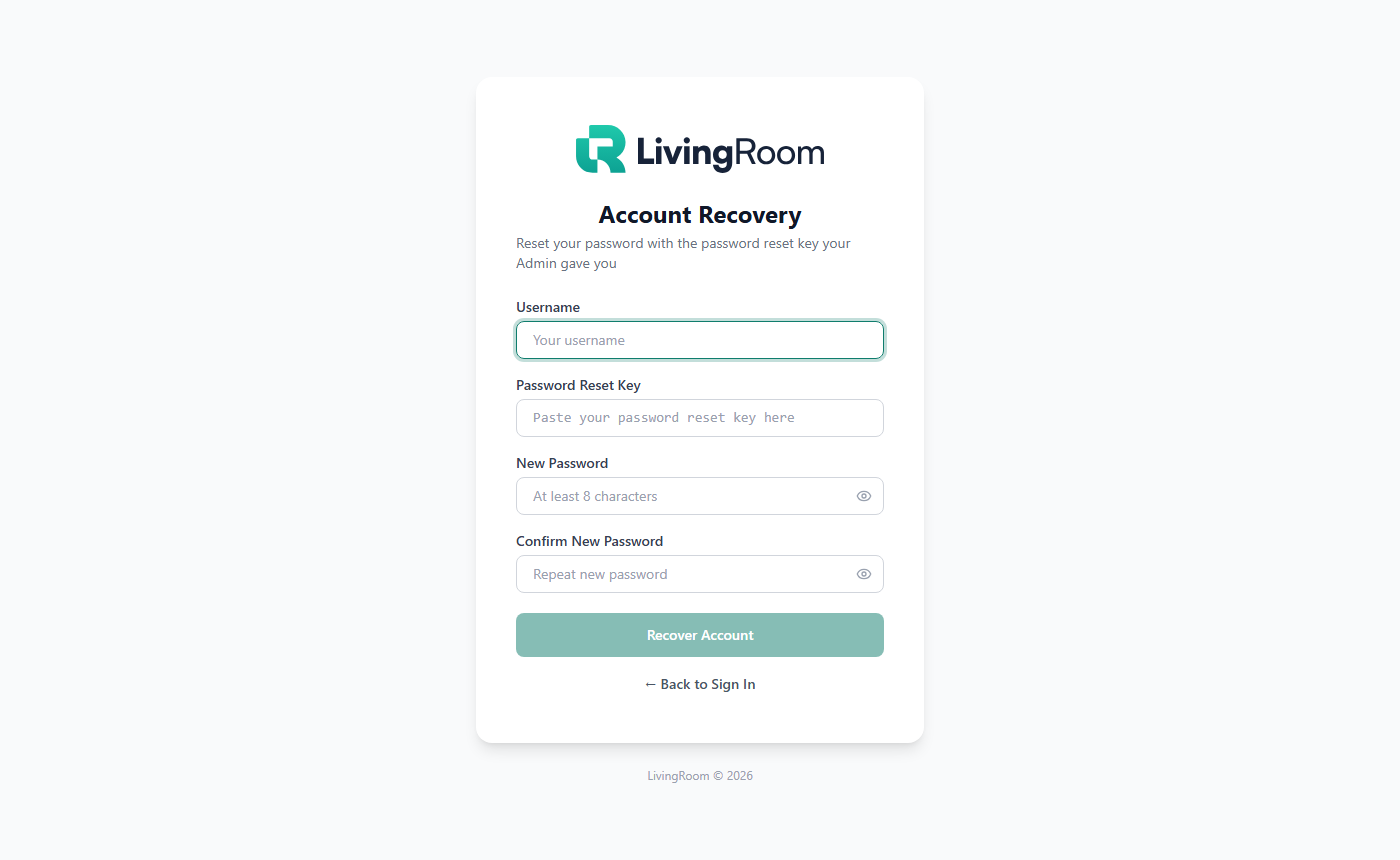
- On the sign-in page, under "Locked out?", click Use a password reset key →.
- On the Account Recovery page, type your Username and paste the Password Reset Key.
- Type a New Password (at least 8 characters) and repeat it in Confirm New Password.
- Click Recover Account.
- "Password updated for '…'. You can now sign in with your new password." appears. Click ← Back to Sign In and sign in.
The password reset key stops working once it has been used; ask your Admin for a new one.
Important: If you are the only Admin, create a password reset key for your own account now (on the Users page, the key icon on your own row) and keep it with your license key. A support session cannot reset passwords.
Coming later: a digitally signed installer and automatic updates are planned for a later version.
Related chapters