
4. Products
Products are the items you buy from vendors, keep in stock and sell on Walmart. In LivingRoom every purchase order line, batch of stock and sale belongs to a product, so a clean product list makes everything else easier. This chapter shows how to add and maintain products, link them to vendors, track lots and expiry dates, and load many products at once from a spreadsheet.
Note: The labels in this chapter are those of a company that sells on Walmart. If your company is set up for another marketplace, a few labels follow it (for example, Walmart Item ID reads ASIN for Amazon).
In this chapter
- Who can do what
- How to find a product
- How to add a product
- How to edit a product
- Product statuses and what they block
- How to change a product's status
- What the product page shows
- How to link a vendor to a product
- How to change, deactivate or reactivate a vendor link
- How to manage container types
- How to track lots and expiry dates
- How to set a product's costing method and standard costs
- How to work out a selling price with the Break-Even Calculator
- How to look at a product with Quick View
- How to upload products from a spreadsheet
- How to export your products
Who can do what
What you can do with products depends on your role (see Chapter 3).
| Task | Admin | Manager | Purchaser | Receiving |
|---|---|---|---|---|
| See the Products list and product pages | Yes | Yes | Yes | Yes (read only) |
| Add, edit and upload products, change their status, manage vendor links | Yes | Yes | Yes | No |
| Create a new vendor from a product's Add Vendor form | Yes | Yes | No (use the Vendors page) | No |
| Change a product's costing method | Yes | No | No | No |
| Change a product's standard costs | Yes | Yes | No | No |
| Add, rename or delete container types | Yes | No | No | No |
| Add a custom insurance category | Yes | Yes | No | No |
| See the Fee Impact card | Yes | Yes | No | No |
The Reports Only role does not see Products.
How to find a product
Use the Products list to look up a product, check its preferred vendor and cost, or change several products at once.
- Click Products in the sidebar (or press Ctrl+Shift+P, or G then P).
- Type in the search box. It searches the product name, SKU, brand, Walmart Item ID, GTIN, barcode and HTS code.
- Click a status tab: All, Active, Potential, Inactive or Discontinued.
- Click a column heading to sort by it; click it again to reverse the order.
- Click a row to open the product page.
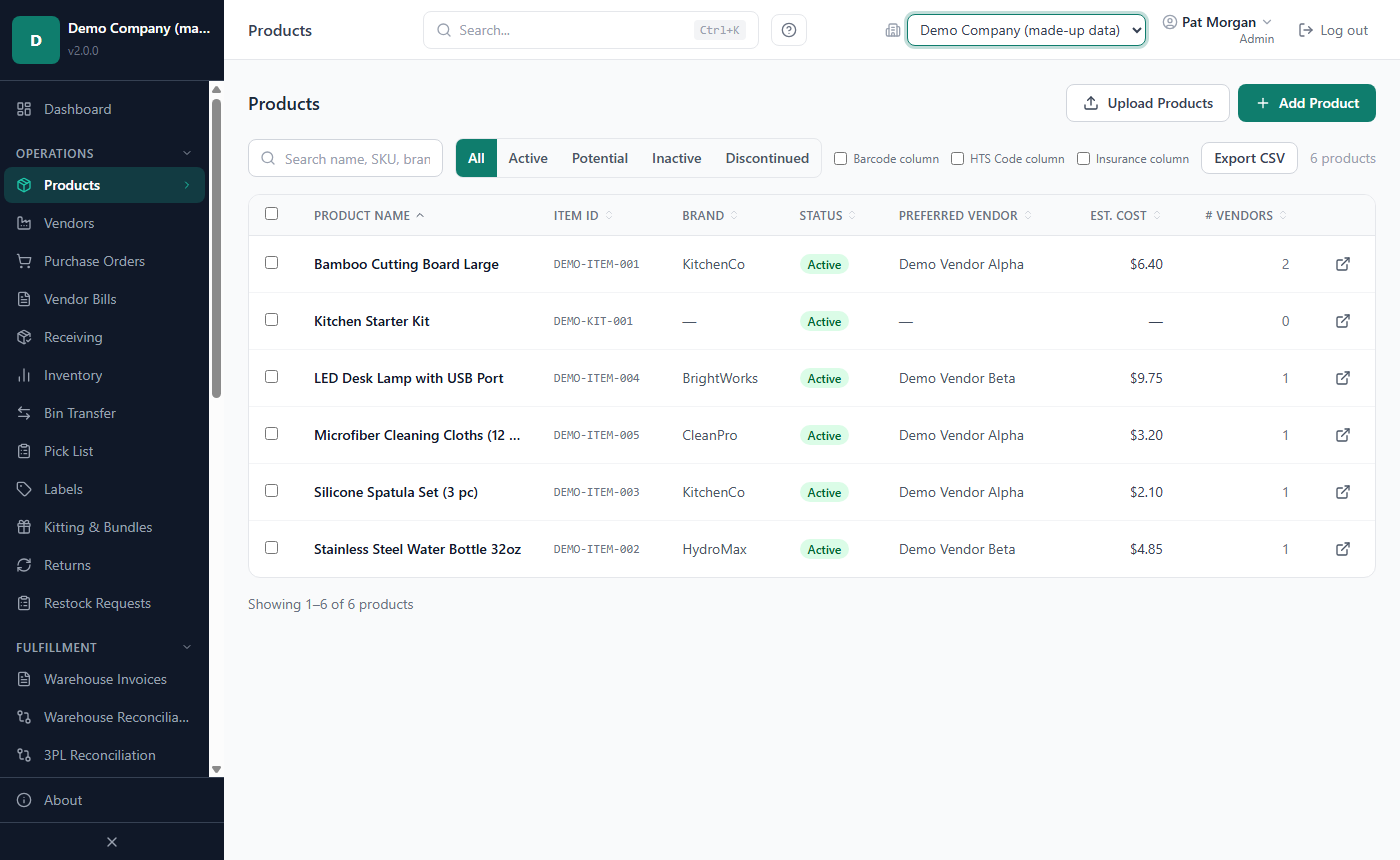
The list shows 25 products per page (← Previous, Next → and page numbers at the bottom). Item ID is the Walmart Item ID; Preferred Vendor and Est. Cost show the preferred vendor and its purchase cost; # Vendors counts the active vendor links. A purple Bundle tag marks a bundle (see Chapter 6).
Tick Barcode column, HTS Code column or Insurance column to show those columns; this PC remembers your choice. In the Insurance column, a ⚠ sign marks a high-risk insurance category. Clear Filters resets the search and the tab. When you come back from a product with Back to Products, the list keeps your search, tab, sort and page.
How to change many products at once
- Tick the box at the start of each product row (the box in the heading row selects the whole page).
- In the blue bar that appears, choose an action:
- Activate sets the selected products to Active; Deactivate sets them to Inactive (you confirm first).
- Change status to: — pick a status, then click Apply.
- Assign to vendor — choose the Vendor, enter the Purchase Cost, the Pack Qty and, if you like, the Vendor SKU (optional), then click Assign. Products already linked to that vendor are skipped.
- Export saves the selected rows of the page you are on as a CSV file.
- Clear selection removes all ticks.
A message tells you how many products were updated or skipped. Products that could not be changed stay selected, and the message gives the first reason (for example, a product on an open purchase order cannot be made Inactive).
How to add a product
Add a product by hand when you start selling a new item. Admins, Managers and Purchasers can add products; to add many at once, see How to upload products from a spreadsheet.
- On the Products list, click Add Product.
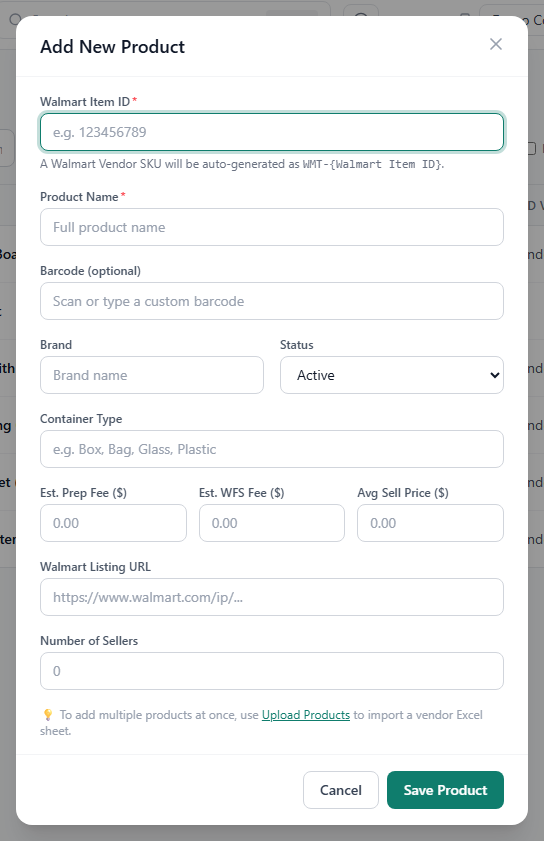
- Enter the Walmart Item ID and the Product Name. Both are required.
- Fill in the other fields you know (see the table below). You can add or change them later.
- Click Save Product.
The product page opens, with a reminder to add vendor links: a product needs an active vendor link before it can go on a purchase order (see How to link a vendor to a product). The product has no stock until you receive a purchase order for it.
LivingRoom gives the product a placeholder SKU (shown as Walmart Vendor SKU) made from the item number: Walmart Item ID 123456789 gets the SKU WMT-123456789. See How to edit a product for how to replace it with your own SKU.
| Field in Add New Product | What to enter |
|---|---|
| Walmart Item ID | The item number of the Walmart listing, for example 123456789. No other product may use it. |
| Product Name | The full product name. |
| Barcode (optional) | Your own barcode for scanning, up to 64 characters (letters, digits, spaces and the signs . _ / + -). It may not match another product's barcode, UPC or Walmart Item ID. |
| Brand | The brand name. |
| Status | Active (the default), Potential, Inactive or Discontinued. See Product statuses. |
| Container Type | How the product is packed, for example Box or Glass. |
| Est. Prep Fee ($), Est. WFS Fee ($) | Your estimates of the prep center fee and the Walmart fulfillment fee per unit. |
| Avg Sell Price ($) | The price you expect to sell at. Cost Intelligence uses it as the product's current selling price. |
| Walmart Listing URL | The web address of the Walmart listing. |
| Number of Sellers | How many sellers offer the item (your research). |
Tip: When an Admin or Manager scans a barcode at receiving that no product has, the receive form offers to create the product with the barcode filled in. See Chapter 5.
Important: Products cannot be deleted, because purchase orders, stock and sales refer to them. Set a product you no longer sell to Discontinued instead.
How to edit a product
Edit a product to add details you did not have at first, such as the UPC, the HTS code or the insurance category.
- Open the product page.
- In the Product Information card, click Edit Product.
- Change the fields you need.
- Click Save Changes. The message Product saved successfully. appears.
The edit form has the fields of the add dialog (a few with slightly different labels, such as Prep Fee Est. ($) and Walmart Link) plus these:
| Field | What it is for |
|---|---|
| GTIN (UPC / EAN) | The UPC or EAN printed on the package. A scan finds a product by its own barcode first, then the GTIN, then the Walmart Item ID. |
| HTS Code | The Harmonized Tariff Schedule code for import duties, for example 6109.10.0004: digits with dots or dashes, no spaces, up to 20 characters. |
| Sell Pack Qty | How many items make one sellable unit (2 for a 2-pack). Leave 1 for single items. |
| Monthly Sales Est., # of Sellers, Est. Profit ($), Est. ROI (%) | Your research figures, kept for reference. |
| Available-to-Sell (ATS), Inbound to WFS, Reserved / Unavailable | The WFS health quantities (see What the product page shows). |
| Target Margin (%) - pricing | The margin the price recommendations aim for. Empty means 30%. |
| Require lot number at receiving, Require expiration date at receiving | Make these entries compulsory at receiving (see How to track lots and expiry dates). |
| Container Type | Chosen from your company's list (see How to manage container types). |
| Insurance Category (optional) | See below. |
| Internal Notes | Notes for your team. |
Your SKU. The SKU under the product name cannot be typed in on the product page. To replace a placeholder such as WMT-123456789 with your real SKU, upload a product sheet with the same Walmart Item ID and your real SKU (see What happens to existing products). You can change the Walmart Item ID here (it must stay unique); the SKU does not change with it.
Insurance category and the high-risk warning
The Insurance Category list has a Standard group and a ⚠ High Risk group (for example lithium-ion batteries, baby products or supplements). A product in a high-risk category shows an amber badge on its page: ⚠ High Risk Category — verify insurance coverage. Reports › Insurance Category shows your stock value per category, for your insurer (see Chapter 8).
Admins and Managers can add a category: choose + Add custom category..., type the name (up to 80 characters), tick High risk category if it should carry the warning, and click Add. The category is then available for every product of the company.
Important: The category list is a general guide. Check with your insurer which products your policy covers.
Product statuses and what they block
Every product has one of four statuses, which tell your team whether it may be ordered.
| Status | Badge | Meaning | Can it go on a purchase order? |
|---|---|---|---|
| Active | Green | In use: you buy and sell it. | Yes |
| Potential | Amber | You are still evaluating it. | No |
| Inactive | Grey | Not in use for now. | No |
| Discontinued | Grey | Retired for good. | No |
- Only Active products can be put on a purchase order, on a new order or as a new line. To order a Potential product, set it to Active first.
- A product on an open purchase order cannot be set to Inactive or Discontinued. The app shows Cannot deactivate — this product has 1 open purchase order(s). Receive or close them first.
- New restock requests offer only Active products, and some reports and Cost Intelligence lists leave out Discontinued products or show only Active ones.
- Nothing is lost. Stock, batches, vendor links and history are kept, and sales of the product are still imported and costed. You can set the product back to Active at any time.
Note: On the Bulk PO Import page, the option Allow non-Active product statuses (historical import) loads old purchase orders for products that are not Active and sets those products to Active. See Chapter 5.
How to change a product's status
Change the status when you start or stop selling a product. Admins, Managers and Purchasers can do this.
- Open the product page.
- Click Change Status next to the status badge and choose the new status.
- For Inactive or Discontinued, confirm with Mark Inactive or Mark Discontinued.
The badge changes, and the bottom of the page shows Status last changed with the date and your name; the Activity Log records it too. To change many products, use the bulk bar (see How to change many products at once).
What the product page shows
Click a product in the Products list. The top shows the name, the SKU, the status badge and Change Status. Below, from top to bottom:
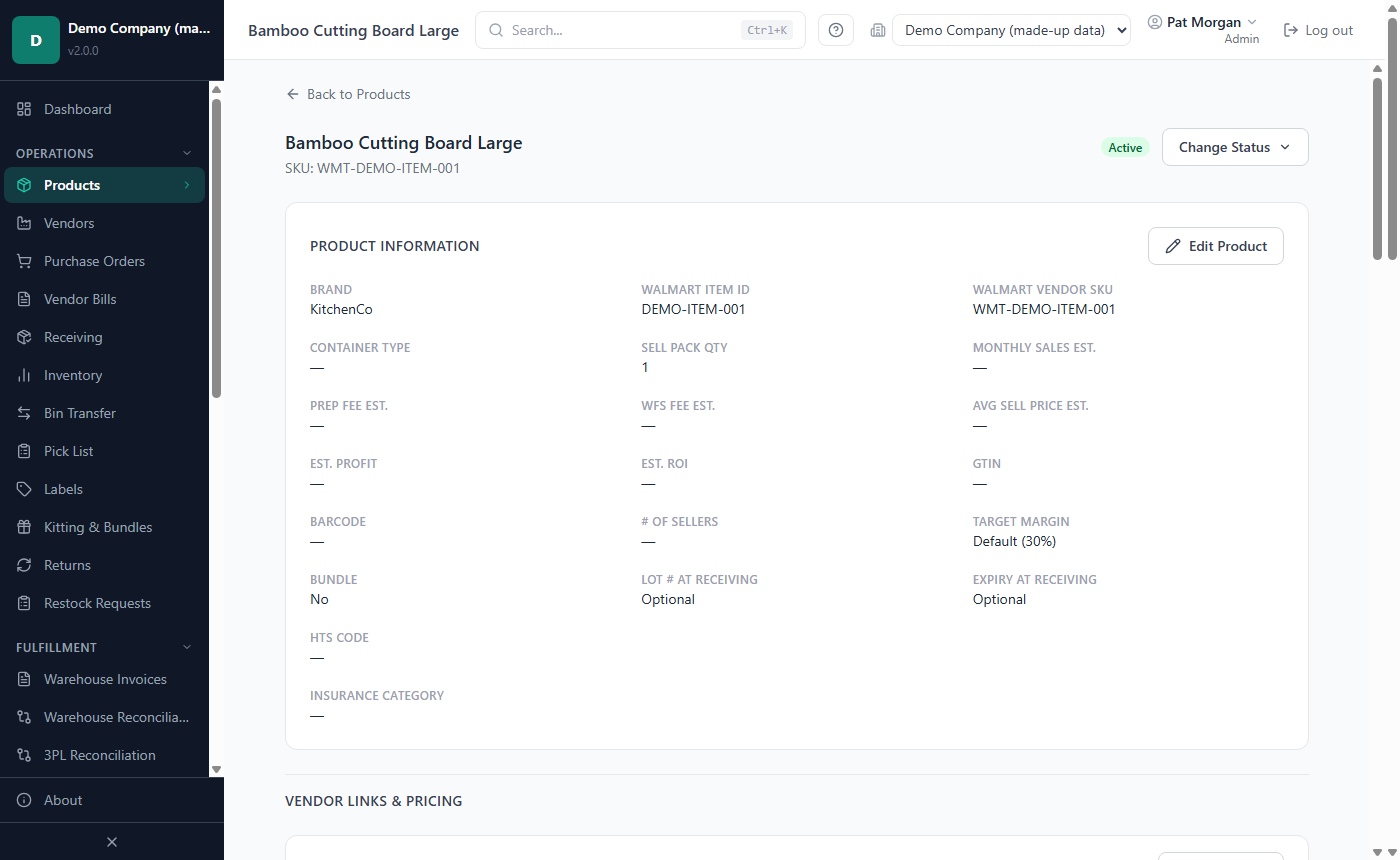
- Product Information — all product fields and Edit Product, including Lot # at Receiving and Expiry at Receiving (Required or Optional), the Target Margin (or Default (30%)) and Bundle.
- Vendor Links & Pricing — the Vendors card (see How to link a vendor to a product).
- Marketplace Listings — only when your company also sells on Amazon, eBay or Etsy (see Chapter 9).
- Inventory (read only) — units At Receiving Whs, At Fulfillment Whs and On Order, the Avg Unit Cost and the Total Value; stock by warehouse; and the Batches with their warehouse, PO, received date, Lot, Expiry, units remaining and unit cost. Tick Show depleted batches to include sold-out batches.
- WFS Health — Available-to-Sell (ATS), Inbound to WFS and Reserved / Unavailable, copied from Walmart Seller Center › Inventory; click Save WFS Health. Reports › WFS Health uses them; with the Walmart API connected, an Admin can fetch them instead (see Chapter 9). Reconciliation History shows the last reconciliation, Matched or Variance (see Chapter 6).
- Fee Impact (Admins and Managers) — each fee as a share of the product's revenue, once sales and settlements are imported. The marketplace's commission has its own line, Marketplace commission. Below the table, Estimated commission (not arrived yet) shows the commission estimated for sales whose real commission is not imported yet. It is part of net profit, as in Reports › Profitability, but not of the fees in the table.
- Inventory Costing Override and Standard Costs (see How to set a product's costing method and standard costs).
- Break-Even Calculator with price recommendations (see How to work out a selling price).
Receiving users see the page without the edit buttons.
How to link a vendor to a product
A vendor link records that you buy this product from a vendor, at what cost and in what pack size. Purchase orders order a product through its vendor links, so a product with no active vendor link cannot be put on a purchase order. Each link is one vendor plus one container type: if a vendor sells you the product in glass and in plastic, add two links, each with its own cost.
- On the product page, in the Vendors card, click Add Vendor.
- Choose the Vendor. Vendors already linked with the chosen container type are greyed out. Admins and Managers can also choose + Create new vendor..., type the name and click Create; Purchasers add new vendors on the Vendors page (see Chapter 5).
- Enter the Purchase Cost (required): what this vendor charges you per unit.
- Enter the Pack Qty: how many items come in one case or pack you buy. Leave 1 for single items.
- Optionally enter the Vendor SKU (the vendor's own item number), choose a Container Type and paste the Distribution Link (the product's page on the vendor's website).
- Tick Set as preferred vendor if this vendor should be the product's main vendor.
- Click Add Vendor.
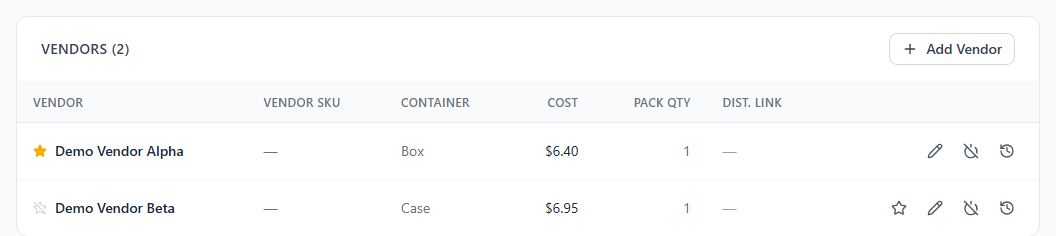
The link appears in the Vendors table (Vendor, Vendor SKU, Container, Cost, Pack Qty, Dist. Link). A yellow star marks the preferred vendor; a product's first vendor link becomes preferred automatically.
Pack sizes, an example. You buy the Stainless Steel Water Bottle 32oz from VT Vendor Alpha in cases of 12 bottles (Pack Qty 12) and sell it as a 2-pack (Sell Pack Qty 2 on the product). One case of 12 bottles makes 6 sellable units; the receiving screen does this conversion (see Chapter 5). A purchase order keeps the pack size it was created with, so a later change of Pack Qty does not change existing orders.
How to set the preferred vendor
The preferred vendor is the product's main vendor. The Products list shows it, and its cost is the product's default cost, for example in the Break-Even Calculator and when you order from the Replenishment report.
- In the Vendors table, click the star icon (Set as preferred) on the vendor's row.
Only an active link can be preferred, and a product has one preferred vendor.
How to see a vendor's price history
Every change of a link's purchase cost is recorded, whether you typed it or a product upload changed it. Click the clock icon (Price history) on the vendor's row: the Price History dialog lists Date, Old Cost, New Cost and Changed By.
How to change, deactivate or reactivate a vendor link
Admins, Managers and Purchasers can change vendor links.
To change a link when the vendor's price, pack size or delivery time changes:
- Click the pencil icon (Edit vendor) on the vendor's row.
- Change the Purchase Cost, Pack Qty, Container Type, Vendor SKU, Lead Time (days) or Distribution Link.
- Click Save.
A new cost is recorded in the price history and, for the preferred vendor, shows as Est. Cost in the Products list. Purchase orders keep the costs entered on them.
Lead Time (days) is the time from order to delivery the vendor promises. There is no fixed reorder point per product: Reports › Replenishment works out the reorder point and a suggested order quantity from your recent sales, the lead time and a safety-stock setting. Once a product has 3 or more received purchase orders, the lead time it uses is the one you really got (order date to first receipt, the last 6 POs); before that, the Lead Time of the vendor you last ordered it from, then the preferred vendor's, then the shortest one (14 days when none is entered). See Chapter 8.
To deactivate a link when you stop buying the product from that vendor:
- Click the power icon (Deactivate vendor link) on the vendor's row.
- Confirm with Deactivate.
The row turns grey with an Inactive badge. New purchase orders can no longer use the link; existing orders, receipts and price history keep it. If it was the preferred link, the product's oldest other active link becomes preferred.
To reactivate a link, click the power icon (Reactivate vendor link) on the grey row. If the product has no preferred vendor at that moment, this link becomes preferred.
Note: Vendor links are deactivated, not deleted, so that purchase orders and price history stay complete.
How to manage container types
A container type describes how a product is packed. Bag, Box, Glass, Plastic, Porcelain and Wood are on the list from the start, and each company has its own list. Only Admins can add or delete container types.
Click Settings, then the Container Types tab.
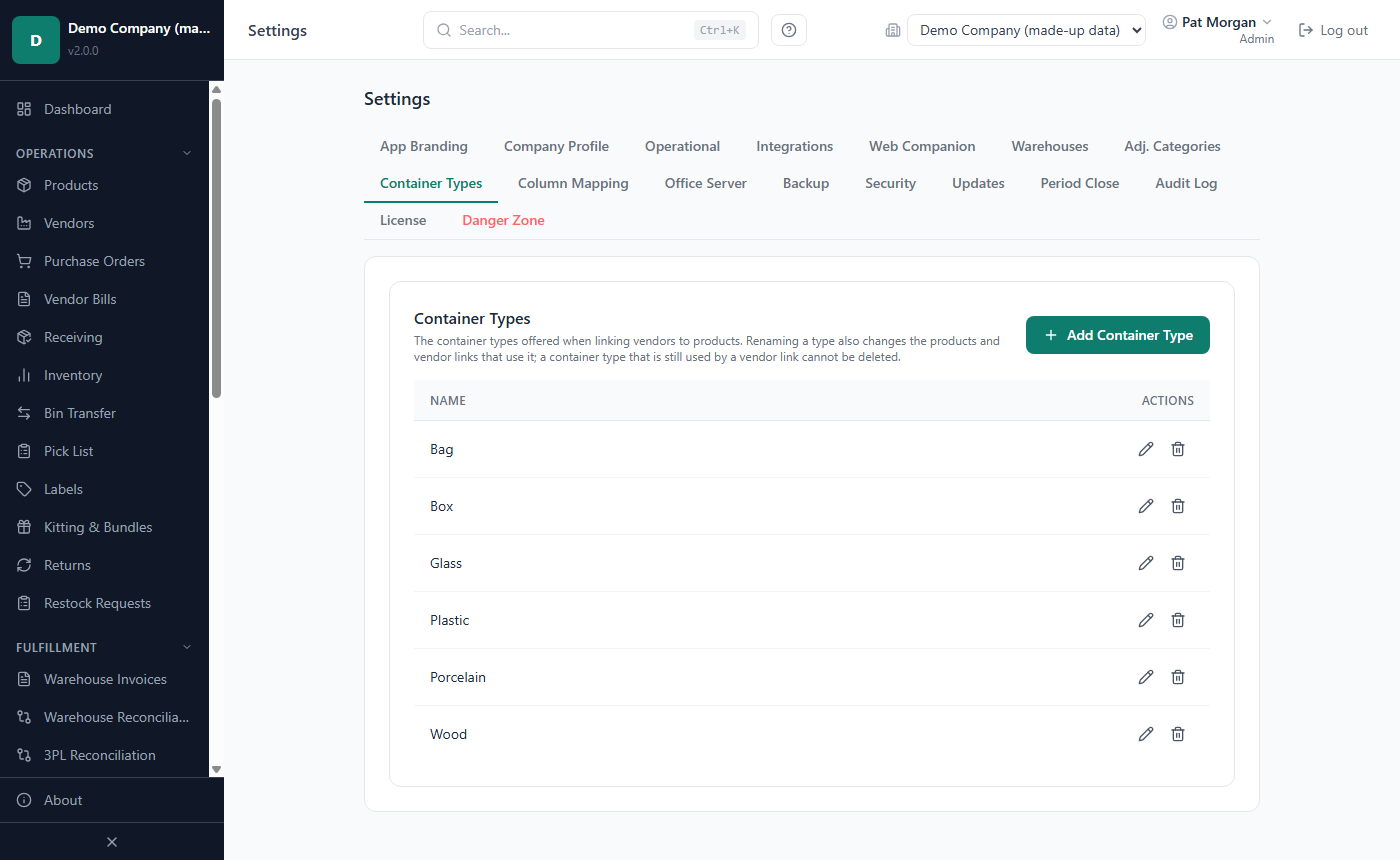
To add a type, click Add Container Type, type the name (up to 50 characters, for example Ceramic) and click Add. A name already on the list, in any mix of capital and small letters, is refused.
To delete a type, click the bin icon on its row and confirm with Delete. A type that a vendor link uses cannot be deleted: 'Glass' is used by 3 product vendor link(s) and cannot be deleted.
To rename a type, click the pencil icon on its row, change the name and click Rename. The new name also replaces the old one on every product and vendor link that uses it, and the rename is recorded in the audit log. A name that is already in use - on the list, or on a product or vendor link, in any mix of capital and small letters - is refused, so two types are never merged by mistake. Changing only the capitals (glass to Glass) is allowed.
Admins can also add a type from the Container Type list of a vendor link or the Edit Product form, with + Add new container type.... Other roles see that choice too, but the app refuses it; ask an Admin.
How to track lots and expiry dates
Each time you receive stock, LivingRoom creates a batch (a lot) with its own quantity, cost and received date, plus a lot number and expiry date if you enter them. For food, supplements, cosmetics and other dated goods, record both, so that the soonest-expiring stock can be sold first and you are warned before stock expires.
Make lot number and expiry date compulsory
- On the product page, click Edit Product.
- Tick Require lot number at receiving and/or Require expiration date at receiving.
- Click Save Changes.
From then on, the Batch Details section of the receive form opens by itself with those fields marked as required, and a receipt without them is refused. Without these ticks, the Lot Number, Expiration Date, Bin Location and Custom Batch Ref at receiving are optional (see Chapter 5).
How FIFO and FEFO pick the batch
When units are sold (imported sales or manual orders), removed or used in kits, the app takes them from the product's batches in a fixed order:
- FIFO (First In, First Out, the default): the batch received first is used first.
- FEFO (First Expired, First Out): the batch with the earliest expiry date is used first; batches without an expiry date come after all dated ones, oldest received first.
The cost of goods sold is the cost of the batch used. Batches on hold are skipped. A bulk transfer between warehouses moves the oldest-received batches first, whatever the method; the per-product Transfer to Warehouse dialog lets you choose the batches.
Example. A product has two batches of 100 units:
| Batch | Received | Expires | Unit cost |
|---|---|---|---|
| A | March 1 | September 30 | $5.00 |
| B | March 15 | August 31 | $5.40 |
You sell 30 units. With FIFO they come from batch A: cost of goods 30 × $5.00 = $150.00. With FEFO they come from batch B, which expires first: 30 × $5.40 = $162.00.
An Admin sets the method for all companies in Settings › Operational › Inventory Costing Method (see Chapter 10) and can give one product its own method (see the next section).
Tip: For a product costed FEFO, enter an expiry date for every batch. Undated batches are used last, and the Dashboard counts them as FEFO batches missing expiry date.
Expiry alerts
When batches are close to expiry, the Dashboard shows an alert such as 2 batches expiring within 30 days · 1 FEFO batch missing expiry date. Click it to open the Inventory page on the Expiring tab, which lists those batches, including any that have already expired. You can also get these alerts by e-mail (see Chapter 9).
To correct a batch's lot number or expiry date later, or to put a batch on hold for a recall or a quality check, use the Batches dialog on the Inventory page; a batch on hold is not used for sales or transfers until it is released. See Chapter 6.
How to set a product's costing method and standard costs
The Inventory Costing Override card on the product page holds two cost settings. Admins, Managers and Purchasers see it, but only Admins change the costing method (it decides which batch cost goes into the cost of goods sold), and only Admins and Managers change standard costs (they are only targets).
To give one product its own costing method (Admins):
- In Inventory Costing Override, choose Global Default (FIFO) (the method for all companies, named in brackets), FIFO or FEFO.
- Click Save Override and confirm with Change costing.
From now on, sales, removals and kits of this product use the new order; existing batches and past sales are not changed. The Activity Log records the change. Other roles see Only an Admin can change the costing method. It changes which batch cost lands in COGS.
To set standard costs (Admins and Managers): enter the Standard Unit Cost and/or the Standard Landed Cost and click Save Standard Costs. Standard costs are the costs you expect to pay: targets for cost variance alerts (for example the Variance view of a purchase order) and a starting cost for the Break-Even Calculator. They never change a stored cost or the cost of goods sold. Purchasers see Only an Admin or Manager can change standard costs.
How to work out a selling price with the Break-Even Calculator
Use the calculator to find the lowest price that covers your costs and the price that earns your target margin. Anyone who can open the product page can use it; what you type does not change the product.
- On the product page, scroll to Break-Even Calculator.
- Check Landed Cost ($). It comes from the most recently received batch (including allocated prep fees), else from the standard cost or the preferred vendor's cost; a line above the fields says which.
- Check Prep Fee ($) and WFS Fee ($), taken from the product's fee estimates.
- Set Target ROI (%) (20 to start with) and Refund Rate (%), the share of sales you expect to refund (3 to start with).
- Optionally set Target Margin (%) (the product's target margin, else 30), Competitor Low ($) and Competitor High ($).
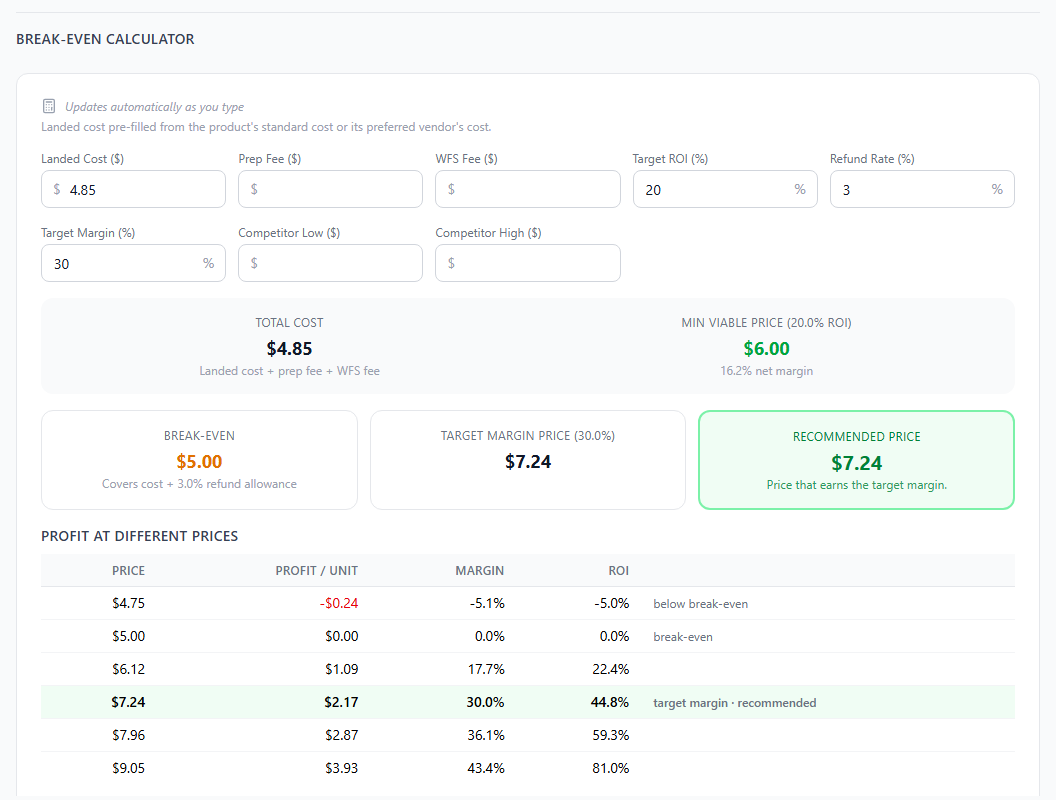
The results update as you type, and your entries are remembered for this product on this PC for 24 hours. You see the Total Cost (landed cost + prep fee + WFS fee), the Min Viable Price that earns your target ROI after refunds, then the Break-even price, the Target margin price, a Recommended price with the reason for it, a table of Profit at different prices (Price, Profit / unit, Margin, ROI) and a chart of your Average selling price by month vs. break-even. The recommended price is the target margin price, capped at the highest competitor price but never below break-even; a red warning appears if break-even is above the highest competitor price.
Example. Landed Cost $6.00 + Prep Fee $0.50 + WFS Fee $3.50 = Total Cost $10.00. Target ROI 20%, Refund Rate 3%, Target Margin 30%, Competitor High $14.00:
| Result | Price | How it is worked out |
|---|---|---|
| Break-even | $10.31 | $10.00 ÷ 0.97 |
| Min Viable Price (20.0% ROI) | $12.37 (16.2% net margin) | $10.00 × 1.20 ÷ 0.97 |
| Target margin price (30.0%) | $14.93 | $10.00 ÷ (1 − 0.03 − 0.30) |
| Recommended price | $14.00 | capped at the highest competitor price |
At $14.00 you keep $14.00 × 0.97 = $13.58 after refunds: a profit of $3.58 per unit, a 25.6% margin and a 35.8% ROI.
To keep a target margin you typed as the product's default, click Save …% as this product's default target margin (Admins, Managers and Purchasers).
Saved scenarios. To compare a few sets of inputs, for example a 20% and a 30% target margin, save each one under a name: type the inputs, enter a name (or keep the suggested one, such as "Margin 30%") under Saved scenarios and click Save the inputs above as a scenario. Saved scenarios are kept for the company: everyone who can open the product sees them, and Admins, Managers and Purchasers can save and delete them (up to 20 per product). Saving under a name that is already used asks whether to replace that scenario. Tick two or more scenarios to see them side by side: costs, break- even, Min Viable Price, target margin price and recommended price. Load puts a scenario's inputs back into the calculator.
How to look at a product with Quick View
Quick View shows a product in a dialog, so you keep your place on the page you are working on. The small open icon (Quick view product) appears next to the product name on the Create Purchase Order form, on a purchase order's lines, on the Receiving list and on the Inventory page.
- Click the Quick view product icon.
- Use the tabs:
- Overview — the main fields, standard costs and costing method (read only).
- Vendors — the vendor links. Admins, Managers and Purchasers can add one (Add Vendor Link), set the preferred vendor and deactivate or reactivate a link. A warning shows when the product has no active link.
- Inventory — stock by warehouse and the batches.
- WFS Health — the three Walmart quantities, with Save for Admins, Managers and Purchasers.
- Break-Even — a short calculator with Total Cost, Break-Even and Min Price.
- Click Full product page, Open in New Window (a separate app window) or Close.
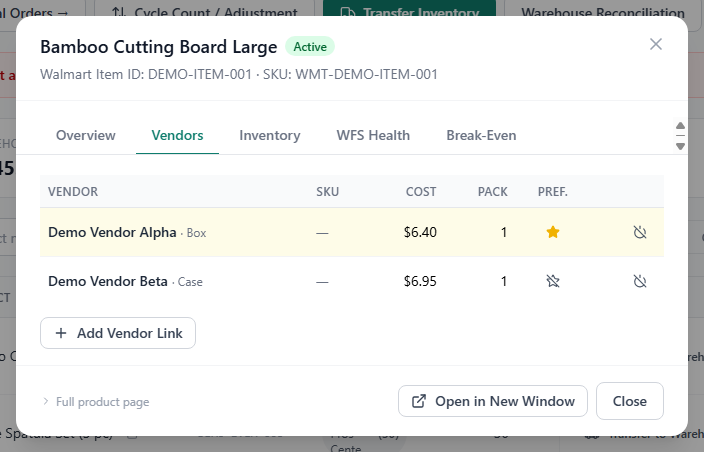
A vendor link you add in Quick View is available at once on the purchase order you are creating.
How to upload products from a spreadsheet
Upload a spreadsheet to add many products at once, to load a vendor's product sheet, or to change products after editing an export. Admins, Managers and Purchasers can upload products. Nothing is saved until you have reviewed every row.
File formats
| Format | File | Layout |
|---|---|---|
| Format A | .xlsx | One product: labels in column A, values in column B. |
| Format B | .xlsx | Several products stacked, each starting with a row that holds only "Product 1", "Product 2" and so on; labels in column C, values in column D (blocks starting in another column are found too). |
| Format C | .csv | One product per row, headings in the first row: the same columns as the Products export. |
Files can be up to 25 MB, and you can upload several at once. The app reads these labels or headings (capital letters do not matter): Product Name; Walmart ID (in Format C also Walmart Item ID); Walmart Vendor SKU (in Format C also SKU); Brand, HTS Code, Insurance Category, Container Type, Sell Pack Quantity, Walmart Link; the estimates Monthly Sales, Prep Center Fees (or Labeling and Shipping Fees), WFS Fee, Average Price to Sell, Average Profit, ROI, No. Of Sellers; and, for the vendor link, Supplier Name, Purchasing Cost, Purchase Pack Quantity and Distribution Link. Format C also reads GTIN, Barcode and Status. A supplier that is not on your Vendors list yet is created. Cells with N/A, none or a dash are read as empty, and amounts such as $1,234.50 are read correctly.
Upload the file
On the Products list, click Upload Products.
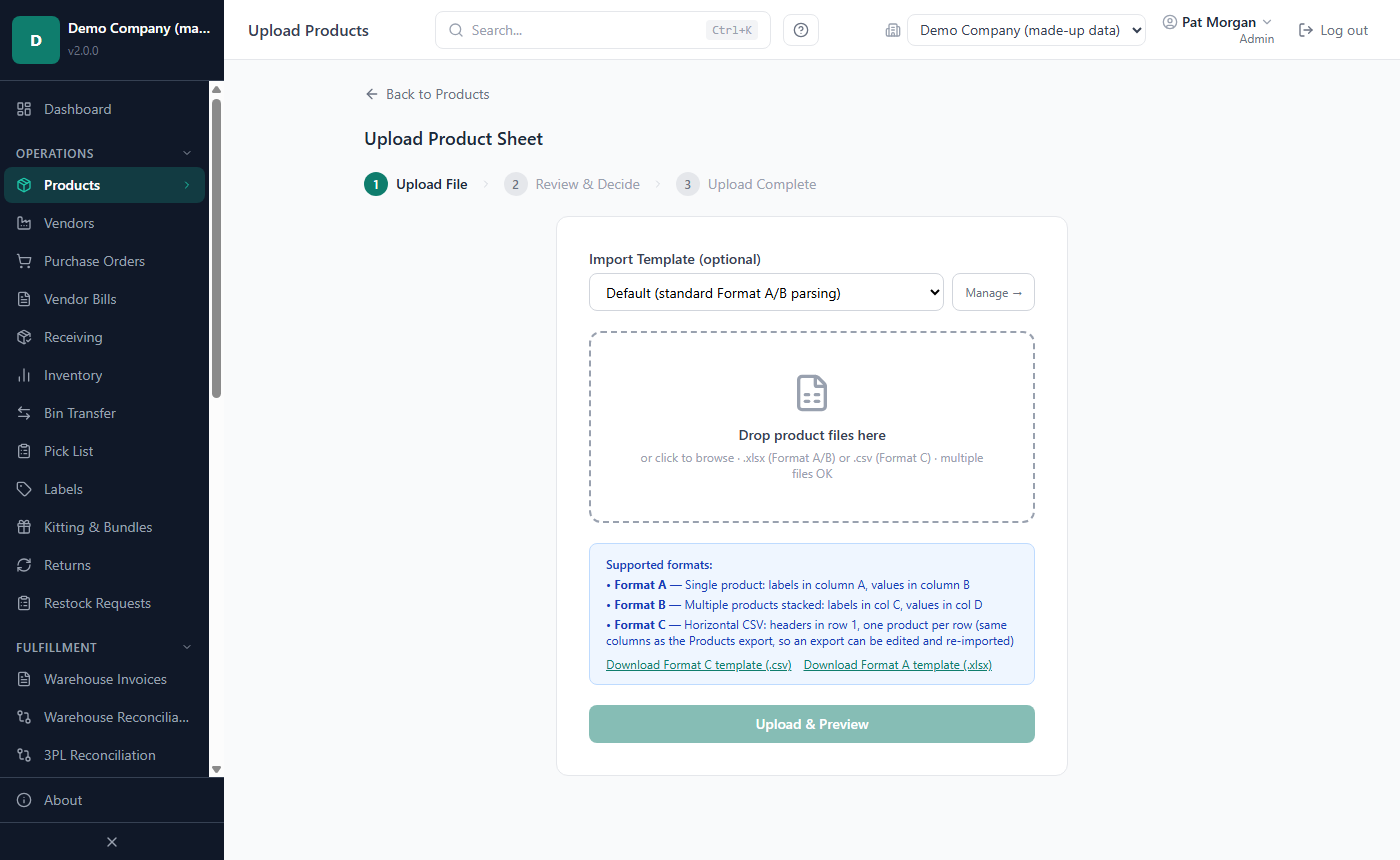
To start from a blank file, click Download Format C template (.csv) or Download Format A template (.xlsx).
If your company has saved product import templates, you can pick one under Import Template (optional). For an Excel file, the app suggests a matching template: click Use this template, or Don't use it to keep the standard layout. Templates are made on the Import Templates page (see Chapter 7).
Drop your files on the box, or click it to browse. To remove a file, click its X.
Click Upload & Preview.
Review and decide
The Review & Decide step lists every product found: Product, File, Vendor, Cost (a changed cost shows the old one crossed out), Analysis and Action. The app matches each row to your products by Walmart Item ID first, then by SKU, and suggests an action.
- Read the Analysis of each row and keep or change its Action.
- For rows set to Add as New Product, choose the status under the action, or use Set all: in the column heading. Without a choice, a new product takes the Status column of your file, else Active.
- Click Upload … Products (it counts the rows not skipped), or ← Re-upload to start again. A bar shows the progress (Importing the products); you can keep working meanwhile.
- Upload Complete shows how many products were Created, Enriched, Updated and Skipped, with a line per row. Click View Products or Upload Another File.
What happens to existing products
| Analysis | What it means | Suggested action and what it does |
|---|---|---|
| New Product | No product has this Walmart Item ID or SKU. | Add as New Product: creates the product. A Supplier Name in the row is linked as the preferred vendor, with the row's cost, pack quantity and container type. |
| Exact Duplicate | The product and its vendor link already match the file. | Skip. |
| Price Changed | The vendor's cost in the file differs. | Update Cost: changes that vendor link's cost (recorded in the price history) and its distribution link if the file has a new one. |
| New Vendor | The product exists; this supplier (or this container type of it) is not linked yet. | Add New Vendor: adds the supplier as an extra, not preferred, vendor link. |
| Link Update | The vendor's distribution link in the file differs. | Update Links: changes that link (and the product's Walmart link too, when the file's differs). |
| Walmart Link Update | Only the product's Walmart link in the file differs. | Update Walmart Link: changes the Walmart link. |
| Enrich Stub | The product exists and the file can fill fields that are still empty. | Enrich Stub: fills only the empty fields, links the supplier if needed, and replaces a WMT-… placeholder SKU with the real SKU from the file. |
| No Vendor Info | The product exists; the file has no Supplier Name. | Skip. |
| Invalid | The row has an error, shown in red (for example a wrong HTS code, a barcode another product uses, or no Product Name for a new product). | Skip. Fix the file and upload again. |
- Existing values are not overwritten. An upload changes an existing product only as listed above: a vendor's cost and distribution link, and empty fields. It never changes an existing product's status.
- Placeholder SKUs. A row without a SKU gets one from the Walmart Item ID (WMT-…), marked Placeholder SKU — update after import. A product created automatically by the Bulk PO Import also has one; a later upload with the real SKU replaces it (Enrich Stub).
- Duplicate SKUs in one file are listed in an amber box, Duplicate SKUs found in the uploaded file. Every later row with the same SKU starts set to Skip ("Later occurrences are pre-set to Skip."). If you change one of them back, the upload stops with a duplicate-SKU error.
- All or nothing. If any row cannot be saved, nothing is saved and an error names the row. Fix it and upload again.
- A copy of every uploaded file is kept in your data folder, under
Data\imports(see Chapter 10).
How to export your products
- On the Products list, click Export CSV. A large catalog takes a moment: the file is prepared in the background.
- When it is ready, choose where to save products.csv and click Save.
The file holds every product of the company, whatever search or tab is active, in the Format C columns: SKU, Product Name, Brand, Walmart Item ID, GTIN, Barcode, HTS Code, Insurance Category, Container Type, Sell Pack Quantity, Status, the estimates, and the Supplier Name and Purchasing Cost of the preferred (else the first active) vendor link. You can edit it and upload it again; unchanged rows show as Exact Duplicate. To export only some products, select them and click Export in the bulk bar.
Coming later: renaming a container type that vendor links already use is planned for a later release.
Related chapters
- Chapter 3 — Companies, users and sessions: roles and permissions.
- Chapter 5 — Vendors, purchasing, receiving and prep centers: vendors, purchase orders and receiving with lot numbers and expiry dates.
- Chapter 6 — Inventory: batches, holds, transfers, adjustments and kitting.
- Chapter 7 — Sales and settlements: import templates.
- Chapter 8 — Reports and dashboards: Replenishment, WFS Health, Insurance Category and Cost Intelligence.
- Chapter 9 — Integrations: marketplaces, the Walmart API and e-mail alerts.
- Chapter 10 — Settings, backups and updates: the costing method for all companies and the data folder.
- Chapter 12 — Glossary: FIFO, FEFO, landed cost and other terms.