
7. Sales and settlements
LivingRoom learns what you sold from the sales order report you export from Walmart, and what Walmart charged and paid you from the WFS settlement report and Walmart's payment report. Each sold unit is taken from a batch of your stock and carries that batch's cost; the settlement fees then turn gross profit into net profit. This chapter shows how to import both files, work with the orders they create, and spot units Walmart lost but has not paid for.
In this chapter
- Before you start
- How to import a sales file
- How sold units get their cost (FIFO and FEFO)
- How to find, view and edit sales orders
- How to add a manual sales order
- How to import a settlement file
- How to view and correct settlement rows
- How to check Walmart reimbursements
- How to import Amazon reports (Beta)
- How to import eBay reports (Beta)
- How to import Etsy files (Beta)
- How to import Shopify exports (Beta)
- How to import files whose columns differ
- How to use the Import Wizard
- Related chapters
Before you start
Who can do what
| Task | Who |
|---|---|
| Import sales and settlement files; look at Sales Orders and Settlement Orders | Admins, Managers and Receiving users |
| Add or edit sales orders and settlement rows; download the original import files; dismiss unmatched settlement rows | Admins and Managers |
| Replace orders that were already imported (duplicate override) | Admins and Managers |
| Change Settings › Column Mapping; create, edit, import and export import templates | Admins and Managers |
| Open the Reimbursements page | Admins, Managers and Reports Only users |
The import pages are in the sidebar under Imports & Orders: Sales Import, Sales Orders, Settlement Import, Settlement Orders and Import Templates. Reimbursements is under Analytics and is shown for companies that sell on Walmart.
The sales file
In Walmart Seller Center, export your sales order report for the dates you want, as an Excel (.xlsx) or CSV file (an old Excel .xls file cannot be read: open it in Excel and save it as .xlsx or CSV first). Walmart renames its menus and reports from time to time, so this manual does not name them: compare your file's column headers with the table below. The first row must hold the column headers; the order lines start on row 2. LivingRoom reads these columns (Walmart's default names):
| Column | What LivingRoom uses it for |
|---|---|
| ORDER_PLACED_DT | The order date. The earliest and latest order dates in the file set the file's period. |
| SALES_ORDER_NUM | The Walmart order number. |
| PURCHASE_ORDER_NUM | Tells the lines of an order with several items apart. |
| WMT_ITEM_ID | Finds the product: it must match the product's Walmart Item ID. |
| QUANTITY | The number of units sold on the line. |
| GMV_AMT | The line's sale amount. Amount ÷ quantity = the unit sale price. |
| ORDER_STATUS | Only DELIVERED and SHIPPED lines become sales. CANCELLED lines are kept for the Seller Performance report only. |
| SHIPPED_DATE | The date shown in Sales Orders. |
| GTIN, VENDOR_SKU, BUNDLE_ITEM_ID, ITEM_NAME, SHIPPED_FROM, SHIP_TO_CITY, SHIP_TO_ST, SHIP_TO_ZIP_CD | Stored with the order for your reports. |
Every one of these columns must be in the file, even if some cells are empty. If one is missing, the preview stops and names it. The file can be up to 100 MB. If Walmart renames a column, an Admin or Manager can update the name (see How to import files whose columns differ).
The settlement file
In Walmart Seller Center, download the WFS settlement report for one reporting period as a CSV file (Excel files are not accepted here; up to 100 MB). Leave the file exactly as Walmart produced it. It starts with three lines (your business name, the labels ReportingPeriod_StartDate and ReportingPeriod_EndDate, and the two dates), followed by the column headers:
Walmart.com Order #, Walmart.com Order Line #, Walmart.com PO #, Walmart.com PO Line #, Transaction Type, Reason Code, Detail, WFSReferenceID, Transaction Date/Time, Qty, Partner ID, Partner GTIN, Partner Item Name, Category, Sub Category, Net Payable, CustomerOrderId, OrderChannelId.
The extra quoting Walmart puts around order numbers (so that Excel keeps every digit) is removed automatically.
Walmart's payment report (Beta)
The WFS settlement report does not include Walmart's commission (the referral fee). Walmart's payment report does. It lists every amount Walmart paid or charged you in one payout period - the price of each order, the commission, shipping, sales tax, WFS fees, refunds, reimbursements and adjustments - and the total Walmart paid you (Total Payable).
In Walmart Seller Center, open Payments and download the reconciliation report of one payout period as a CSV file. Leave the file exactly as Walmart produced it. Its first row holds the column headers, starting with:
Period Start Date, Period End Date, Total Payable, Currency, Transaction Key, Transaction Posted Timestamp, Transaction Type, Transaction Description, Customer Order #, Customer Order line #, Purchase Order #, Purchase Order line #, Amount, Amount Type, Ship Qty, …
Import it on Settlement Import, the same way as the WFS settlement report: LivingRoom recognizes the file by its column headers. You can import both reports for the same weeks. A WFS fee that is in both files counts once, whichever file you import first. This import is marked Beta until a real payment report has been checked with it: compare the preview with the report before you save it.
On an order you ship yourself, Walmart pays you the shipping the buyer paid. The payment report is the only Walmart file that shows it, so LivingRoom takes it from there: it is added to that order's revenue as shipping income (see Shipping the buyer paid). The preview says how much, for example "Shipping Walmart paid on 1 order line ($5.99) is added to its revenue as shipping income." On a WFS order Walmart keeps the shipping, so nothing is added.
Set up these things first
- Products. Each product you sell needs its Walmart Item ID, so that sales lines find it. Fill in the GTIN too: settlement reimbursements are matched to products by GTIN (see Chapter 4).
- A fulfillment warehouse. In Settings › Warehouses, you need at least one warehouse whose Warehouse Type is Fulfillment Location or Both (Receiving + Fulfillment), for example your Walmart WFS location (see Chapter 5).
- Stock at that warehouse. Receive your purchase orders and transfer the units to the fulfillment warehouse before you import the sales they cover (see Chapter 6).
Important: A sale only ever takes stock from the fulfillment warehouse you choose for it. Units at your prep center or at any other warehouse are never used, even when the fulfillment warehouse runs short. Transfer them first.
How to import a sales file
Import your sales regularly, for example once a week or once a month, after the stock they cover is at your fulfillment warehouse.
Tip: Your sales files may overlap, for example a monthly file after weekly ones. LivingRoom checks every order line on its own: a line that is already imported, from a file or from the Walmart API, is counted under Duplicate Orders and skipped, also when the new file has it on another row or holds only some lines of the order. The "already imported" warning only appears when a file covers exactly the same dates as an earlier import.
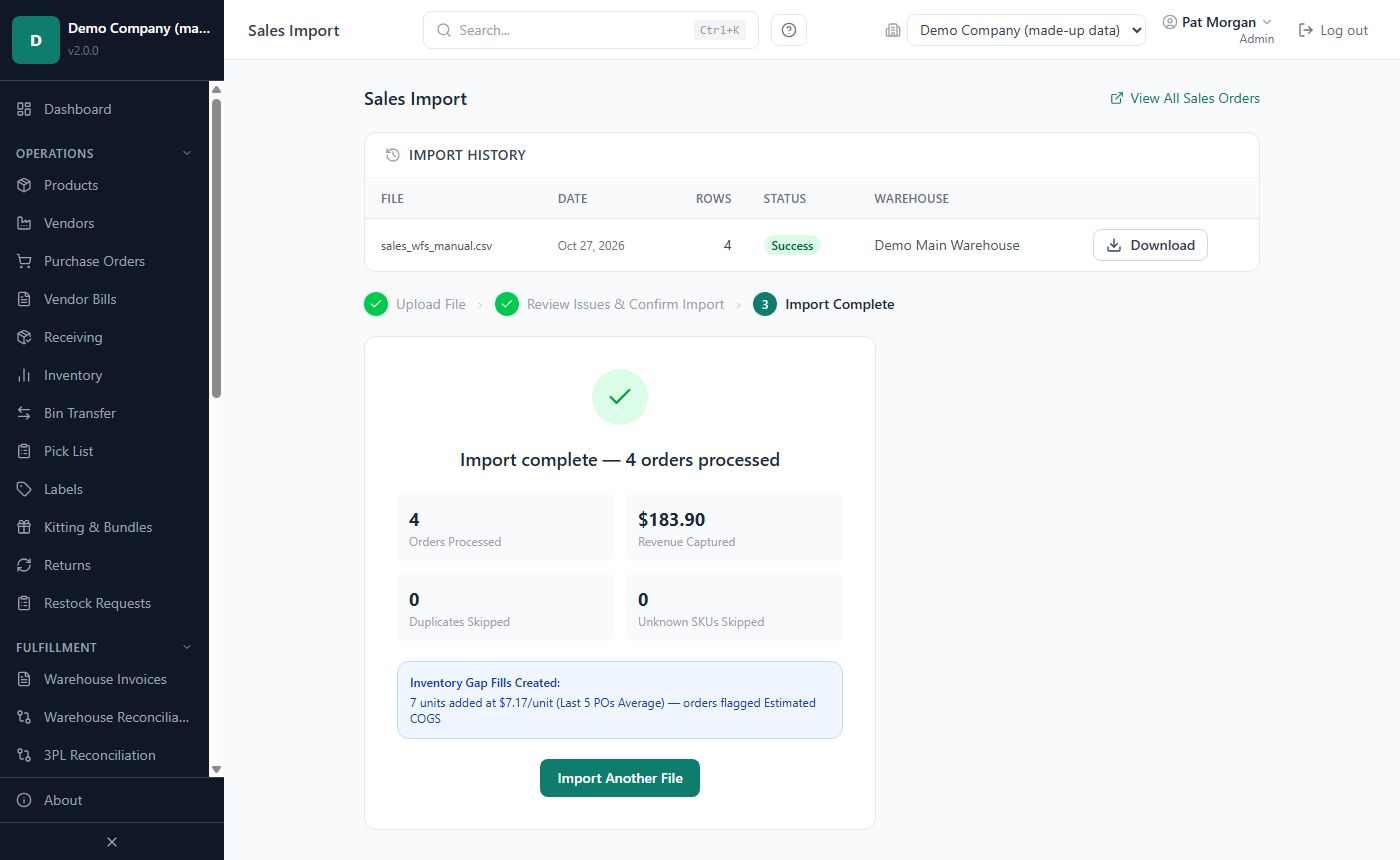
In the sidebar, click Sales Import. The page shows your Import History at the top and three steps: Upload File, Review Issues & Confirm Import and Import Complete.
If your company has more than one fulfillment warehouse, choose the one these sales shipped from under Fulfillment Warehouse. The default fulfillment warehouse is marked (Default). With only one, the page names it: "Sales will be matched against: … inventory".
If your company sells on more than one marketplace, choose under Tag the imported orders with the marketplace these orders belong to. This choice is only shown when two or more marketplaces are turned on (see Chapter 9). It only tags the orders: the file must still use the Walmart sales order layout (or one of your saved import templates). Amazon, eBay, Etsy and Shopify files have their own Beta imports: use Other sales files on this page (see How to import Amazon reports (Beta) and the sections after it).
Leave Import Template (optional) on Default Walmart sales order layout, unless your file uses different column names (see How to import files whose columns differ).
Drag your file onto Drop sales file here, or click that box and choose the file.
Click Upload & Preview.
Nothing is saved yet. The page now shows the preview.
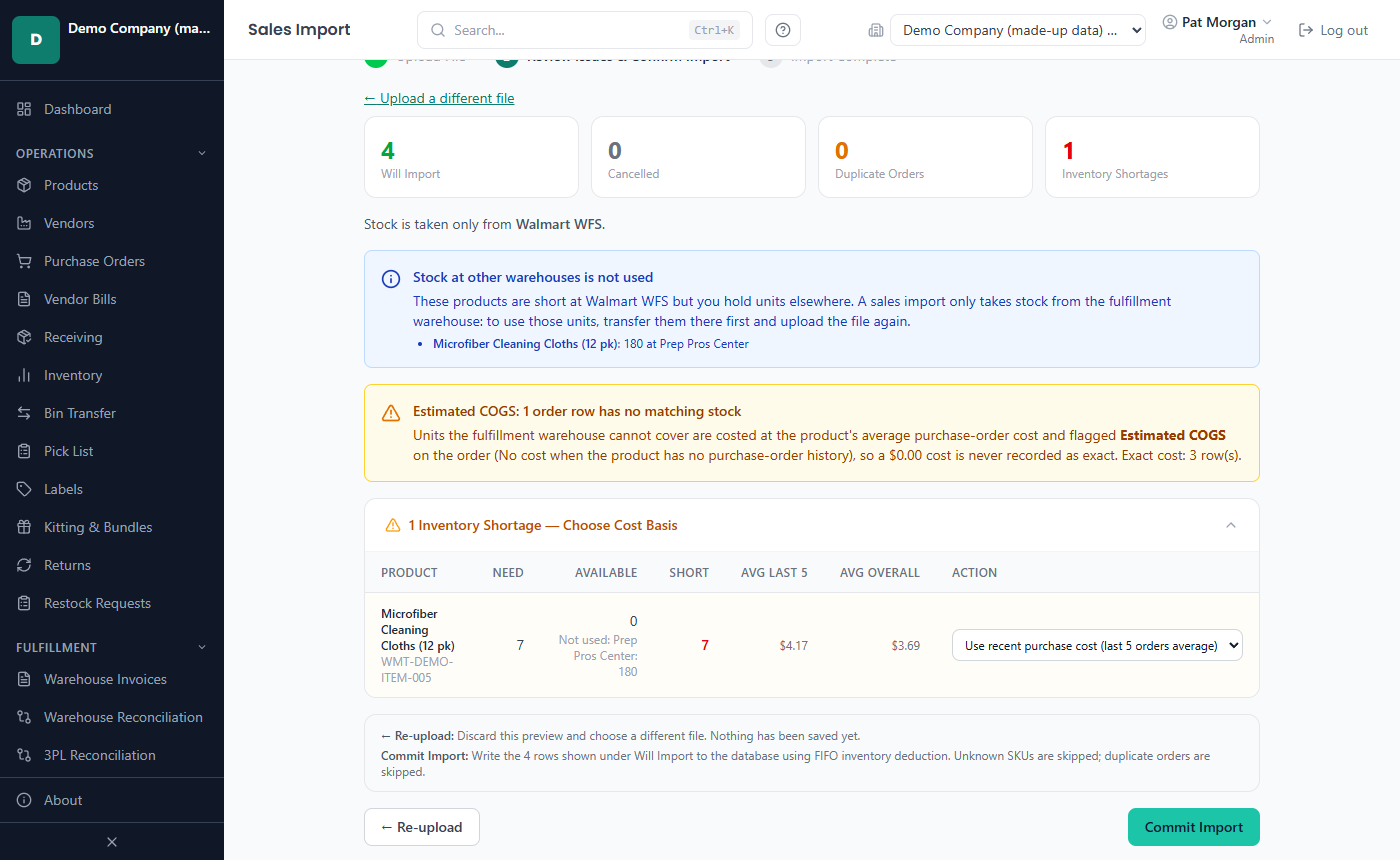
What the preview shows
Four counts at the top tell you what will happen:
- Will Import: the DELIVERED and SHIPPED lines that will be saved (unknown SKUs and duplicate orders not included).
- Cancelled: CANCELLED lines, kept for the Seller Performance report only. They take no stock and record no cost or revenue.
- Duplicate Orders: order lines already in LivingRoom. They are skipped unless you replace them.
- Inventory Shortages: products for which the fulfillment warehouse holds fewer units than the file sold.
The line "Stock is taken only from …" names the warehouse the import uses. Below it, only where they apply:
- … rows will not be imported: each line that cannot be imported, with its File line, Order #, Status and Reason (for example a missing order number, a quantity that is not a whole number, an invalid date, or a status other than DELIVERED or SHIPPED). Fix those lines in the file and upload it again.
- … Unknown SKUs — these rows will be skipped: Walmart item IDs that are not in your product catalog. Add those products with their Walmart Item ID (see Chapter 4) and upload the file again.
- Stock at other warehouses is not used: products that are short at the fulfillment warehouse while you hold units elsewhere. Transfer those units first and upload the file again.
- Estimated COGS: … order rows have no matching stock: units the stock on hand cannot cover. They are costed at the product's average purchase-order cost and flagged Estimated COGS.
- Cost Warning: … no purchase order history: products that have never been on a purchase order. Their average costs are $0.00, so their sales would look more profitable than they are.
- No fulfillment warehouse is set up. No stock is used and every unit is a shortage. Add one in Settings › Warehouses first.
- This period (…) has already been imported: an earlier import covered exactly the same dates. To import again anyway, tick Import this period again; orders already imported are still skipped.
- Nothing to import: every order is already imported or has an unknown SKU, so Commit Import stays off.
Duplicate orders. Admins and Managers see a box "… duplicate orders already in the database" with two choices:
- Skip them (keep the orders already imported): the default, and the only behaviour for other users.
- Replace them with this file's rows: the stored orders and their sold units are removed (the units go back to the batches they came from) and imported again from this file. Enter a Reason for the override, for example "Walmart corrected the quantity on these orders"; it is recorded in the audit trail.
How to handle inventory shortages
When the fulfillment warehouse cannot cover a product's units, the preview lists it under … Inventory Shortages — Choose Cost Basis. The table shows Product, Need (units sold in the file), Available (units at the fulfillment warehouse only; units elsewhere are shown as "Not used: …"), Short, Avg Last 5, Avg Overall and Action.
For each product, choose an Action:
- Use recent purchase cost (last 5 orders average): adds the missing units to the fulfillment warehouse at the average landed unit cost of the product's five most recent purchase orders, and then sells them. This is preselected for products that have purchase orders.
- Use all-time average purchase cost: the same, at the average over all of the product's purchase orders.
- Import without cost ($0 COGS): the units the fulfillment warehouse holds are sold first, at their own cost; only the short units are recorded at $0.00, and the orders that get such units are flagged No cost. Nothing is added to your stock. When the warehouse holds some units, the line under Action says so: "The … units in stock are used first at their cost; only the … short units are recorded at $0.00 (orders flagged No cost)."
The first two choices are gap fills: each is recorded as an inventory adjustment in the category "Sales Gap Fill", and orders that use gap-fill units are flagged Estimated COGS (their cost is an average, not a real batch's cost). There is no choice that cancels the import; to stop, click ← Re-upload.
Example. The file sells 30 units of Stainless Steel Water Bottle 32oz and your fulfillment warehouse holds 24, so 6 are short. You choose Use recent purchase cost (last 5 orders average), and Avg Last 5 is $7.25. LivingRoom adds 6 units at $7.25 ($43.50) to the fulfillment warehouse, and the import takes all 30 units: 24 from your batches at their own cost and 6 from the gap fill. With Import without cost ($0 COGS) instead, the 24 units come from your batches at their own cost and the 6 short units are recorded at $0.00.
Tip: With Import without cost ($0 COGS) the short units carry no cost, so the profit on those orders is overstated until you correct them. If the stock is at another warehouse or not yet received, transfer or receive it first and then import the file. A product with no purchase-order history starts on Import without cost ($0 COGS) ("⚠ No POs — $0.00 cost"); add a purchase order for it.
How to commit the import
- Check the counts, the shortage choices and any warnings.
- If the period warning is shown, tick Import this period again.
- Click Commit Import. The grey box above the button says how many rows will be written and which costing method is used ("… using FIFO inventory deduction").
A bar shows how far the import has got (Importing the sales orders). You can keep working meanwhile, also in other windows; if another import of this company is running, the bar waits for it to finish first.
The import is saved in parts of 2,000 lines. If something goes wrong part-way, the lines already saved stay saved and the page says so, for example: "The import stopped at line 4,001 of 9,500: … The first 4,000 lines were imported and saved. Import the same file again to finish: the lines already imported are skipped." The Import History then shows Partial. Fix the cause and import the same file again. If the app is closed or restarted during an import, the import stops with "The app was closed or restarted while this ran, so it was stopped and not finished. Start it again." - import the same file again in the same way.
When it succeeds, you see "Import complete — … orders processed" with Orders Processed, Revenue Captured, Duplicates Skipped, Unknown SKUs Skipped and, where they apply, Imported without cost, Cancelled orders recorded, Inventory Gap Fills Created, Estimated COGS notes and Errors. Click Import Another File, or View All Sales Orders to see the result.
Each DELIVERED or SHIPPED line is now a sales order. Its units were taken from batches at the fulfillment warehouse (see the next section), and a batch that reached 0 units is marked depleted. Settlement rows that were waiting for these orders are matched to them automatically.
To discard a preview instead, click ← Upload a different file or ← Re-upload; nothing has been saved.
The import history and the original file
The Import History table at the top of Sales Import lists the ten most recent sales imports: File, Date, Rows, Status (Success or Partial) and, when you have more than one fulfillment warehouse, Warehouse.
LivingRoom keeps a copy of every file you commit in the imports folder of your data folder (see Chapter 10); a preview you never commit leaves no copy. To get a file back, an Admin or Manager clicks Download on its row and saves the copy.
Tip: If the Walmart API is connected (see Chapter 9), a sales sync opens this page straight at the review step, with the note "Staged from the Walmart API (read-only)". The review and Commit Import work exactly as for a file. Such a preview also lists the imported orders Walmart has cancelled or refunded since (see Chapter 9), and a scheduled pull opens here the same way.
How sold units get their cost (FIFO and FEFO)
LivingRoom takes the units of each sale one by one from the batches at the fulfillment warehouse. The order depends on the costing method:
- FIFO (First In, First Out): the oldest received batch is used first. This is the default.
- FEFO (First Expired, First Out): the batch with the nearest expiry date is used first. Batches without an expiry date come after, oldest first.
Batches that are on hold are skipped (see Chapter 6). An Admin sets the method for the whole installation in Settings › Operational, under Inventory Costing Method. An Admin can also give one product its own method on the product page (see Chapter 4).
Each sold unit records the batch it came from and that batch's landed cost per unit (the purchase cost plus the shipping, fees and prep or warehouse fees allocated to it). Gross profit per unit is the unit sale price minus the landed cost. Net profit starts out equal to gross profit, less the fees typed on a manual order, and your settlement import lowers it by the fees Walmart charged (see How to import a settlement file).
Example. Your WFS warehouse holds two batches of a product. Batch A was received on 1 March: 4 units at $6.00 landed. Batch B was received on 20 March: 10 units at $6.50. A sales line sells 6 units for $119.94, which is $19.99 each.
- With FIFO, 4 units come from A and 2 from B. The cost is 4 × $6.00 + 2 × $6.50 = $37.00, and the gross profit is $119.94 − $37.00 = $82.94. Batch A is now depleted, and B has 8 units left.
- With FEFO, if batch B expires first, all 6 units come from B. The cost is 6 × $6.50 = $39.00.
Cost flags on an order
Some sales cannot be costed from a real batch. These orders carry an amber flag next to their Source in Sales Orders. Hover over the flag to read why.
| Flag | Meaning |
|---|---|
| Estimated COGS | Some units had no stock to cost from (a gap fill, or units the warehouse could not cover). They were costed at the product's average purchase-order cost. |
| No cost | Units were recorded at $0.00: the short units when you chose Import without cost ($0 COGS), or units of a product that has no purchase-order history. Profit on these orders is overstated. |
| Partially costed | A manual order or an edit was saved with Create Anyway or Save Anyway. The units beyond the available stock are recorded at $0.00. |
LivingRoom does not re-cost flagged orders automatically when stock arrives later. The flags let you find these orders when you review your margins.
How to find, view and edit sales orders
In the sidebar, click Sales Orders.
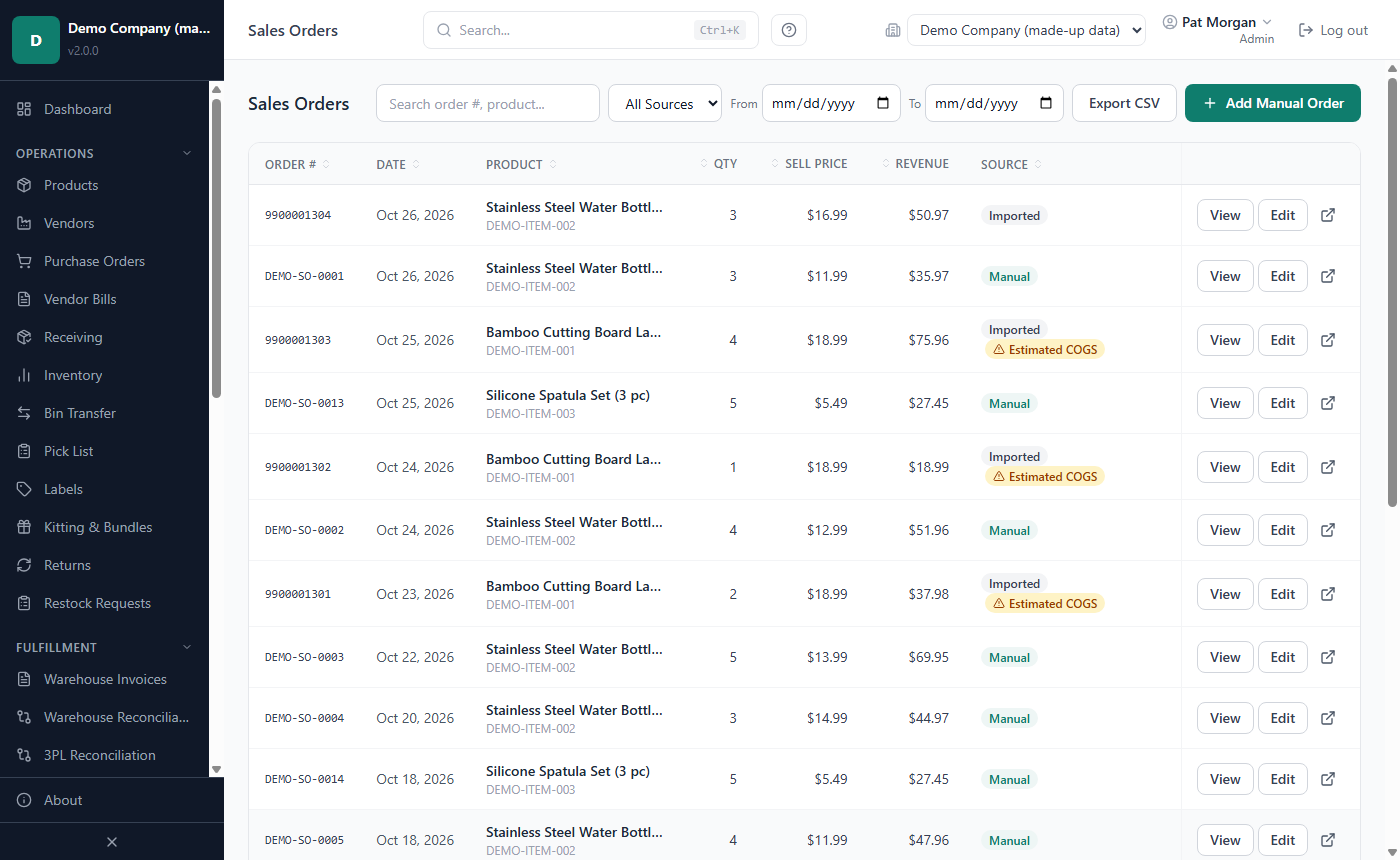
The list shows Order #, Date (the shipped date; for a manual order, the order date), Product (with its Walmart item ID), Qty, Sell Price, Revenue and Source (Imported or Manual, any cost flag, and Synced to QuickBooks once the order is in QuickBooks), 50 orders per page. Click a column header to sort.
To narrow the list, search by order number, product name or Walmart item ID, choose All Sources, Imported or Manual, or set From and To (shipped dates); Clear Filters shows everything again. Export CSV saves every order that matches your filters, not just the page on screen (a long list takes a moment: the file is prepared in the background and saved when it is ready). Cancelled orders are not listed; they only count in the Seller Performance report (see Chapter 8).
An order with several items has one row per line; the order number of such a line is followed by "~" and a line reference.
How to view an order
Click View on the row. The dialog shows the order number, date, product, quantity, Unit Price, Gross, Ships from, Source and Notes. Under Unit Assignments you see every sold unit with its Cost and Profit. Click Batch #… to open that batch on the product page (warehouse, purchase order, receipt date, lot and expiry). A unit that a customer returned to stock shows Returned (see Chapter 6). The arrow icon at the end of the row opens the product.
How to edit an order
Admins and Managers can correct an order, for example when Walmart changed a quantity or a price.
- Click Edit on the order's row. The dialog Edit Sales Order opens with the note "Changing quantity or price will update profit calculations in all reports."
- Change Sell Price ($), Qty Sold, Fees ($) or Notes. Leave Fees ($) blank to keep the current fees.
- Enter an Edit Reason of at least 10 characters.
- Click Save Changes.
What happens:
- A new price applies to every unit of the order; profit is recalculated in all reports, and settlement fees already charged are kept.
- Fees ($) on a manual order are the order's fees: they come off its profit and margin in every report at once, shared out over its units to the cent. The app keeps them as a settlement row of the order, "Fees typed on the order" (type ReferralFee); change them here, not on the Settlement Orders page. An order whose fees you typed gets no estimated marketplace fee on top.
- A higher quantity takes the extra units from the order's Ships from warehouse only, oldest or soonest-expiring batch first. If it does not have enough, Insufficient inventory appears: Save Anyway records the missing units at $0.00 (flag Partially costed); Cancel goes back to the form.
- A lower quantity removes the most recently added units and returns them to the batches they came from. Units that never came from stock ($0.00 or estimated units) are simply removed.
- Ships from: an older order with no warehouse recorded asks you to choose one when you raise the quantity. If the order's warehouse is no longer a fulfillment warehouse, you can choose another: the units go back to the stock they came from and are taken again at the new warehouse, which re-costs the order (the dialog warns you).
Every edit is recorded in the audit trail with your reason.
How to add a manual sales order
Use a manual order for a sale that is not in a Walmart sales file, for example a local sale or a replacement you shipped yourself. Admins and Managers can add one.
In Sales Orders, click Add Manual Order. The dialog Add Manual Sales Order opens.
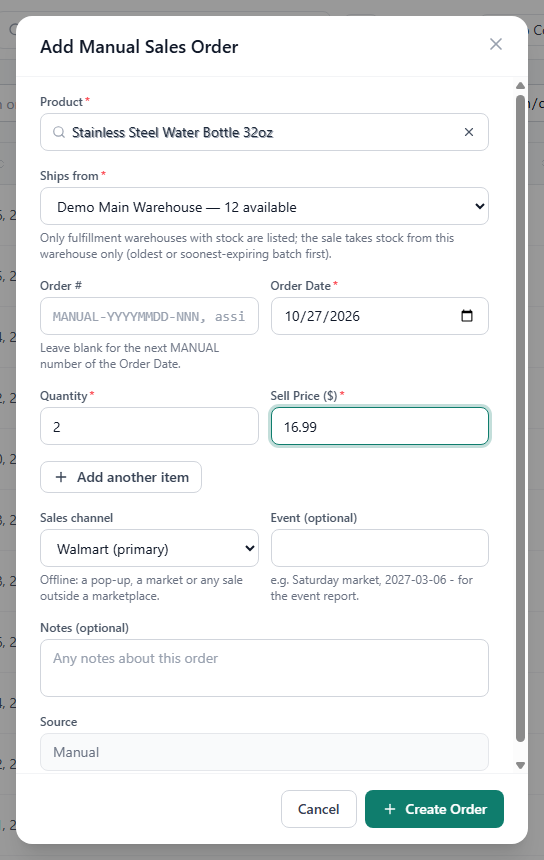
Under Product, type part of the product name or SKU and pick the product from the list. Only active products are listed.
Under Ships from, choose the warehouse the order ships from. The list only shows fulfillment warehouses that hold stock of this product, with the units available at each. The default fulfillment warehouse is preselected when it holds stock. If no fulfillment warehouse has any, the dialog says "No fulfillment warehouse holds stock of this product — transfer stock first."
Leave Order # blank to get the next number for the order date, such as MANUAL-20261014-001, or type your own unique number.
Set the Order Date.
Enter the Quantity and the Sell Price ($) per unit.
To sell several products in one order (for example at a market stall), click Add another item: the product goes into the order's list and the picker is free for the next one. Every item ships from the same warehouse.
Choose the Sales channel: your primary marketplace (the default) or Offline (pop-up, market) for a sale outside the marketplaces. Name the Event (optional), such as "Saturday market, 2027-03-06", to see it in the event report.
Add Notes (optional) if you like. The Source is always Manual.
Click Create Order.
The order appears in the list with the source Manual, and its units are taken from the Ships from warehouse only, oldest or soonest-expiring batch first. Revenue is quantity × sell price; for example, 3 units at $24.99 is $74.97.
If the warehouse holds fewer units than you entered, Insufficient inventory appears ("Only … unit(s) available, … requested."). Click Create Anyway to record the missing units at $0.00 (the order is flagged Partially costed; no stock is taken from another warehouse), or Cancel to change the order.
How to import a settlement file
Import each settlement report when Walmart publishes it. Import it after the sales files for the same period, so that the fees can be matched to their orders. Rows whose orders are not imported yet are kept and matched later.
When one Walmart order holds several products, each fee goes to the order line it belongs to (matched by the Walmart PO line and the product's GTIN), so every product carries its own fees in the profit reports. Fee lines imported before this version were corrected the same way the first time this version started.
In the sidebar, click Settlement Import. The steps are Upload File, Review Preview and Import Complete.
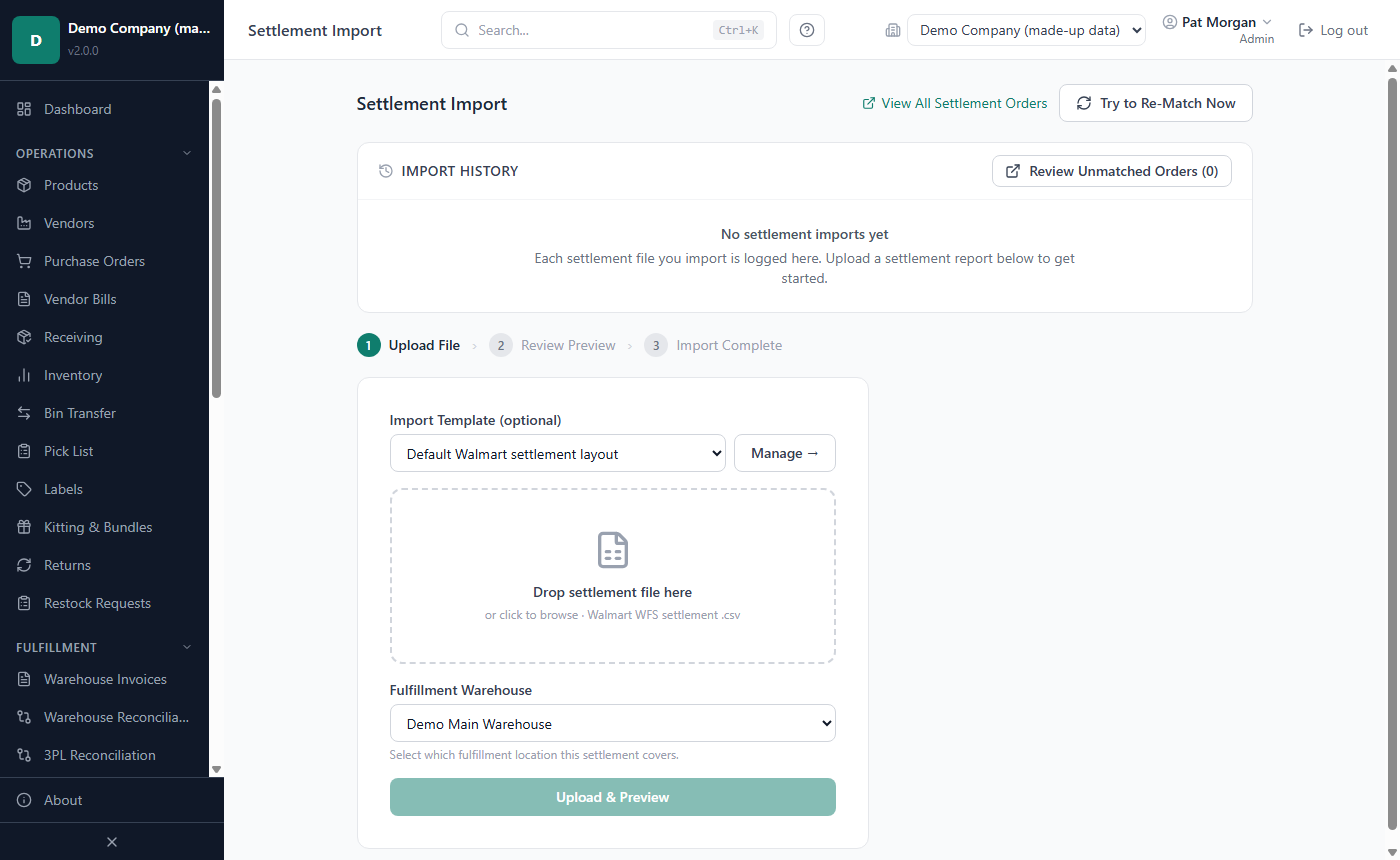
If your company has more than one fulfillment warehouse, choose under Fulfillment Warehouse the warehouse this settlement covers. With only one, the page says "Settlement will be tagged to: …".
Leave Import Template (optional) on Default Walmart settlement layout.
Drag the CSV file onto Drop settlement file here, or click the box and choose it.
Click Upload & Preview.
The preview shows the Reporting period and five counts:
- Total Rows: the new rows in the file (rows already imported are not counted).
- Matched Orders: orders found in your sales orders, with their number of rows (an order usually has a Sale row and one or more fee rows).
- Unmatched Orders: order numbers not imported yet. These rows are stored and matched later.
- Period Cost Lines: rows that belong to no order: storage fees, inbound transportation fees, lost, found or damaged inventory, return and disposal fees, and any row without an order number.
- Duplicate Rows: rows already imported (same WFSReferenceID); they are skipped.
A Summary by Transaction Type table shows the Rows and Net Payable of each type, and the unmatched order numbers are listed. If this reporting period was imported before, tick Import the new rows of this period anyway; only rows not yet stored are added.
- Click Commit Import. A bar shows the progress (Importing the settlement); a large settlement is saved in parts of 2,000 rows, exactly as a sales import (see How to commit the import).
You see "Settlement imported — … rows matched, … unmatched" with Rows Processed, Matched, Unmatched and Period Costs. Settlement rows that were waiting from earlier imports are re-matched at the same time.
What the settlement does to profit:
- Each fee or refund row of a matched order is divided by its quantity and charged to that order's sold units. A unit's net profit is its sale price minus its landed cost, its fees and any refund. Sale rows do not change net profit. Example: a unit sold for $19.99 with a landed cost of $6.00 has a net profit of $19.99 − $6.00 − $5.45 = $8.54 after a FulfillmentFee of $5.45.
- Period cost rows do not belong to an order. Your reports deduct them as Period Fees in the period of their transaction date (see Chapter 8). Walmart's report gives a storage fee (StorageFee) no transaction date: LivingRoom dates it on the last day of the settlement period, or, when the report names no period, on the date of its latest transaction.
- Walmart's LostInventory and DamageInWarehouse credits (and FoundInventory reversals) are reimbursements. They feed the Reimbursements page.
- A settlement import does not change your stock.
The payout check (payment report)
When you import Walmart's payment report (see Walmart's payment report (Beta)), the preview shows a Payout check line, for example: "Walmart paid $1,234.56. The app's figures account for $1,228.57 and $5.99 is named below: every cent is explained." Click Show the breakdown to see each part:
- Revenue the app booked for these orders: from your sales orders, not from Walmart's file, plus the shipping Walmart paid on orders you shipped yourself (shipping income).
- Each fee type: Commission (referral fees), WFS fulfillment fees, WFS storage fees, WFS inbound transportation fees, return fees, shipping labels.
- Refunds, Reimbursements and Adjustments.
- Sales tax collected and withheld (not profit): Walmart collects the sales tax and pays it for you, so it never changes your profit.
- Named amounts: money that is in Walmart's payment but not in your profit figures, with the orders it belongs to. For example, an order whose sales file is not imported yet, a row of a type LivingRoom does not know, or shipping Walmart paid on an order that already had other shipping income.
If any amount is left over, the line turns red and names it. A payment report whose rows do not add up to its Total Payable cannot be imported: download it again. After the import, the result shows the payout check again, for the rows as they are now saved.
What the payment report does to profit:
- The commission of each order line is charged to its sold units as a ReferralFee, so their net profit includes it. Where you set an estimated referral fee, the real commission takes its place.
- The shipping Walmart paid on an order you shipped yourself is added to that order's revenue as shipping income, once (importing the report again adds nothing). The commission Walmart takes on the shipping is part of the order's fees. If the sales orders are imported after the payment report, the shipping is added when they arrive. The result says "Shipping income added to N order line(s)".
- A refunded order counts its refund as a cost once, and the commission Walmart gave back lowers the fees.
- WFS fees that are already in an imported WFS settlement report are linked to those rows, not added again.
- Sales tax does not change profit.
The Import History on this page works like the one on Sales Import, with an extra Period column. Admins and Managers can Download the original file.
If the unmatched-fee e-mail alert is turned on (see Chapter 9), LivingRoom sends an e-mail after a settlement import when the unmatched fees reach your threshold.
How to deal with unmatched rows
A row is unmatched when its order number is not in your sales orders yet, usually because that sales file is not imported yet. Unmatched rows are matched automatically after every sales import and every settlement import.
- Import the missing sales file, or click Try to Re-Match Now at the top of Settlement Import to try again at once. The result reads "Rematch complete — … row(s) matched, … fee record(s) created."
- To look at the rows, click Review Unmatched Orders (…) (Admins and Managers). The dialog Unmatched Settlement Orders lists the Order #, Tx Type, Item and Amount. Click Search in Sales Orders → under an order number to look for it in Sales Orders.
- If a row will never match, for example an order from before you started using LivingRoom, an Admin or Manager ticks it, clicks Dismiss Selected and confirms with Dismiss. The row leaves the list.
- To bring a row back, click Dismissed in the dialog, tick the row and click Restore Selected.
How to view and correct settlement rows
In the sidebar, click Settlement Orders.
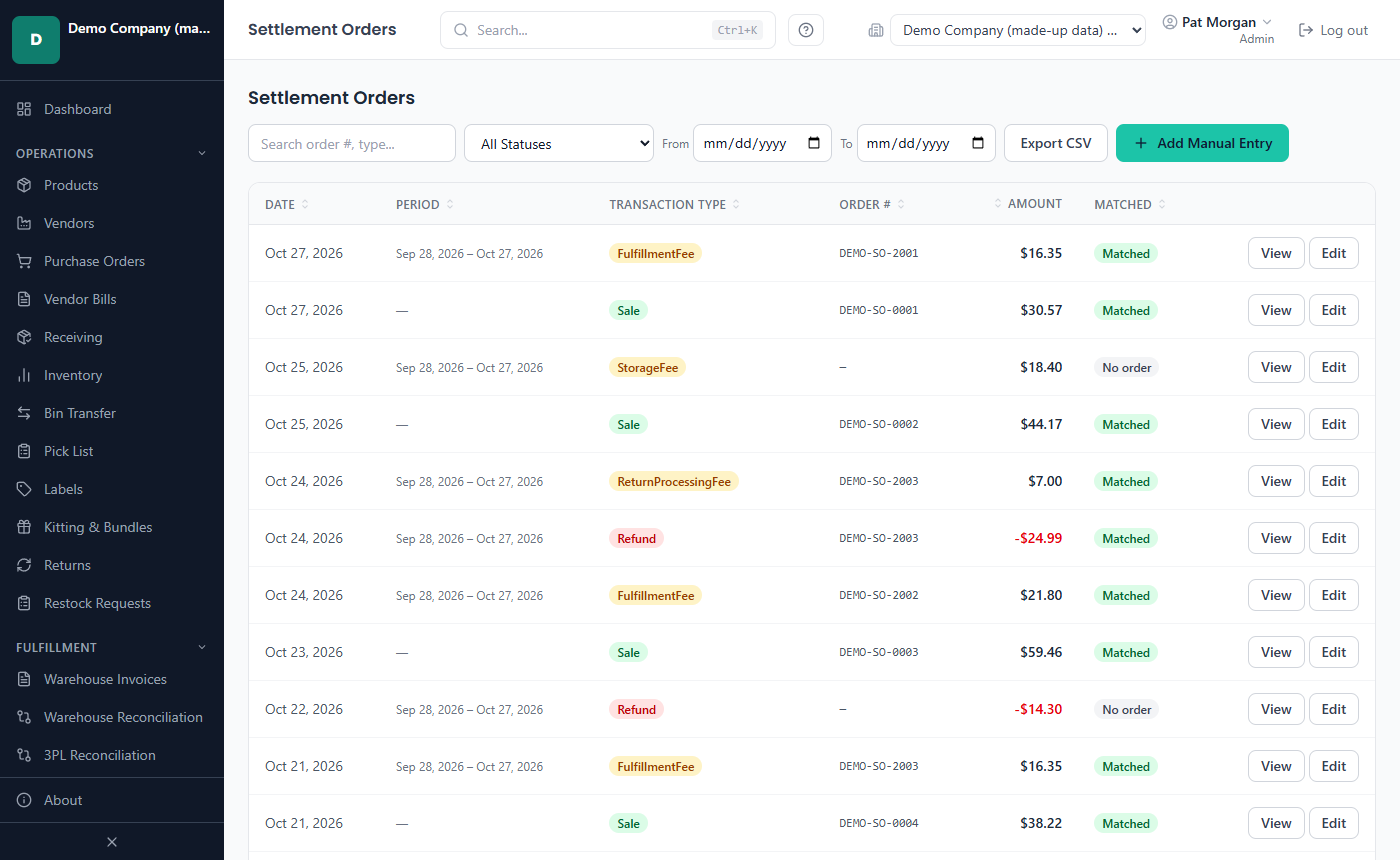
The list shows Date (the transaction date), Period, Transaction Type (Sale green, Walmart's fee types amber, Fee and Refund red, Adjustment blue), Order #, Amount and Matched. The status is Matched (linked to a sales order), Unmatched (its order is not imported yet; it is matched automatically after that order's sales import), No order (no order number, so a period cost) or Dismissed.
To narrow the list, search by order number or type, choose All Statuses, Matched, Unmatched, No order (period costs) or Dismissed, and set From and To (transaction dates). Clear Filters resets the list; Export CSV saves every matching row (prepared in the background, saved when it is ready). View shows a row's details, including the matched order and the reference note written by the import.
How to correct a row
Admins and Managers can correct a row's amount or type.
- Click Edit on the row. The dialog Edit Settlement Row opens.
- Change Amount ($), Transaction Type or Notes.
- Enter an Edit Reason of at least 10 characters.
- Click Save Changes. The row's fee records and the order's net profit are recalculated.
Rows marked Unclassified. When an import meets a transaction or fee type it does not know, it never guesses: the row is saved as Unclassified, with the file's own type shown under the badge ("File: …"). Such a row counts in no profit figure, fee total or QuickBooks export. Click Edit, enter the right Transaction Type and a reason, and save: the row then gets its fees and is matched to its order like any other row. A row from an eBay, Etsy or Shopify file shows that marketplace's sign while it waits (money paid to you is positive). When you choose its type and leave the amount as it is, the app turns it to its own signs: a fee becomes positive and lowers your profit, a credit becomes negative and raises it.
How to add a manual settlement entry
Use a manual entry for a charge or credit that is not in a settlement file. Admins and Managers can add one.
- Click Add Manual Entry. The dialog Add Manual Settlement Entry opens.
- Choose the Transaction Type: Sale, Refund, Adjustment, Fee or Other.
- Enter the Transaction Date and the Amount ($).
- Enter the Order # (optional). An order that is already imported is matched when you save. An entry without an order number is a period cost.
- Add Notes (optional) and click Create Entry.
Amounts follow the signs of Walmart's settlement file, whatever sign you type: a Fee is saved as positive and lowers net profit; a Refund is saved as negative and counts as a cost; a Sale is positive and does not change unit net profit; for Adjustment and Other, positive is a charge to you and negative a credit.
How to check Walmart reimbursements
When Walmart loses or damages units in its fulfillment centers, it should pay you for them. The Reimbursements page shows, product by product, how many units are missing and how many Walmart has paid for, so you know where a claim may be due. For each product it compares:
- Missing = Written off (the units you wrote off with Accept Walmart's Count on the Warehouse Reconciliation page) + the current shortfall (your units at Walmart WFS minus the units Walmart shows at the latest sync).
- Reimbursed units and Reimbursed $: what Walmart paid in your settlement files (LostInventory and DamageInWarehouse credits), minus what it took back (FoundInventory).
- Unreimbursed = Missing − Reimbursed units.
- Est. recovery = Unreimbursed × your average landed cost. Walmart's actual reimbursement rate may differ.
Each product gets a Status: Possible claim (units are still unaccounted for), Reimbursed (Walmart has paid for all the missing units) or OK (nothing missing; reimbursement history only).
Only stock at warehouses whose Fulfillment Platform is Walmart WFS counts. The page needs at least one Warehouse Reconciliation sync, which needs the Walmart API connection (see Chapter 6 and Chapter 9).
Run a sync on the Warehouse Reconciliation page and resolve its differences (see Chapter 6).
Import your latest settlement files, so that Walmart's payments are known.
In the sidebar, under Analytics, click Reimbursements.
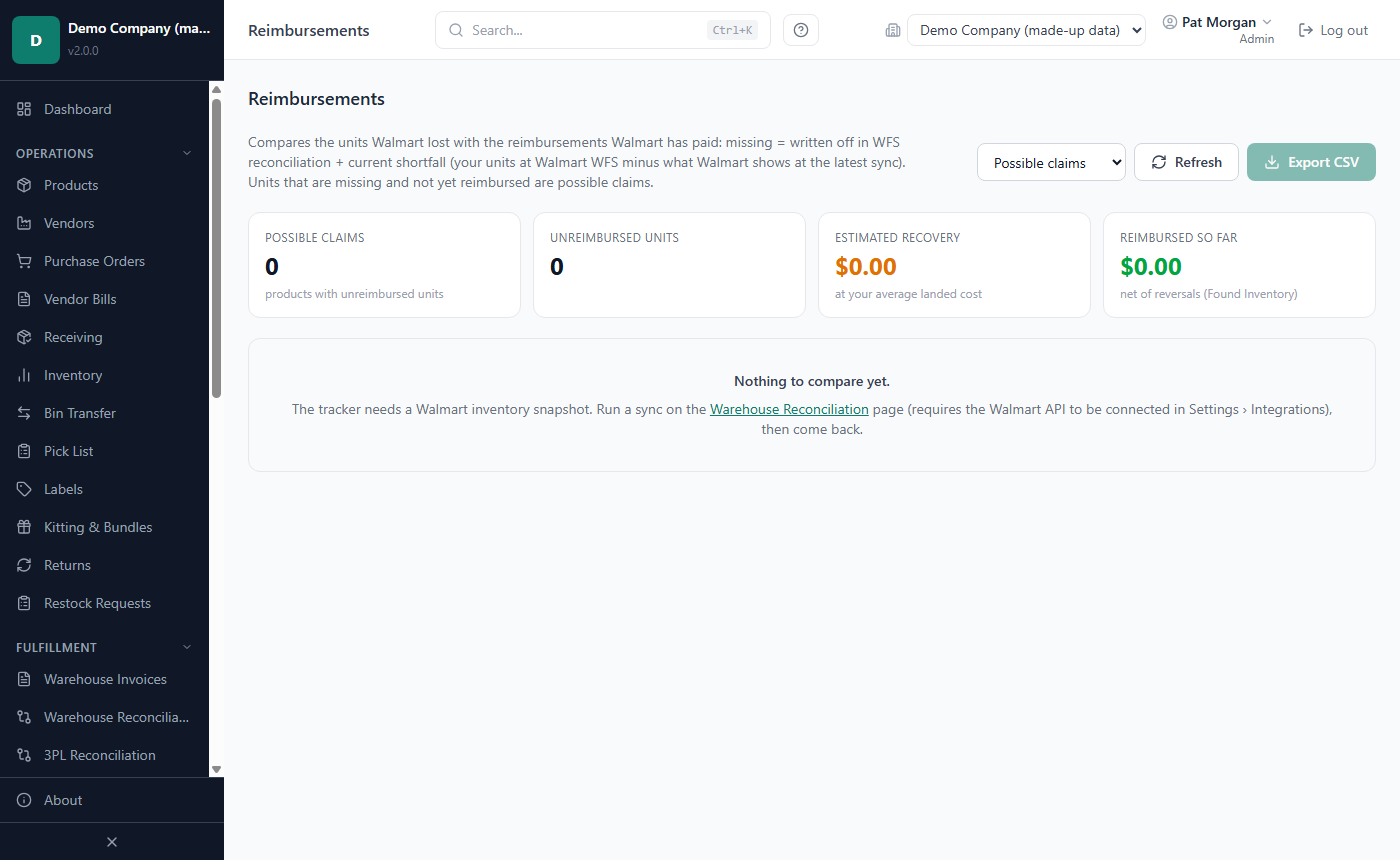
Read the four cards: Possible claims, Unreimbursed units, Estimated recovery and Reimbursed so far.
Use the filter to show Possible claims (the default), Reimbursed, OK (history only) or All. Click Refresh to reload the figures.
For each possible claim, open a case with Walmart. This is done in Walmart Seller Center, not in LivingRoom. Export CSV saves the rows on screen, which is handy for your case.
When Walmart pays, the credit appears in a later settlement file. After you import it, the product moves to Reimbursed.
The line under the table names the Walmart inventory snapshot the figures are based on. If the page says "Nothing to compare yet.", run a Warehouse Reconciliation sync first. In the All Companies view, the page adds up the companies selected on the Reports page.
Tip: Walmart's reimbursement rows are matched to your products by the settlement's Partner GTIN (or, failing that, the item name). Keep each product's GTIN filled in so that payments are credited to the right product.
How to import Amazon reports (Beta)
If you also sell on Amazon, import the reports you download from Amazon Seller Central on the Amazon Import page (Sales Import › Other sales files › Amazon reports). Amazon orders and fees are kept apart from your Walmart ones: the Profitability report can show each marketplace on its own. The import is marked Beta until a real Amazon file from a beta tester has been checked with it: compare the preview with the report before you import, and tell support if anything differs.
Set up your Amazon FBA warehouse first (Settings › Warehouses: role Fulfillment, platform Amazon FBA) and receive your FBA stock there.
- Open the tab of the report: Settlement, Orders, Reimbursements or Returns. Each tab says where the report is in Seller Central. Download it as a tab-delimited text file (.txt) and do not change it.
- Choose the file (for orders, also which orders - Fulfilled by Amazon (FBA) or Merchant-fulfilled - and the warehouse they ship from) and click Check File. Nothing is saved yet.
- Read the preview. A seller SKU that is not linked to a product is listed: find the product for it and click it - the link is remembered for next time - and the file is checked again.
- Click Import.
What each report does:
- Orders (All Orders, or Amazon Fulfilled Shipments): each shipped order becomes a sales order (its number starts with "amazon:"), and its units are taken from the warehouse you chose, first in first out. Cancelled orders are recorded for the count only; orders not shipped yet are left for a later file. Import orders before the settlement that pays them. In the Fulfilled Shipments report, each shipment of an order is its own line: a shipment that comes in a later file is imported too, and the settlement puts each shipment's fees on its own units. The preview may also list lines the app takes for lines already imported but cannot prove are the same shipment - for example a shipment of an order you imported from the All Orders report. Compare their units with the report before you import.
- Settlement (Flat File V2): the fees, refunds, reimbursements and other charges of one Amazon payout. The rows must add up to the deposit the report states, and each settlement can be imported only once. A refund becomes one row with what it cost you; a fee Amazon gives back on a refund lowers that fee. A charge the app does not know yet is saved as Unclassified (see How to correct a row). Amazon's old V1 and XML settlement reports are not accepted (Amazon retires them on 2026-11-11).
- Reimbursements: one row per reimbursement with its reason, case and units - without an amount, because the money already comes with the settlement report.
- Returns (FBA customer returns): a sellable unit goes back to your FBA stock; a damaged or defective one is written off. Each returned unit is recorded once, however often you import the file.
Coming soon: straight from Amazon. A connection to Amazon itself is built and shows Coming soon until it has been tested with a real seller account. Once it is switched on, the page offers From Amazon (API) next to From a file: an Admin signs in once with the Amazon seller account (Sign in with Amazon opens Seller Central in your browser). Then:
- Settlement: Show Amazon's settlements lists the settlement reports of the last 90 days; choose one and click Pull from Amazon.
- Orders, Reimbursements and Returns: choose From and To dates (up to a year) and click Pull from Amazon. Amazon prepares the report within minutes - 30 days of orders at a time, so a longer period is asked for in parts - and a progress bar shows how far it has got; you can leave the page open while it waits.
The app reads exactly the report you would download, with the same checks and the same preview as a file, and nothing is saved until Import. A settlement, an order, a return or a reimbursement already imported from a file is shown as already imported, so nothing counts twice. Nothing is ever changed at Amazon. The same page can then compare FBA stock (Amazon's units beside yours at the FBA warehouse; nothing is changed) and read your Listings to save each product's ASIN. Amazon asks you to sign in again once a year; the page reminds an Admin a month before. Only the Amazon.com (US) store is read. Until then, use the files.
How to import eBay reports (Beta)
If you also sell on eBay, import the reports you download from eBay Seller Hub on the eBay Import page (Sales Import › Other sales files › eBay reports). eBay orders and fees are kept apart from your other marketplaces. The import is marked Beta until a real eBay file from a beta tester has been checked with it: compare the preview with the report before you import, and tell support if anything differs.
- Open the tab of the report: Transactions or Orders. Each tab says where the report is in Seller Hub. Download it as a .csv file and do not change it.
- Choose the file (for orders, also the warehouse they ship from) and click Check File. Nothing is saved yet.
- Read the preview. A seller SKU (eBay's custom label) that is not linked to a product is listed: find the product for it and click it - the link is remembered for next time - and the file is checked again.
- Click Import.
What each report does:
- Orders (Seller Hub › Orders › Download report): each shipped order becomes a sales order (its number starts with "ebay:"), and its units are taken from the warehouse you chose, first in first out. Orders not shipped yet are left for a later file. The report's last line says how many records it holds; a file that holds fewer is refused as cut off. Import orders before the transactions that pay them.
- Transactions (Seller Hub › Payments › Reports): the fees, refunds, shipping labels, promoted listings and payouts of a period. When you create the report, keep the Transaction details, Payout details and Item details and the fee columns switched on (Customize column settings): a file without one of them is refused and the message names it. Each payout in the file must add up: the rows of a payout must come to what eBay paid out, or the file is refused. A payout whose first rows are before the report's start date cannot be checked; the preview says so. A charge the app does not know yet is saved as Unclassified (see How to correct a row). Importing the same rows again adds nothing; a later report gives rows imported before their payout the payout they belong to.
Coming soon: straight from eBay. A connection to eBay itself is built and shows Coming soon until it has been tested with a real seller account. Once it is switched on, the page offers From eBay (API) next to From a file: an Admin signs in once with the eBay seller account (Sign in with eBay opens eBay's sign-in in your browser), then you choose From and To dates (at most about three months at a time) and the app reads the same transactions and orders from eBay. The preview and its checks are the same as for a file, nothing is saved until Import, and nothing is ever written to eBay. Until then, use the files.
How to import Etsy files (Beta)
If you also sell on Etsy, import the files you download from Etsy's Shop Manager on the Etsy Import page (Sales Import › Other sales files › Etsy reports). Etsy orders and fees are kept apart from your other marketplaces. The import is marked Beta until a real Etsy file from a beta tester has been checked with it.
- Open the tab of the file: Monthly statement or Order Items. Each tab says where the file is in Shop Manager.
- Choose the file. For a monthly statement, also type the month's net as Etsy's monthly statement page shows it; for order items, choose the warehouse they ship from. Click Check File. Nothing is saved yet.
- Read the preview and link any SKU that is not linked to a product yet, as for eBay.
- Click Import.
What each file does:
- Order Items: each shipped order becomes a sales order (its number starts with "etsy:", so an Etsy order never mixes with a Walmart order of the same number), taken from the warehouse you chose. An order discount is shared between the order's items. Import orders before the statement that pays them.
- Monthly statement: the month's sales, fees, refunds, Etsy Ads, shipping labels and deposits. No Etsy file states its own total, so the import compares the month's net you typed with the file: if they differ by even a cent, the file is refused and the difference is shown. Only the kinds of rows Etsy is known to write are read; any other row is saved as Unclassified, and the sales tax Etsy collects and your deposits are kept without counting as income or cost.
Coming soon: straight from Etsy. As for eBay, a connection to Etsy itself is built and shows Coming soon until it has been tested with a real shop. Once it is switched on, the page offers From Etsy (API): an Admin signs in once with the Etsy shop (Sign in with Etsy), then you choose the dates and the app reads the shop's statement rows and orders - the same preview and checks as a file, nothing saved until Import, nothing written to Etsy. Etsy requires your software provider's key on every request, so these reads pass through the provider's connection service on their way to you (see Privacy).
How to import Shopify exports (Beta)
If you also sell in your own Shopify store, import the exports you download from your Shopify admin on the Shopify Import page (Sales Import › Other sales files › Shopify exports). Shopify orders and fees are kept apart from your other marketplaces. The import is marked Beta until a real Shopify file from a beta tester has been checked with it: compare the preview with your Shopify admin before you import.
- Open the tab of the export: Orders or Shopify Payments. Each tab says where the export is in the Shopify admin.
- Choose the file. For orders, also choose the warehouse they ship from (Ships from). For Shopify Payments, type the file's net: the sum of the transactions' Net column, or of the payouts they make up, as Shopify shows it. If the file has refunds, also choose the Orders export that holds their orders (optional, see below). Click Check File. Nothing is saved yet.
- Read the preview and link any SKU that is not linked to a product yet, as for eBay.
- Click Import.
What each export does:
- Orders (Shopify admin › Orders › Export, "CSV for Excel" or "Plain CSV file"): each fulfilled line becomes part of a sales order (its number starts with "shopify:"), and its units are taken from the warehouse you chose, first in first out. A line not fulfilled yet waits for a later file; a cancelled order is not imported. The order's shipping counts as shipping income, shared out over its lines; taxes are never counted as revenue. Import orders before their payments, so the fees find their orders.
- Shopify Payments (Shopify admin › Settings › Payments › View payouts › Transactions › Export): the payment fees, refunds, disputes and payouts. No Shopify file states its own total, so the import compares the net you typed with the file: if they differ by even a cent, the file is refused. A sale's amount here is not counted again (its revenue comes from the Orders export), and payouts, transfers and reserves are money moved, not income or cost. A row the app does not know yet is saved as Unclassified (see How to correct a row). Importing the same rows again adds nothing.
Orders paid through another gateway (PayPal, a manual payment and so on) have no Shopify fee file. The orders preview says how many there are: their payment fees are not imported (enter them as settlement rows if you track them), and their refunds are taken from the Orders export, dated by the order.
The sales tax in a refund. A refund (or a dispute) gives the buyer the sales tax back too. That tax was never your revenue, so it is not a refund cost: the program books the order's share of it as a separate Sales tax given back row, which no profit figure counts. The share is the refund times the order's Taxes divided by its Total, from the Orders export. It is exact when the whole order is refunded and an estimate for a partial refund. Shopify Payments refunds need the Orders export chosen with the Payments file for this; without it, or for an order that is not in it, the tax stays in the refund's cost and the preview says so.
Coming soon: straight from Shopify. A read-only connection to Shopify itself is built and shows Coming soon until it has been tested with a real store that uses Shopify Payments. Once it is switched on, the page offers From Shopify (API) next to From a file: an Admin connects the store once, then you choose From and To dates and click Read from Shopify. The app reads the period's fulfilled orders and its Shopify Payments transactions - the same preview and checks as a file, nothing saved until Import. Nothing is ever written to Shopify, and no customer names, addresses or e-mails are read. Until then, use the files.
Shipping the buyer paid (Amazon, eBay, Etsy)
The shipping a buyer pays on an Amazon, eBay or Etsy order is income, and the shipping labels you buy stay a cost (the fee type Shipping labels). The program reads the shipping from the orders files and connections
the same rows that give the order's sales - and keeps it apart from the product amount:
Amazon (All Orders, Fulfilled Shipments): the shipping price less its shipping promotion, plus gift wrap (Amazon charges the gift wrap back as a shipping fee, so the two offset). Shipping tax is never income.
eBay (Orders report): Shipping And Handling. On an order of several items eBay writes it once, on the order's own line; it is shared out over the items by their value.
Etsy (Order Items): Order Shipping less Shipping Discount, taken once per order (Etsy repeats it on each line of the order) and shared out over the lines by their Item Total.
The eBay and Etsy connections read the same amounts from the marketplace.
Walmart: the orders file has no shipping. On an order you ship yourself, the shipping Walmart paid you is read from Walmart's payment report (see Walmart's payment report (Beta)), once per order line. On WFS orders Walmart keeps the shipping and charges you its fulfillment fee, so they have none.
Each order line stores its shipping, and each of its units its share (the shares add up to the line exactly). Revenue, gross profit, net profit and margin include it; the reports show it in a Shipping income column. The settlement and statement files' shipping parts stay out of the figures (Walmart's payment report is the one exception, as no other Walmart file has the shipping), so nothing is counted twice. A cancelled order has no shipping income; shipping you refund is part of the refund.
Orders imported before this version have no shipping. Import the same orders file again: the program recognises the orders it already has and gives each of them its shipping - nothing else changes (no unit, no stock). The summary says Shipping added to N order line(s).
How to import files whose columns differ
Two tools let LivingRoom read a file whose column headers are not Walmart's standard ones:
- Settings › Column Mapping: the column names this company's sales and settlement imports expect by default. Change them when Walmart renames a column.
- Import Templates: named column mappings that you pick for one import, or that are picked for you when a file matches.
How to change the column mapping
Admins and Managers can change the mapping. It is stored for each company and applies to the company that is active.
Open Settings and click the Column Mapping tab.
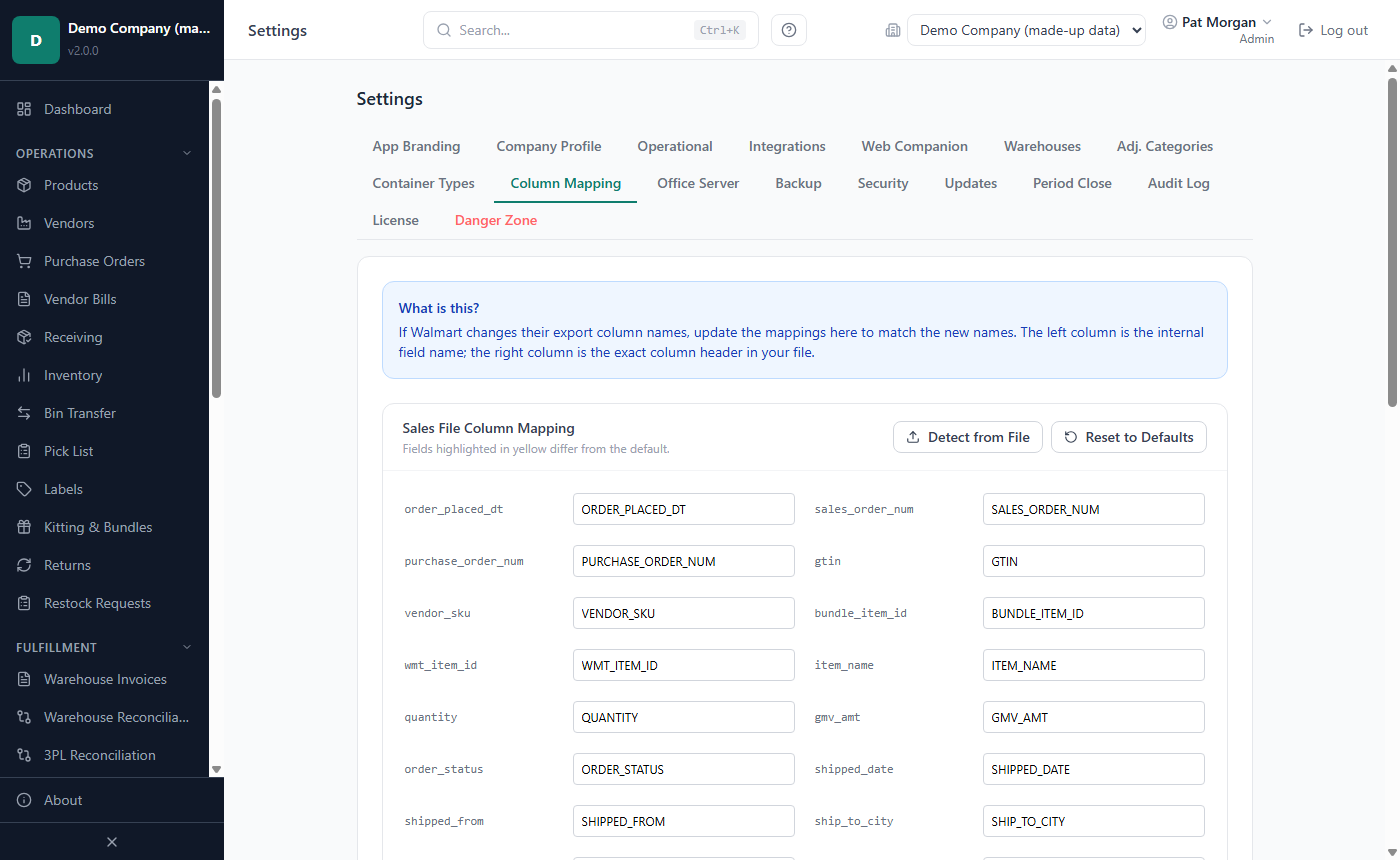
In Sales File Column Mapping or Settlement File Column Mapping, each line pairs an internal field name (left) with the exact column header in your file (right). Fields that differ from the default are highlighted in yellow; hover over the pencil icon to see the default.
Type the new header next to the field. Or click Detect from File, choose a sample file, and LivingRoom fills in the best matches from its headers ("Detected … columns. Best-match auto-fill applied. Review and save."). Check every line.
Click Save under that table.
For sales files, upper and lower case do not matter. For settlement files, type the header exactly as it appears in the file. Reset to Defaults puts back Walmart's standard names; click Save afterwards to keep them.
Ignored Order Statuses. Lines with these statuses are skipped during a sales import. To add one, type the status (for example a status Walmart introduced) and click Add. To remove one, click its ×. Then click Save Ignored Statuses.
- DELIVERED and SHIPPED are always imported and cannot be ignored.
- CANCELLED lines are always kept for the Seller Performance report, without stock, cost or revenue, whatever this list says.
- A status that is neither imported nor ignored is listed in the preview under "rows will not be imported". Adding it here skips it without a message.
How to use import templates
In the sidebar, click Import Templates. You can also click Manage → next to the template choice on Sales Import or Settlement Import.
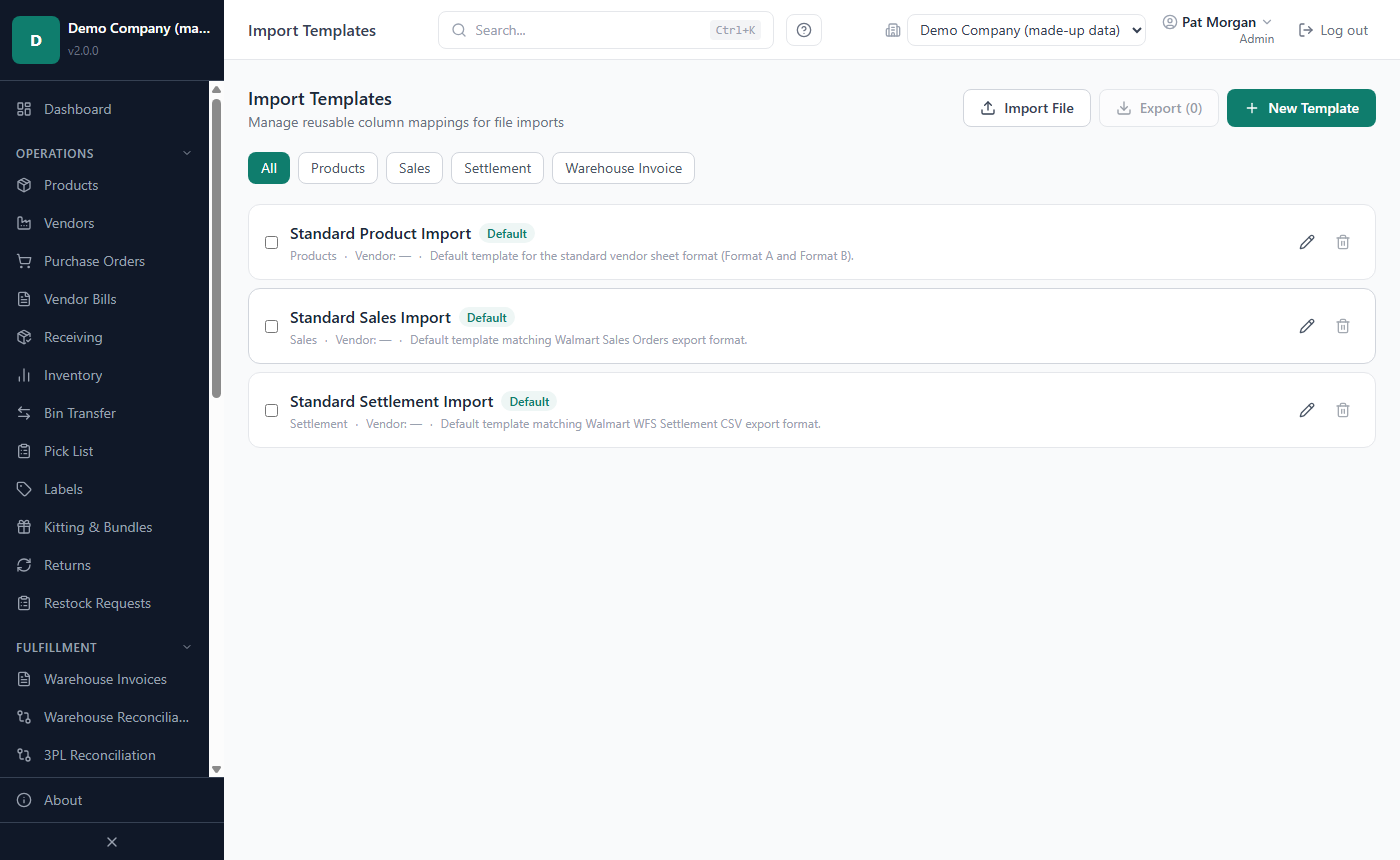
Filter the list with All, Products, Sales, Settlement or Warehouse Invoice. Each row shows the template's type, vendor and description. Templates marked Default (such as Standard Sales Import and Standard Settlement Import) cannot be deleted.
Admins and Managers can also use Import File (load templates from a .weitemplates file, for example one exported from another LivingRoom installation; a name that already exists is skipped), Export (…) (tick templates first), New Template or the pencil icon (Name, Import Type, File Format, Duplicate Action, Partial Import Action, Description), and the bin icon to delete a template after confirming.
The template form does not edit column mappings: they "come with templates imported from a .weitemplates file". To make your own sales or settlement layout permanent, change Settings › Column Mapping instead.
Using a template on Sales Import or Settlement Import. Choose it under Import Template (optional) before you upload, or let LivingRoom compare the chosen file's headers with your saved templates:
- One strong match is used automatically ("Matched template: … High confidence (…%)"). Click Don't use it to go back to the default mapping.
- A weaker match, or several strong ones, is offered with Use this template.
- With no match: "No saved import template matches the columns of …; the default column map is used."
On these two pages only the template's column mapping is used; its Duplicate Action and Partial Import Action do not change the sales or settlement preview.
How to use the Import Wizard
The Import Wizard (sidebar, Imports & Orders) is one place to start any import. It recognises the file, picks your saved import template when one matches it (or helps you make one), shows a preview and imports it. It works in one company at a time (not in the All Companies view) and shows only the imports your role may do.
Open Import Wizard.
Under Import Type, pick what the file is, or leave Auto-detect. You see only the types your role may import.
Drop the file on the box, or click it and choose the file (.csv, .txt, .tsv, .xlsx or .xls; an .xls file is not recognised by itself, so pick its type).
Template. Template auto-matched: click Continue →. Possible match found: Apply This Template, or Pick Different. When no saved template matches (No saved template matches this file.), click Create New Template (or Select from All Templates to pick one yourself):
- Column Mapping: give it a Template Name and choose, for each field (the required ones are marked), the column of your file that holds it. Click Save and preview - or, for a product spreadsheet, Next: Transforms → first.
- Transforms (product spreadsheets only): change values on the way in - for example Date Format, Multiply by, Text Replace or Default if Empty. Click Save and preview →.
The mapping is saved as an import template under its name (saving a template needs an Admin), and the file is read with it; the next file in the same layout is matched by itself (see How to use import templates). A product CSV file is read by its column names (Product Name, Brand, …): the wizard offers Continue with the column names instead; to map its columns, save it as an .xlsx file first.
Preview. The rows, the errors and what will happen. Rows with errors: Import valid rows only, or Cancel — fix errors first. A sales or settlement period imported before: tick Import this period again (sales) or Import the new rows of this period anyway (settlement) to go on. Sales files say "Stock is taken only from …" (your fulfillment warehouse).
Click Proceed to Import →. A bar shows the progress; at the end "Import complete — …" with Import Another File. If it fails, ← Back to Preview. Start Over begins again at any time.
What it imports itself:
- Walmart sales files, the same way as Sales Import. If a product does not have enough stock at the fulfillment warehouse, the preview shows the same Inventory Shortages — Choose Cost Basis table as the Sales Import page: recent purchase cost, all-time average purchase cost, or Import without cost ($0 COGS).
- Walmart settlement files.
- Product files: every row gets the action the preview suggests (to choose per row, use Upload Products on the Products list).
Orders already imported are always skipped.
Files with their own page. These are recognised and sent to their own page, which checks them the way they need:
- Amazon, eBay and Etsy reports;
- bulk purchase-order files;
- warehouse invoices.
The wizard shows a card naming the report with Open …. Choose the file again on that page. If your role cannot use that page, the card says so.
The wizard's results are the same as the import page's. A large file is imported in the background with a progress bar. If an import stops part-way, its message tells you how far it got: import the same file again to finish (nothing is imported twice).
Related chapters
- Chapter 4 — Products: Walmart Item ID, GTIN and a product's own costing method.
- Chapter 5 — Vendors, purchasing, receiving and prep centers: purchase orders, landed cost and setting up warehouses.
- Chapter 6 — Inventory: transfers to the fulfillment warehouse, batches on hold, returns and Warehouse Reconciliation with Walmart WFS.
- Chapter 8 — Reports and dashboards: profitability, Period Fees and Seller Performance.
- Chapter 9 — Integrations: the Walmart API, QuickBooks and e-mail alerts.
- Chapter 10 — Settings, backups and updates: the Inventory Costing Method and where import copies are kept.